Connecting Sensors
8 Vernier Software & Technology
Wireless Sensors
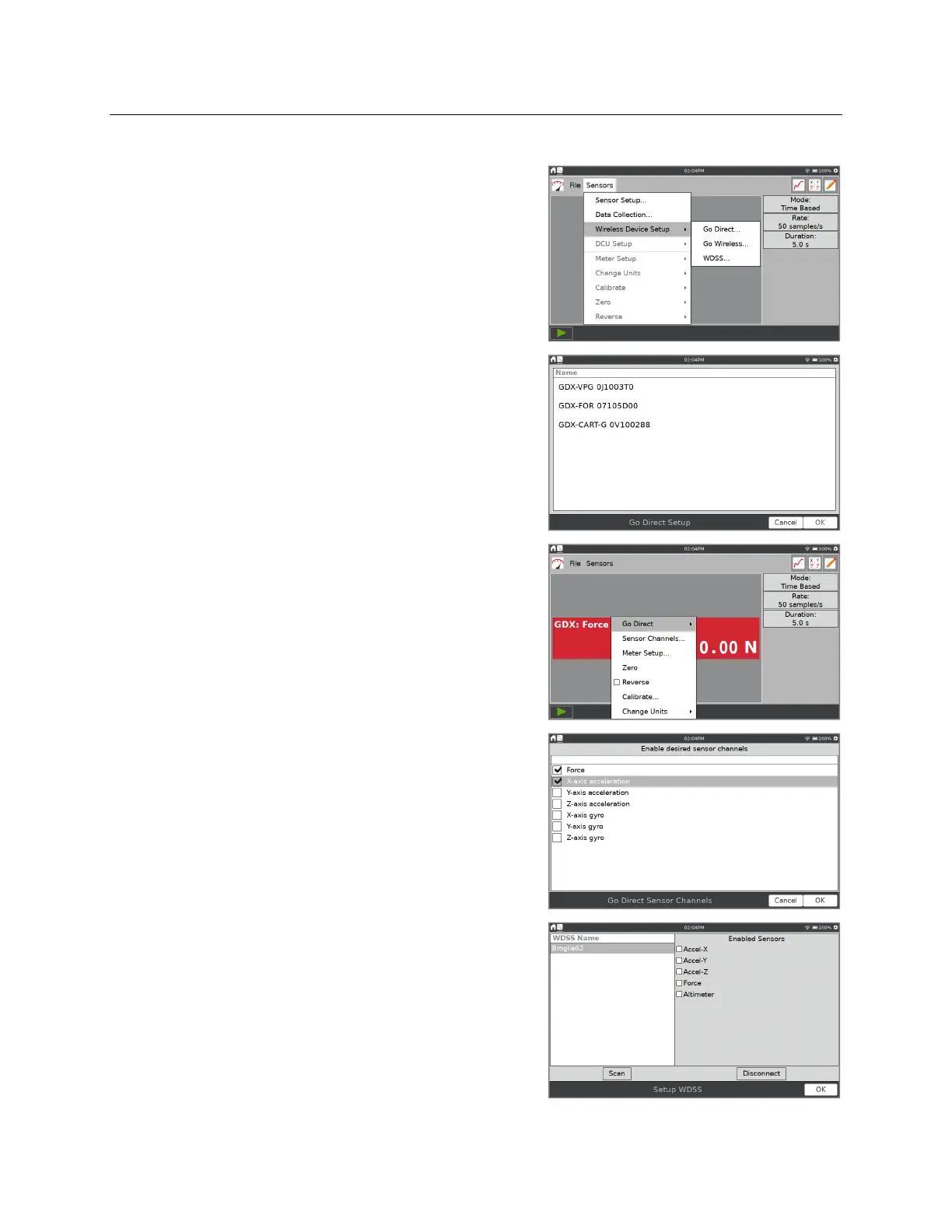
Follow these steps to connect to a wireless sensor.
1. Choose New from the File menu. Power on the
sensor, tap Sensors ►Wireless Device Setup, and
choose the matching sensor type, Go Direct,
Go Wireless, or WDSS.
2. Select your sensor from the list of available sensors
and tap OK.
3. Some Go Direct sensors have multiple sensor
channels. These sensors have default configurations
that do not typically use all available sensor
channels.
Tap the sensor meter and select Sensor Channels to
access the configuration screen. Select the
applicable sensor channels and tap OK.
When connecting a Wireless Dynamic Sensor
System (WDSS), you may need to rescan for
devices if your device does not show up on the
initial scan. Once you are connected to your device,
select the sensors you want to use.


 To Next Page