Using LabQuest
®
3 as a Data Sharing Source
44 Vernier Software & Technology
Connecting to LabQuest 3 from Your Device
After setting up LabQuest as a Data Sharing source, you can connect to this LabQuest unit from
your computer, Chromebook, tablet, or smartphone.
Accessing LabQuest Data Using Graphical Analysis or Graphical Analysis Pro
1. Connect your computer, Chromebook, or mobile device to the same Wi-Fi network to which
you connected LabQuest 3.
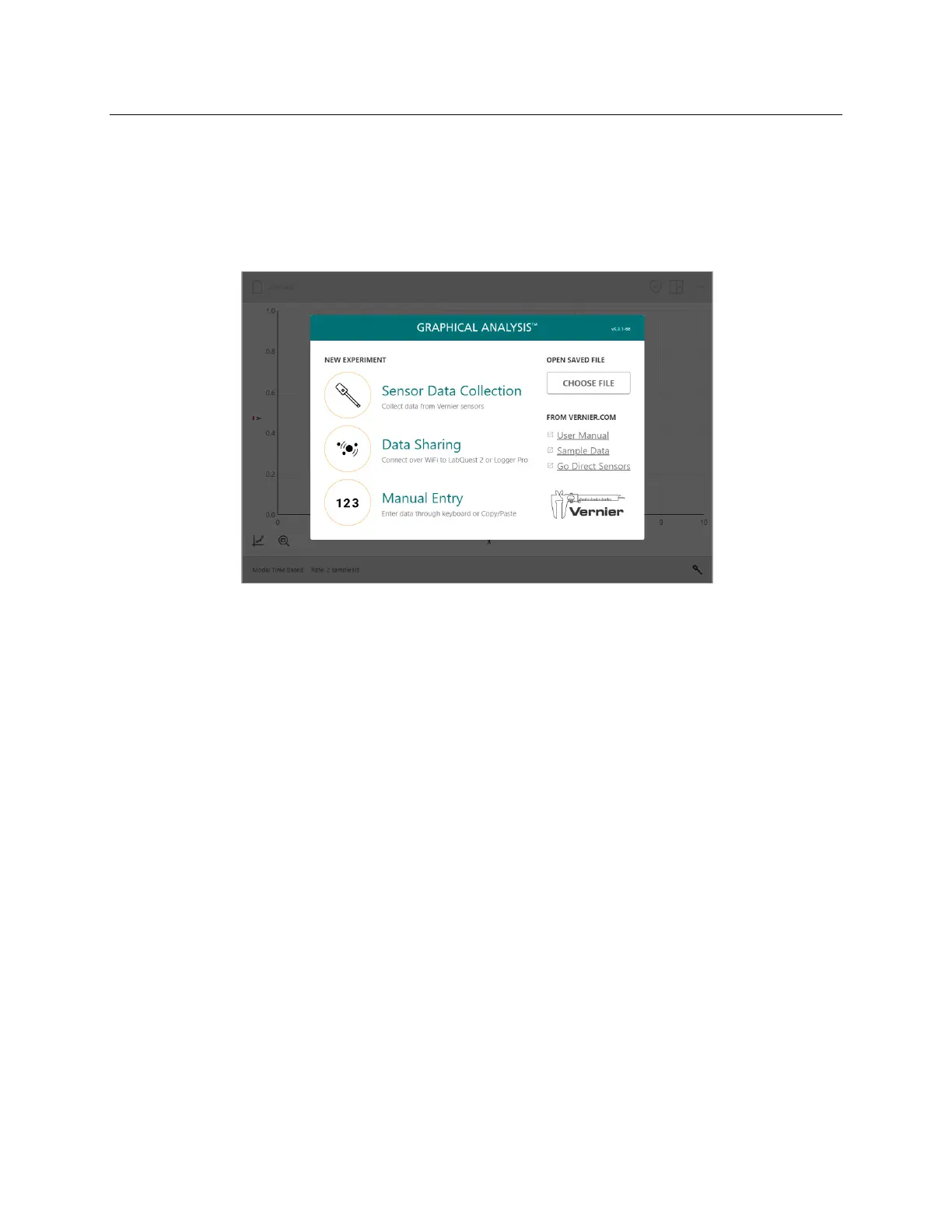
2. Launch Graphical Analysis on your computer, Chromebook, tablet, or smartphone.
3. From New Experiment, select Data Sharing. Discovered Data Sharing sources are listed
automatically. Note: If your Graphical Analysis app has the Graphical Analysis Pro features
unlocked, click or tap Local from the Data Sharing connection dialog to see LabQuest data
sharing sources.
4. Tap the name of the LabQuest 3 source to connect. If your LabQuest 3 is not listed in Data
Sharing sources, you can connect by choosing Specify Source and manually entering the
LabQuest Data Sharing source address or by scanning the QR code.
Accessing LabQuest Data Using the Data Share Web App
1. Launch the Connections app from the Home screen.
2. Connect your computer, Chromebook, tablet, or smartphone to the same Wi-Fi network to
which you connected LabQuest 3.
3. On your computer, Chromebook, tablet, or smartphone, open a supported browser and enter
the Data Sharing Source Address. Alternatively, if you have a QR code reader on your
device, you can access the app using the provided QR code.


 To Next Page