LabQuest
®
3 User Manual
www.vernier.com/labq3 39
Opening an Existing File
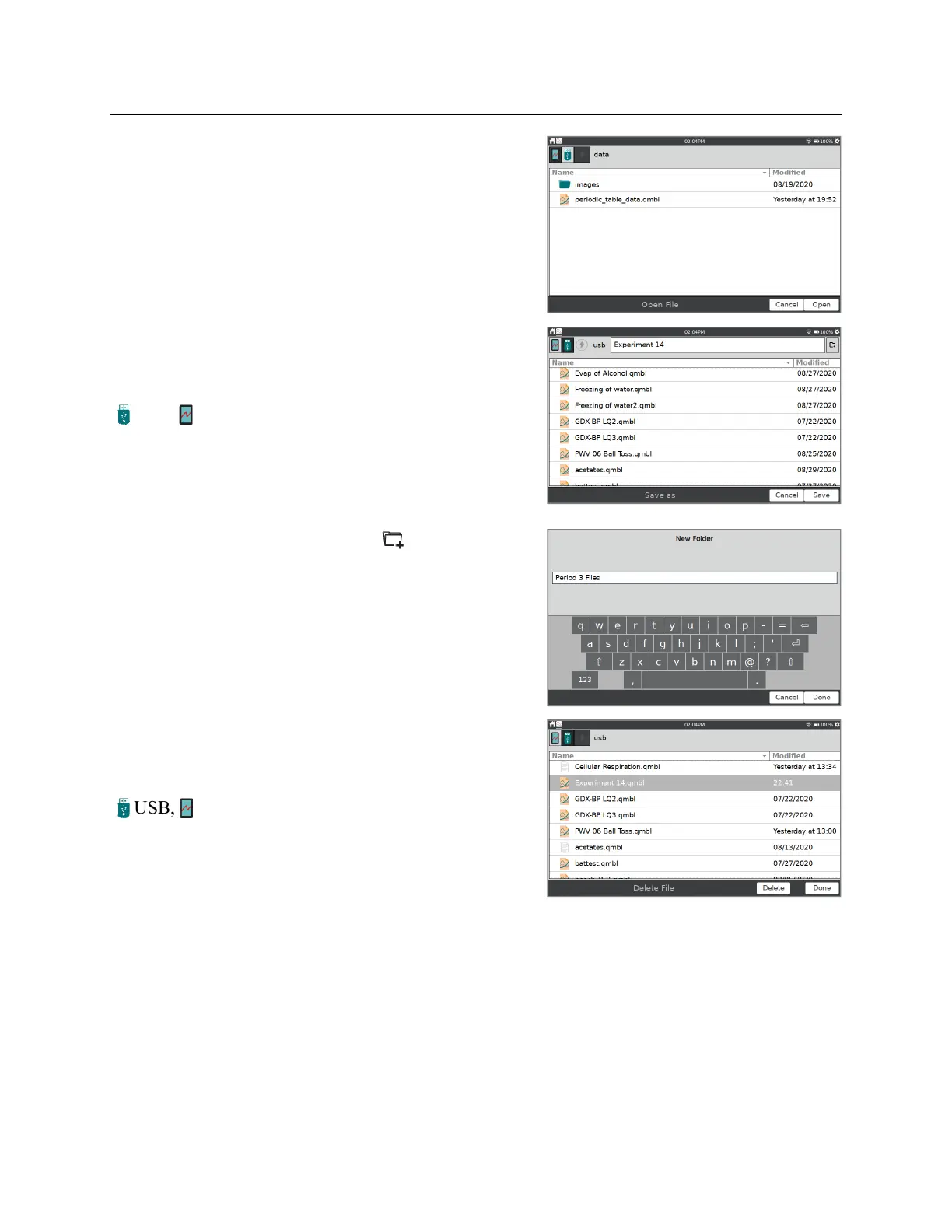
Choose Open from the File menu to display a list of
files that you have saved on LabQuest. To open a file,
tap the file name and tap Open.
When a USB flash drive is connected, the dialog
defaults to showing you files from your flash drive.
Saving the Current File
Choose Save from the File menu to display the Save As
dialog box where you can tap on a source icon
( USB, LabQuest) to select a destination. Tap in the
File name field to assign a name to the file.
When a USB flash drive is connected, the dialog
defaults to showing you files from your flash drive.
You can click the New Folder icon, , to add
additional folders for organizing your saved files.
Deleting a Saved File
Choose Delete from the File menu to display a file list
similar to the open file dialog. Tap on a source icon
( USB, LabQuest) to select the source where the
file is located. Tap the desired file name, and then tap
Delete.
When a USB flash drive is connected, the dialog
defaults to showing you files from your flash drive.


 To Next Page