LabQuest
®
3 User Manual
www.vernier.com/labq3 41
Existing Network (Infrastructure Network)
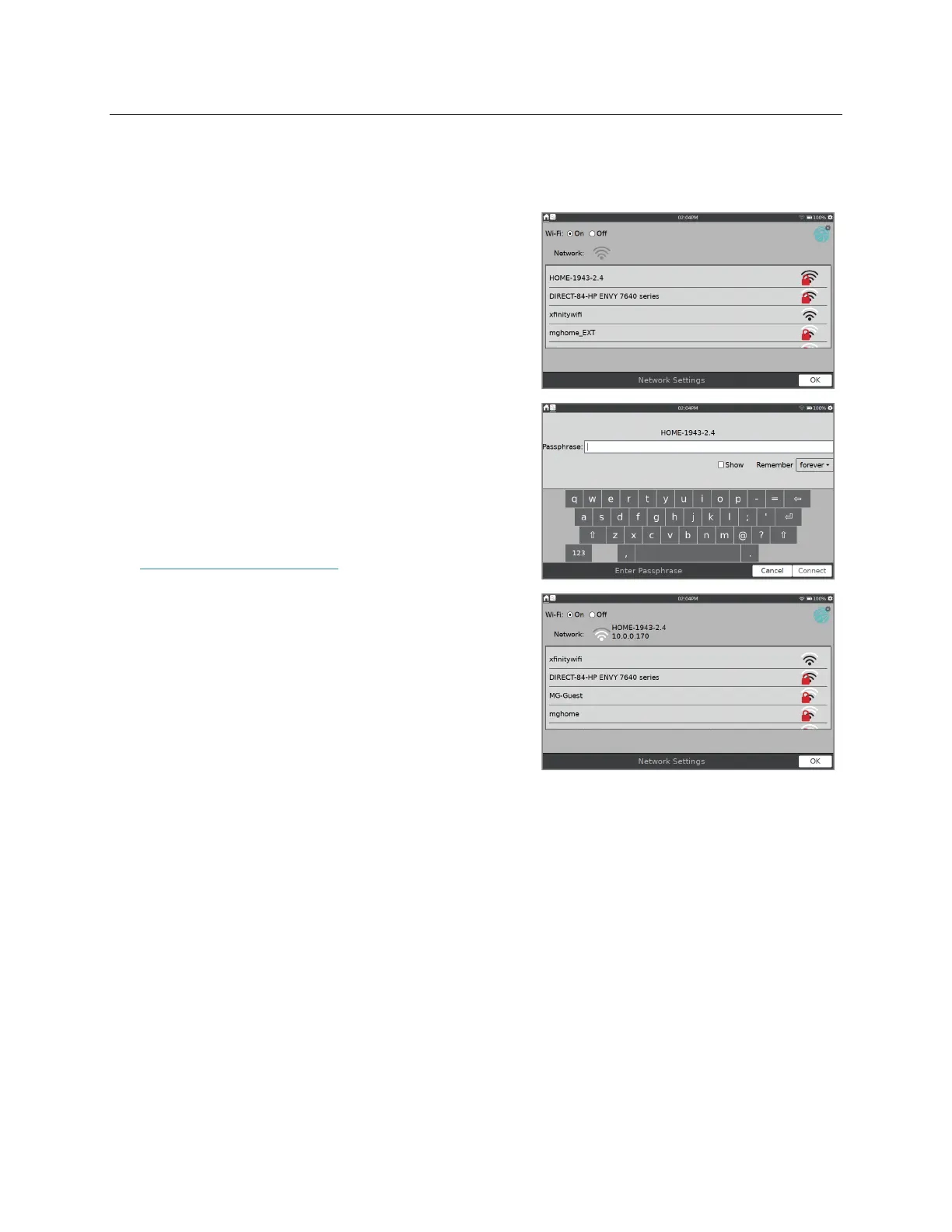
To connect to an existing Wi-Fi network, follow these instructions.
1. Locate the network within the list and tap on the
network name to select it.
2. If prompted, enter your network’s passphrase and
tap Connect.
If your network requires additional network
authentication information or if you have an
enterprise network that requires a network
certificate, see our website for more instructions:
www.vernier.com/til/2836.
3. Verify LabQuest has successfully connected to the
network. The network status should change to a
numeric IP address.
When LabQuest has successfully connected to the
network, tap OK to return to the Connections app.
Creating a LabQuest-Hosted Network
If you do not have access to an existing Wi-Fi network, or are not permitted to access your
school's network, set up a network using LabQuest 3.
Students can connect to a LabQuest network with their mobile devices. This network does not
support access to the internet, but that is not needed when using Data Sharing. LabQuest email
functionality and over-the-air updates are not supported with this type of network as they
require internet access.


 To Next Page