PAGE 28 VIDEONICS DIGITAL VIDEO MIXER
Source Previews
All four sources appear on the PREVIEW screen, in miniature (∂ ). You can
use the previews to watch the action, position cameras, find a spot on a tape,
etc.
Preview Image Quality
The miniature previews are designed for a quick, convenient view of all
the action and won’t match the quality of the video that appears on the
Mixer’s normal output. The size and “frame rate” of the images are reduced
and there may be occasional lines appearing alongside the preview images.
They do not show input effects or the results of Advanced Setup settings.
The appearance of the preview images does not affect the Mixer’s output.
During transitions, the PREVIEW screen is automatically replaced by a
full-screen image at full frame rate.
Note that when there is something critical you want to see on one of the
sources, you can switch to full screen, full quality display using the DISPLAY
button, as described in the section, “Switching the DISPLAY,” in this chapter.
CURRENT and NEXT Source Selection
The Mixer uses four input sources, labeled A, B, C, and D. (There’s also a
fifth source, the Mixer’s own background color generator.) All transitions
start with one source, called the CURRENT source, and end with another,
called the NEXT source. Colored rectangles, or highlights, (∑) indicate these
sources.
The yellow highlight above the previews indicates the CURRENT source
and the green highlight, below the previews, indicates the NEXT source. The
CURRENT and NEXT sources for sound are indicated by the sound symbols
in the highlight areas.
CUT ➔
ABCD
COLOR
CUT ➔ CUT ➔ CUT ➔ CUT ➔
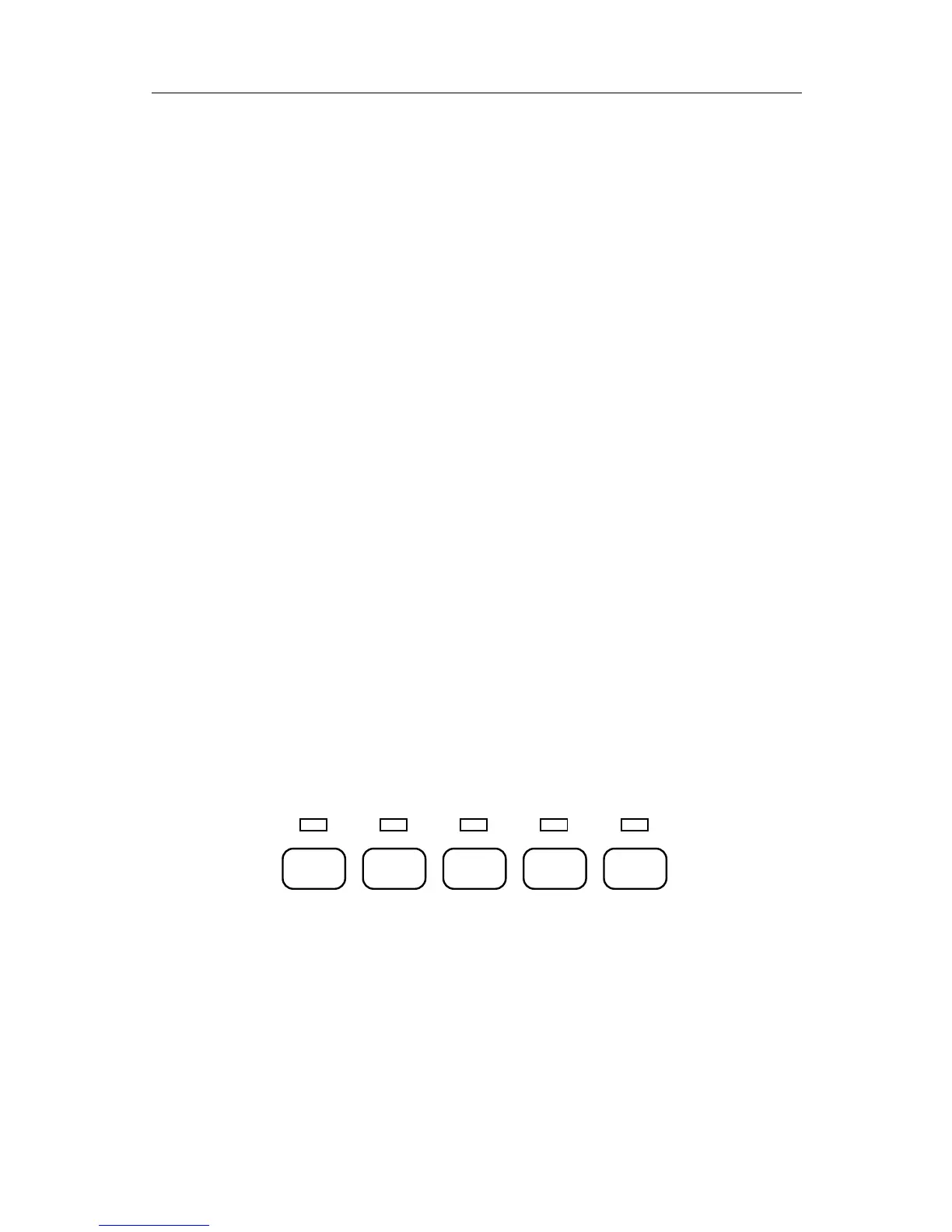
In addition, lights on the front panel, above the CUT buttons, tell you
which video sources are selected. A steady light identifies the CURRENT
source and a flashing light identifies the NEXT source.
The CURRENT and NEXT sources change when you perform an effect or
when you use the ABCD or CUT buttons, as explained in the next few
chapters.
Transition Controls
Below the previews is an array of symbols (∏). Each symbol represents a
transition effect. A blue highlight (π ) shows which effect will be used for the



 To Next Page