PAGE 52 VIDEONICS DIGITAL VIDEO MIXER
Performing the Chroma Key
When the PREVIEW screen shows the desired result, press PLAY. The
picture on the OUTPUT monitor will be replaced by the chroma keyed image.
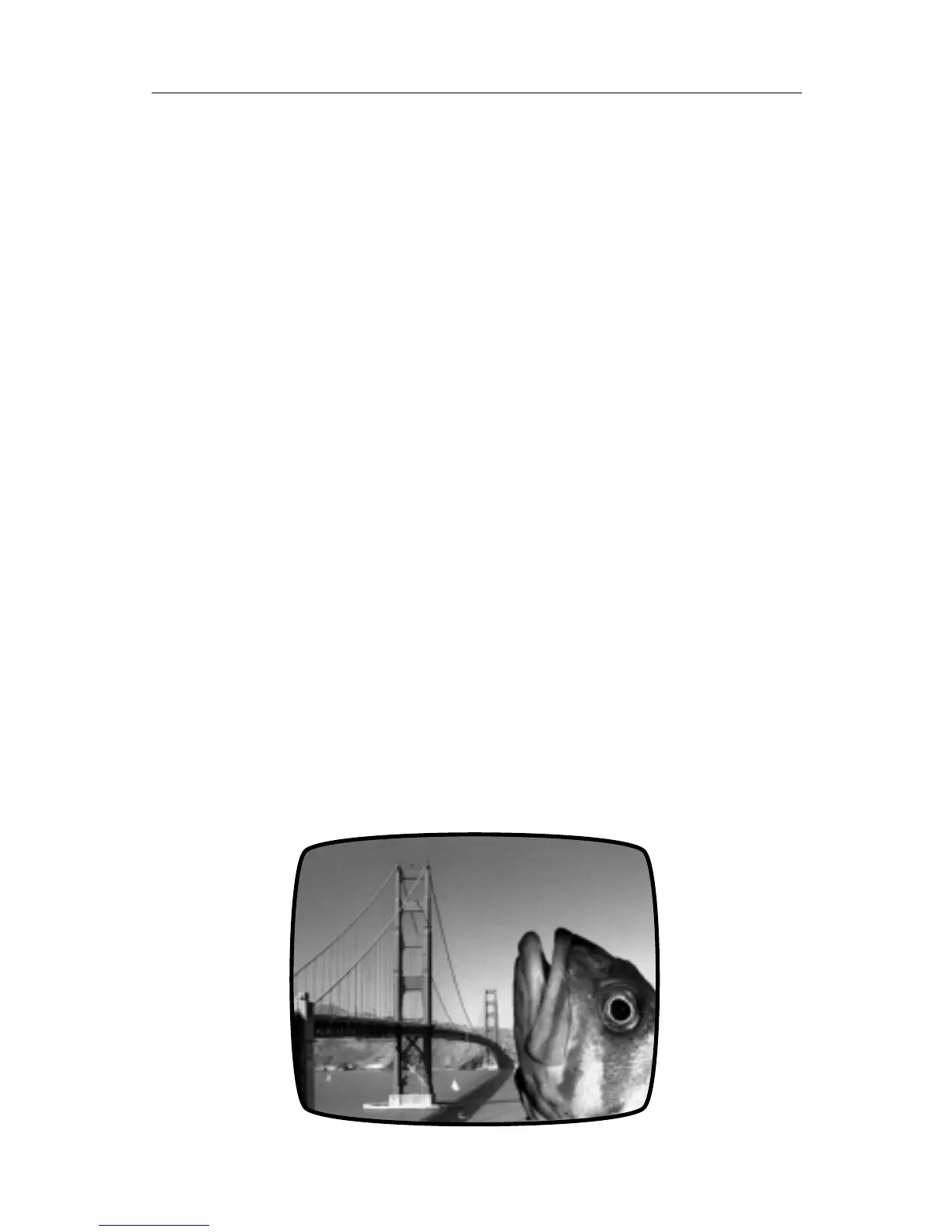
In our example, we would see a transition from the city footage to the same
footage with the superhero added. Press PLAY again to cut back to the
background source.
You can also dissolve between the background source and the chroma
keyed image by using the manual Take-Bar rather than pressing PLAY.
Transitions To and From Chroma Key
You can cut or dissolve directly between the chroma keyed image and the
background source (as described in “Performing the Chroma Key,” above).
You can transition to other sources indirectly: First transition to the back-
ground source, then transition to the final source.
Freeze and Input Effects
You can apply input effects and freeze to the background image but not
the foreground.
• To use input effects, apply them to the CURRENT source before you press
CHROMA KEY.
• To FREEZE the background, press FREEZE either before or after you
press CHROMA KEY.
• Any effects applied to the NEXT source will be ignored during chroma
key.
Ending Chroma Key
When you are finished using chroma key, press DISPLAY or CHROMA
KEY.



 To Next Page