VIDEONICS DIGITAL VIDEO MIXER PAGE 59
=
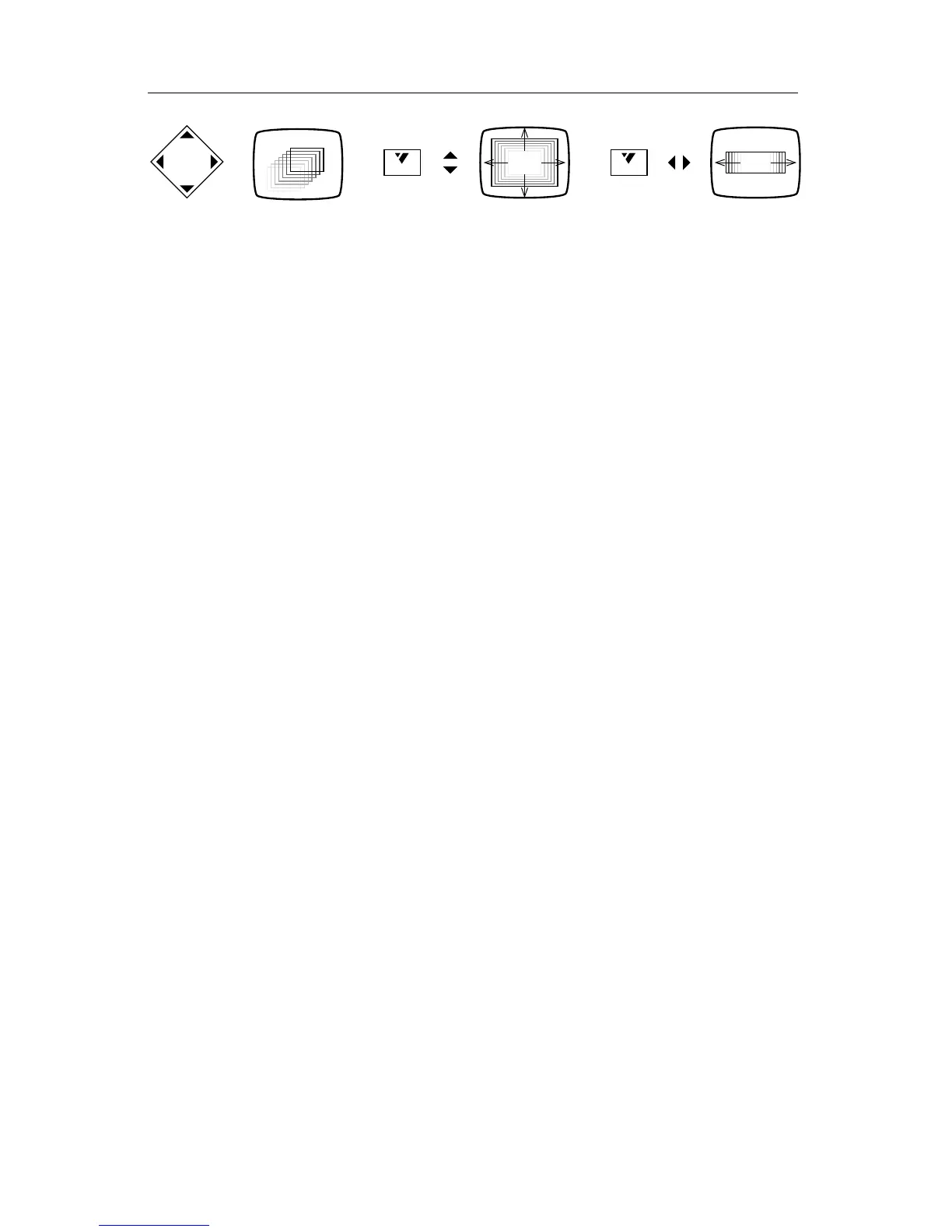
SHIFT
=+
SHIFT
=+
• To make the rectangle larger or smaller, hold SHIFT and use the up and
down arrows. This changes the height and width of the rectangle together.
In other words, SHIFT+UP and SHIFT+DOWN changes the rectangle’s
size but not its proportions (that is, the shape, or “aspect ratio,” remains the
same).
• To change the shape of the rectangle, use SHIFT with the right and left
arrows. SHIFT+RIGHT makes the rectangle wider and SHIFT+LEFT makes
it narrower. The height remains the same.
You can go back and forth, readjusting the size and shape as needed.
Anytime you adjust the size, the rectangle automatically snaps back to the
normal proportions so the video is not stretched out of shape.
Placing the Element
Once the flashing rectangle has been positioned, you are ready to deter-
mine what fills it.
Solid Color Rectangle
To fill the rectangle with a solid color, press the COLOR key at the bottom
of the Mixer’s front panel. The flashing rectangle will be filled with the
current choice of background color. You can change the color using the
BACK COLOR button (or the COLOR button again) to cycle through the
predefined colors. You can also define your own color as described in Chap-
ter 10, “Borders and Backgrounds.”
Placing a Line
Since a line is simply a narrow rectangle, the method for drawing a line is
the same as that for drawing a rectangle. Use SHIFT with the up and down
arrow keys to determine the line’s height. Then use the right and left arrow
keys to stretch the rectangle to make the line. You can make vertical or
horizontal lines but not diagonals.
Placing Still Video
After you have positioned the rectangle, choose the video you wish to
place using the ABCD buttons at the bottom of the front panel (the way you
normally choose the NEXT source). The source you selected will fill the
rectangle. If the rectangle was stretched out of its normal proportions, then
the picture will be stretched accordingly.
You can watch the moving image and freeze it any point by pressing
FREEZE. If you miss the precise instant you wanted, press FREEZE again to
unfreeze the image and try again. (If you do not freeze the image manually, it



 To Next Page