VIDEONICS DIGITAL VIDEO MIXER PAGE 33
If you make a mistake while entering a number, simply press any arrow
key or OK to end the number you were entering, then enter
the correct number.
A list of effects is in the back of this manual and on the
Reference Card.
3. The large transition effect buttons
The effects keys quickly locate the most common ef-
fects. Press WIPE, for instance, and the most common wipe
is instantly highlighted. Press ZOOM/P-IN-P to find a
flip/picture-in-picture effect.
Similar effects are grouped together. This means that
after you have used a large button to locate a family of effects, you can use the
arrow keys to find the variation you want. For example, WIPE takes you to
effect 30, a horizontally-moving wipe. Press the down arrow once to choose a
horizontally-moving curtain wipe (effect 40). Press DOWN three more times
to reach the vertically-moving wipes.
Executing the Transition
Once you have chosen the two sources and the effect, you can perform the
transition automatically or manually. Automatic operation has the advan-
tage that it is smooth and repeatable. Manual transitions have the advantage
of control — you control the speed and you can make the effect speed up,
slow down, or even reverse itself in mid-effect.
Note: Depending on the relative timings of the input video signals, a thin
black stripe may separate the two images when you use an effect that in-
cludes a compress or slide. The width of the stripe may vary as you perform
an effect manually.
Note: If the strobe input effect is applied to one of the sources (Chapter 11),
it is turned off during the transition.
Automatic (AUTO-TAKE) Execution
To perform a transition automatically, at a predetermined speed, simply
press the PLAY (AUTO-TAKE) button.
You can interrupt (pause) an automatic transition by pressing PLAY again.
Each time you press PLAY, the transition starts or stops, until it finally is
allowed to complete. (Note that although the transition has paused,
the video continues to play. Contrast this to pressing FREEZE
which freezes the entire picture, transition, video images, and all.)
Changing the Speed
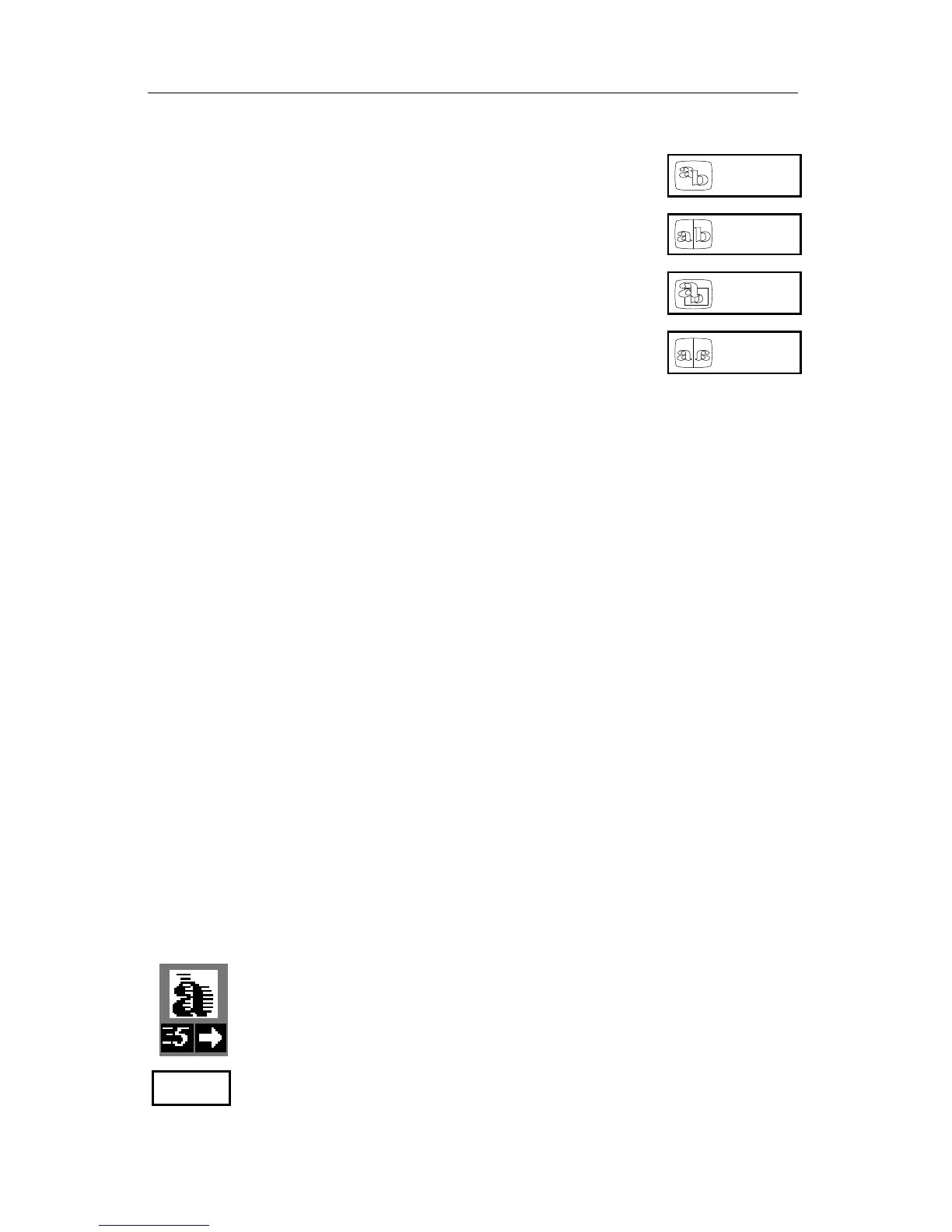
You can alter the speed of automatic execution. The current
speed appears below the transition effect’s symbol (in this case,
the speed is 5). 0 is the slowest speed, 9 is the fastest.
ZOOM /
P-IN-P
FLIP
WIPE
FADE /
DISSOLVE
SPEED



 To Next Page