42 Lexa PLUS| Instructions for Use |RIS-311 ENG Rev03 |29/08/2022 |© W&H Sterilization Srl
Managing printers
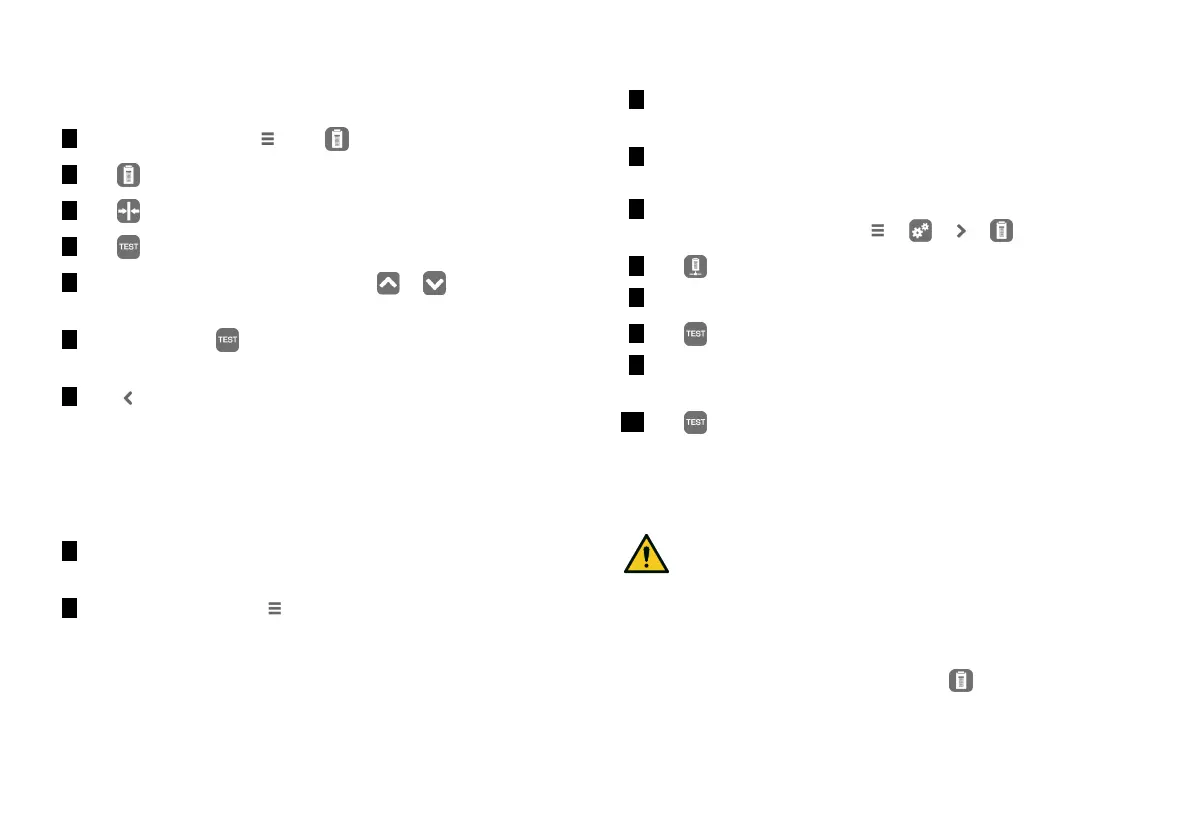
SELECT AND CALIBRATE A LOCAL LABEL PRINTER
1 On the homepage, tap > > >
2 Tap :the local printer is located automatically.
3 Tap to center the printout properly in the label area.
4 Tap to print a test label.
5 If the printout is not duly centered, tap or to center it
horizontally (x) and vertically (y).
6 If necessary, tap to print another test label and repeat step
4.
7 Tap to confirm the settings and go back to the previous
page.
SELECT A SHARED LABEL PRINTER
Note: Function available only if the LAN/Wi-Fi connection has been activated
(optional).
1 Ensure the sterilizer to which the printer is physically
connected is ON and no cycle is running.
2 From that sterilizer, tap > .
3 Depending on the LAN connection, take note of the Ethernet or
Wi-Fi IP address.
4 Do not switch OFF the sterilizer until the whole procedure is
complete.
5 From the sterilizer from which the printer is not physically
connected, tap homepage > > > > .
6 Tap .
7 Tap the text box and enter the IP address previously noted.
8 Tap to confirm.
9 From the sterilizer to which the printer is connected, confirm
the printer sharing.
10 Tap again to print a test label.
Label printer usage (optional)
CAUTION! For your safety and the safety of your patients
use a storage time compliant with the recommendations of
the manufacturers of the containters/packaging used, and
with applicable norms and rules.
FUNCTION AVAILABILITY
The first time you access the Label Printer ( ) menu, you will be
requested to enter an activaction code. To require the activation


 To Next Page