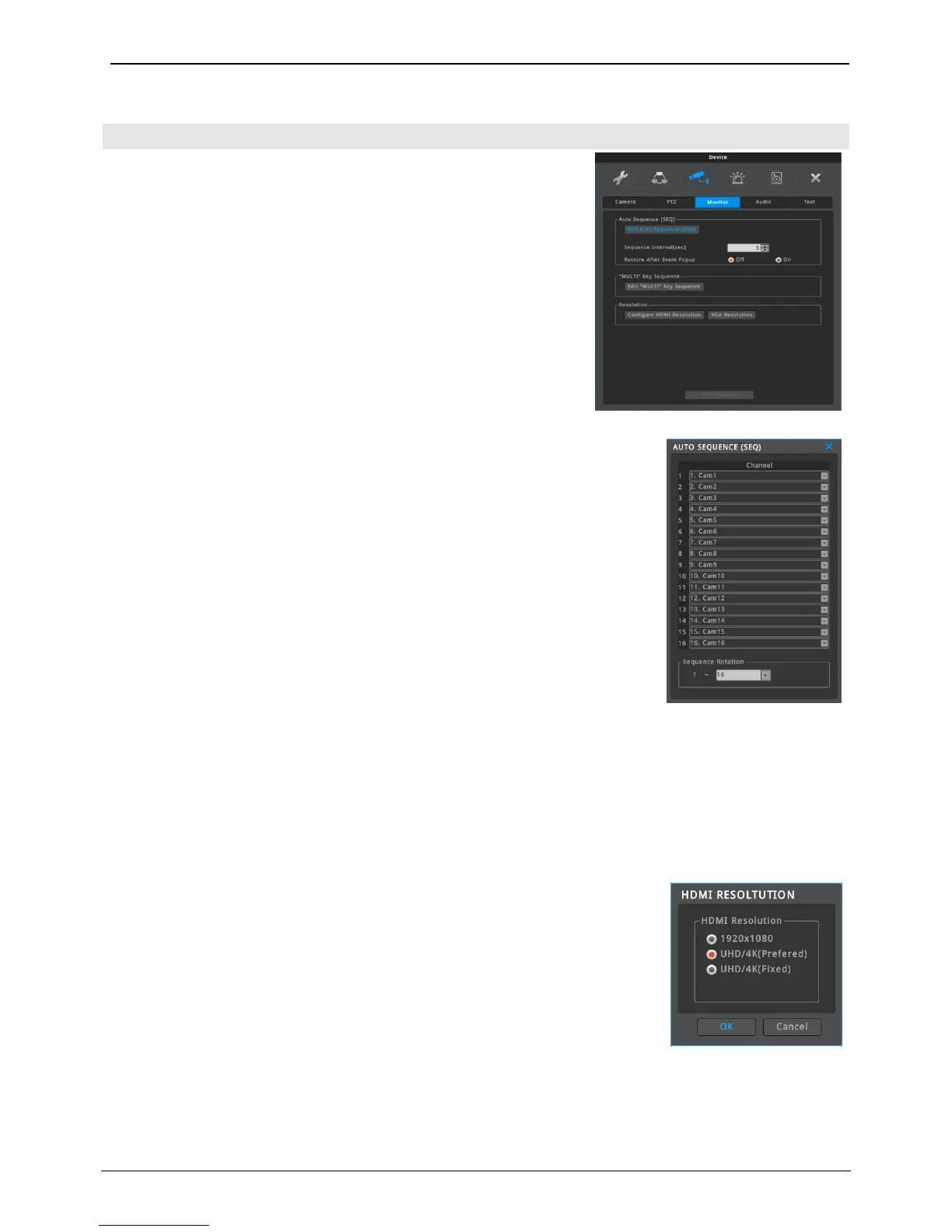
Configure SEQ, MULTI, HDMI Resolution, VGA Resolution.
To use Auto Sequence, click [FUNC menu]-[Tool]-[SEQ]. To escape from Sequence
mode, click again [FUNC menu]-[Tool]-[SEQ] or click [SEQ] on the right upper side
of screen.
Click “Edit Auto Sequence (SEQ)” to edit the sequence of screen mode. Max. 64
modes can be sequentially changed, and each mode can be single channel mode
or multi division mode.
Sequence mode is rotated from 1 to number which is set in “Sequence Rotation”.
Sequence rotation interval can be configured on “Sequence Interval(sec)”.
Sequence interval is available to set from 5 to 60 seconds.
The default value of "Restore after Event-Popup" is “Off”. If alarm popup occurs
during sequence mode, sequence mode will be stopped under this condition.
But, if "Restore after Event-Popup" is “On”, sequence mode will be activated
again after alarm popup time finishes.
* The max number of sequence rotation might be different by model.
Multi Key Sequence set-up
Not used menu.
HDMI RESOLUTION
Resolution of HDMI output can be changed.
Selectable resolutions are 1920x1080, UHD/4K (Prefered), UHD/4K (Fixed).
Rebooting is required after resolution is changed.
<Caution>
1. It is recommended to use certified HDMI cable. If the cable is not a certified cable, 4K
UHD may not be displayed.
2. If HDMI resolution is set to “UHD/4K (Prefered)” and HDMI monitor does not support
3840x2160 (4K UHD), then the resolution of video output will be automatically
changed to 1920x1080. If monitor supports 4K UHD, then the resolution of video
output will be automatically changed to 4K UHD.
3. If HDMI resolution is set to “UHD/4K (Fixed)” and HDMI monitor does not support
3840x2160 (4K UHD), then monitor can not display anything. Please change the HDMI
resolution to 1920x1080 by Remote Controller.



 To Next Page