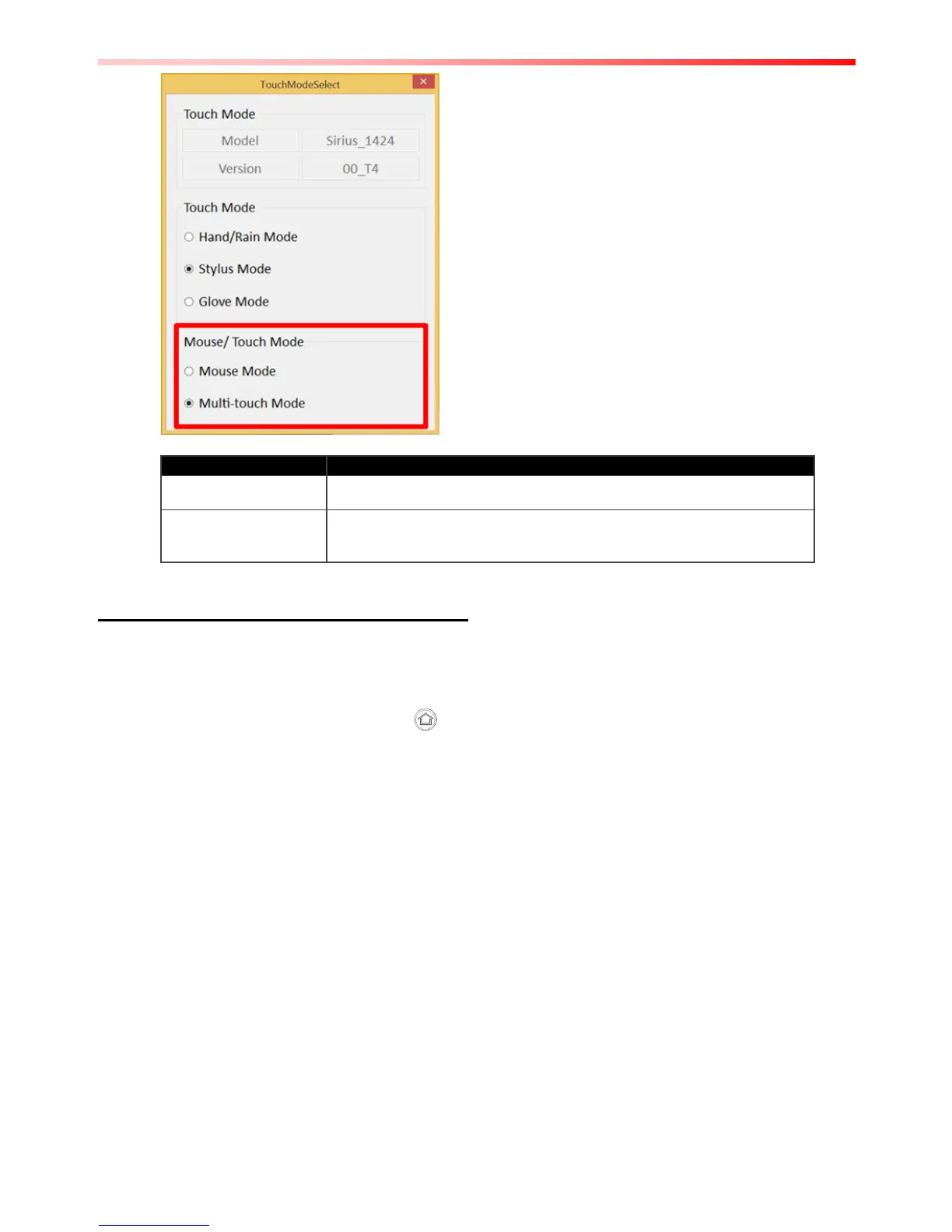
(up to 10 points)
Switch via Programmable Function Buttons:
To switch between the different touchscreen modes via the programmable function buttons,
make sure the touchscreen mode switching is set to the programmable function buttons first.
1. Open HotTab utility by pressing (Menu) Button located on the front panel, OR
launching HotTab Utility application.
2. Tap on the Setting button.
3. Tap on F1 icon.
4. Tap on the Long Press icon.
5. Change the Long Press function to “Touch Mode” as shown below:



 To Next Page