Settings
17.10.2019 71 / 96
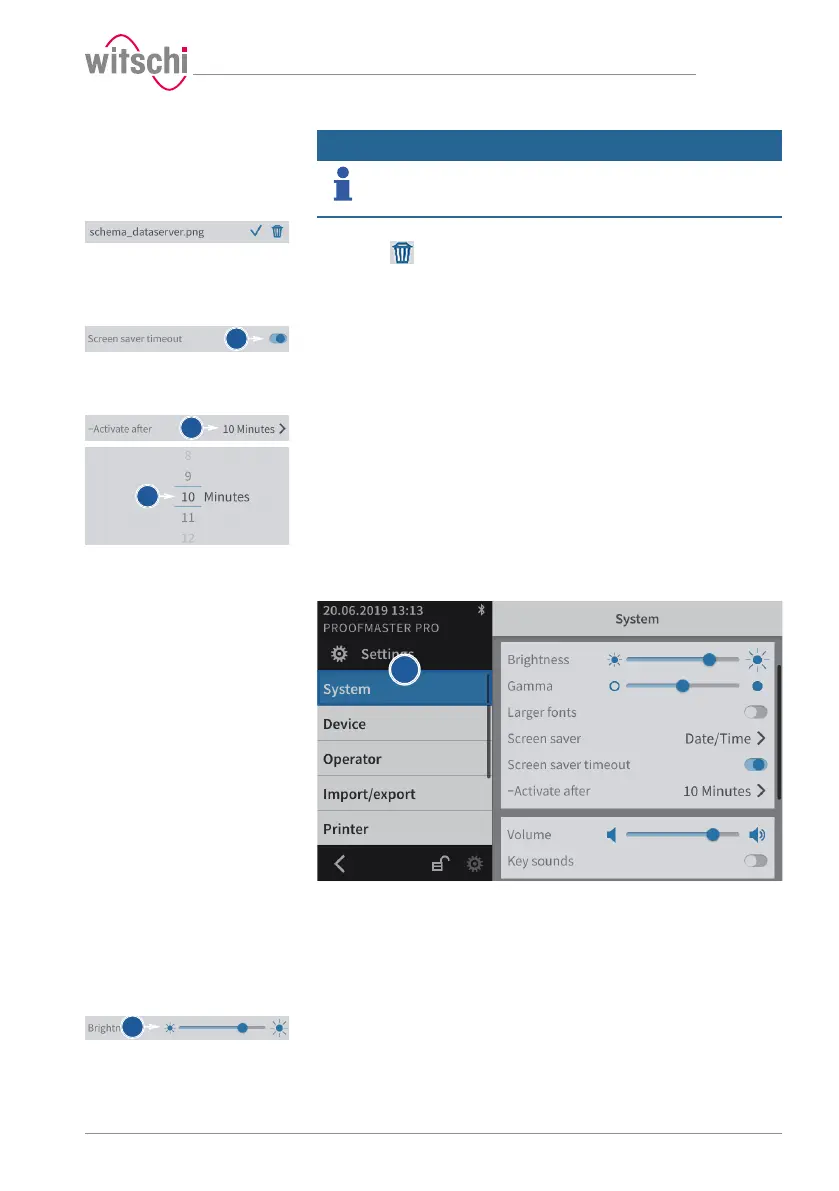
Deleting a screen saver
Info
Only imported screen savers can be deleted.
The black screen saver and the screen saver with date and time are
system configurations.
a) Select the imported screen saver to be deleted.
b) Press to delete the desired imported screen saver.
Enabling automatic
standby of the ProofMaster
a) Enable or disable the screen saver display.
ð The button is blue when the function is enabled and grey
when it is not.
Setting the automatic
standby activation time
a) Open the time selection for switching to standby by tapping the
current selection.
b) Select the desired time.
7.3.3 Display and audio settings
a) Select System from the list.
ð System is highlighted in blue and the right window displays
the system options.
b) Configure the display and audio settings as needed.
ð See the details below for the settings of each option.
Brightness
a) Move the cursor left to decrease the brightness and right to
increase the brightness.


 To Next Page