63
English Chapter 15: Disk and Song File Utilities
6
When you have selected the song,
press [>] until the c cursor is next
to the arrow. Then use the [–/NO]
and [+/YES] buttons to select a
song format: E-SEQ, SMF0 or
SMF1.
Symbol Song format
E-SEQ E-SEQ format
SMF0 Standard MIDI File format 0
SMF1 Standard MIDI File format 1
7
Press [ENTER].
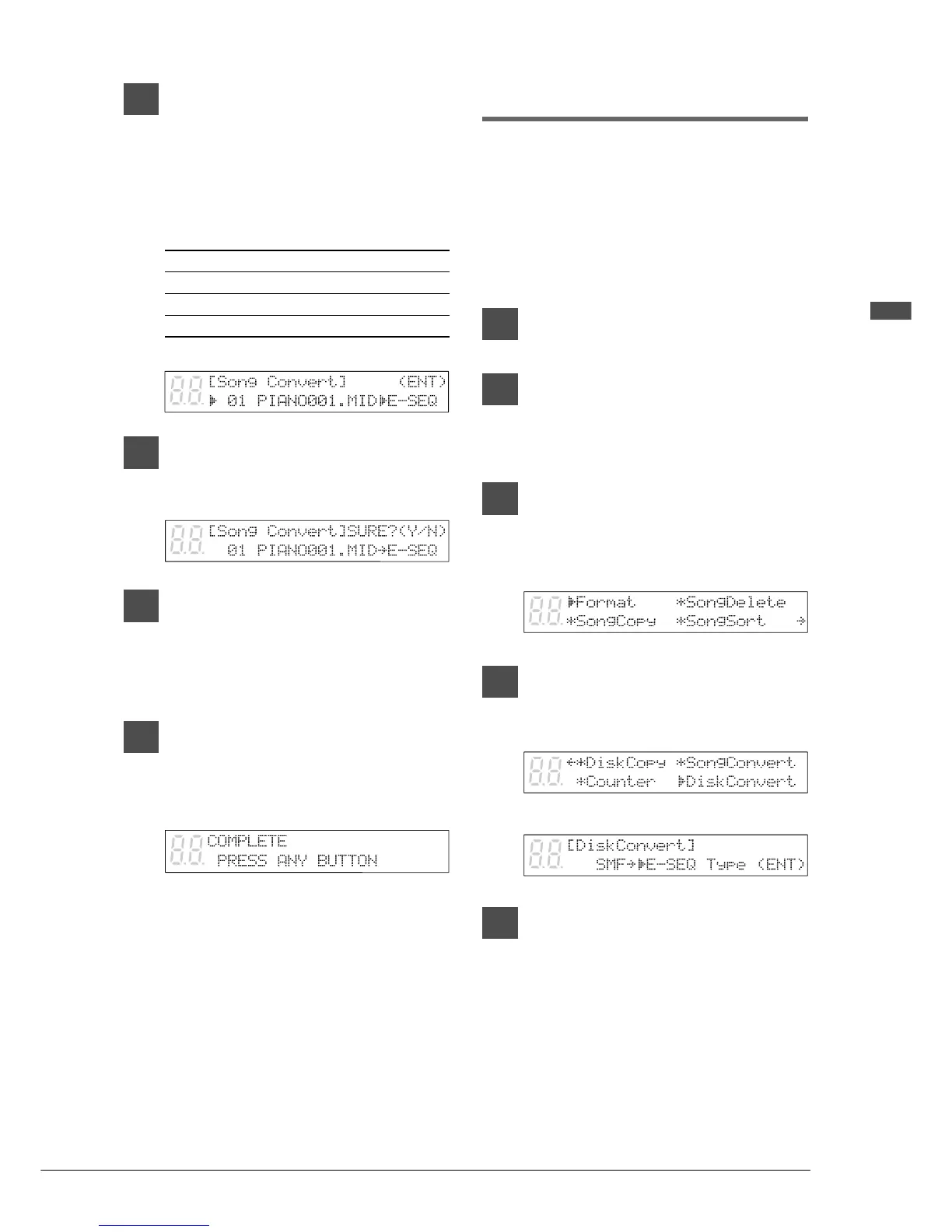
A display similar to the following appears.
8
Press [+/YES] to begin song
conversion.
If you do not want to convert the song,
press [–/NO].
9
When song conversion is
completed, the following display
appears. Press any button to
return to the normal display.
When a song format is converted, the file
name extension changes.
Converting Disk Type
SMF type disks can be converted to E-SEQ type
disks and vice versa. This can be helpful when
you want to play back a song recorded in the SMF
format on an earlier Disklavier model, or when
you want to use song data recorded in the E-SEQ
format with other MIDI instruments.
1
Specify a disk.
2
Press [FUNC.].
The FUNC. indicator lights and the
Function menu appears.
3
With the c cursor next to the Disk
option, press [ENTER].
The Disk menu appears.
4
Press [>] until the c cursor is next
to the Disk Convert option, then
press [ENTER].
The following display appears.
5
Use the [–/NO] and [+/YES]
buttons to select a song format.
E-SEQ type disks can be converted to SMF
type disks or Piano1 disks.
SMF type disks can be converted to E-SEQ
type disks or Piano1 disks.



 To Next Page