Owner’s Manual | PCAS XRX
BUTTONS AND FUNCTIONS 41
Menu 4: Third-Party Communications Setup (Com)
XRX data can be displayed on external, third-party moving-map
and EFIS systems through the RS-232 (DB9) port on the back of
the unit. Use this menu to select the appropriate system you wish
to connect.
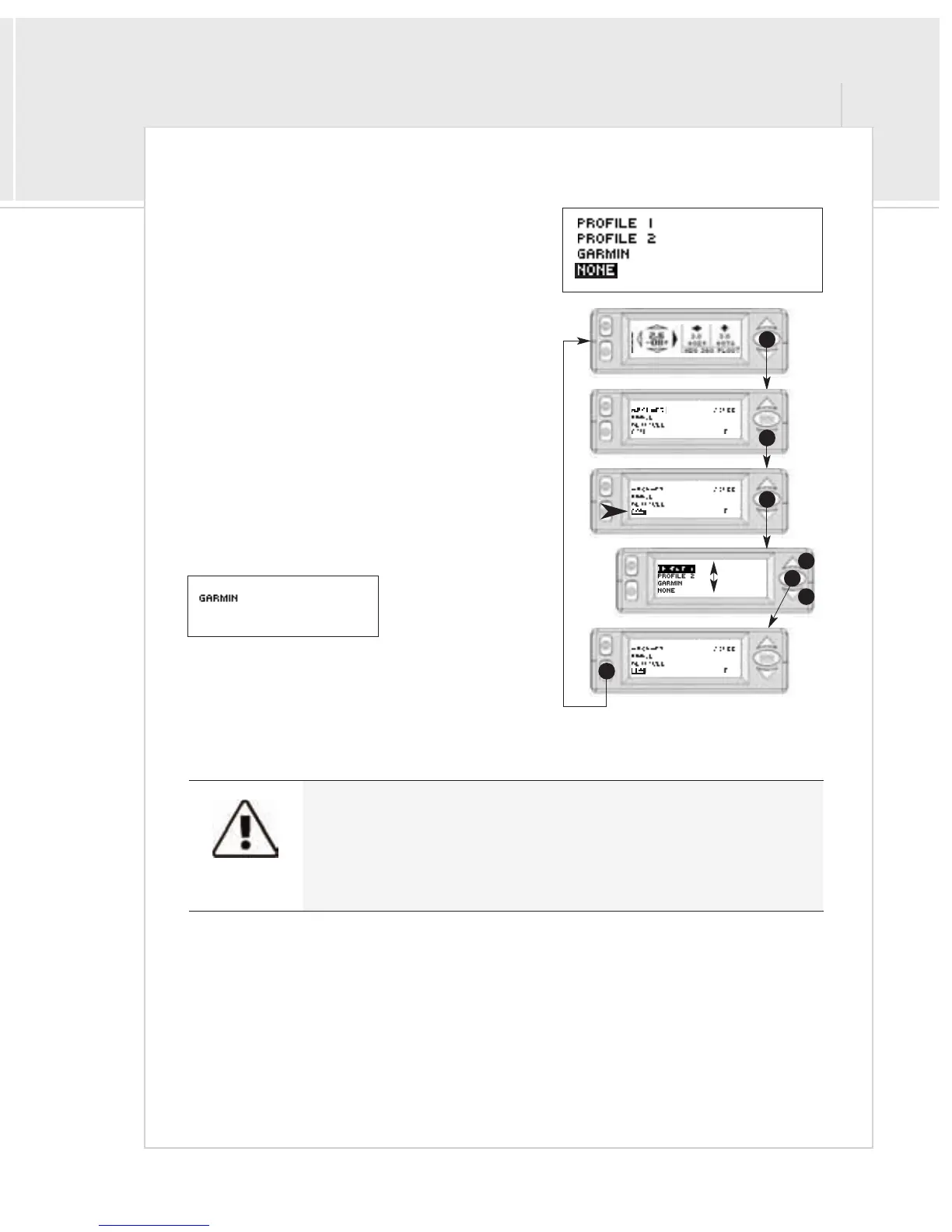
To use a different communications setup:
1>From the Traffic Display Screen, press the
menu/select button once to access the menus.
2>Press the down button three times to highlight
“COM”
3>Press the menu/select button to select the Com
menu.
4>Use the up and down buttons to select the com
setting.
5 > Press menu/select to return to the main menu.
6>Press mute to return to the traffic screen.
When a com selection
other than “none” is made,
the main traffic screen will
be replaced with a static
screen displaying the current com mode. No traffic data will be
displayed on the XRX screen. Menu functions can still be
accessed directly on the XRX by pressing the menu/select
button.
XRX is capable of connecting to a wide array of third-party systems, including moving map and EFIS systems, including
Garmin GPSMap 396/496, AnywhereMap, Blue Mountain Avionics, Grand Rapids Technologies. It is important to note
that XRX is not certified by the FAA to provide traffic information to other certified systems.
Please refer to our third-party integration website for instructions specific to a particular device, at
www.zaon.aero/integration.
1
3
2
5
4
4
6
Switches are factory set to work with all third party devices.


 To Next Page