Customer Service 800-496-9430 | www.zaon.aero
BUTTONS AND FUNCTIONS42
Menu 5: Screen Options
The XRX offers the unique ability to display data in different ways and
at different angles.
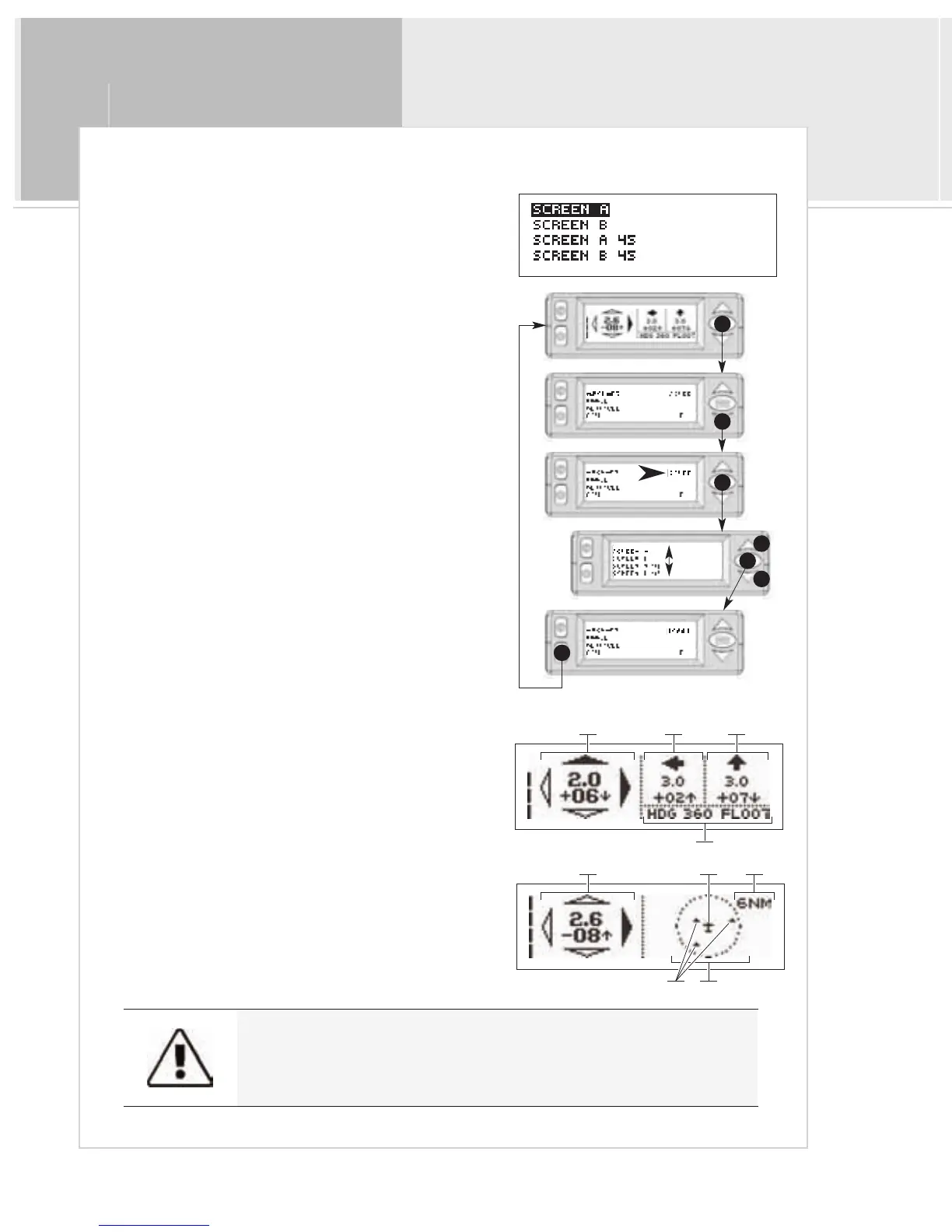
To use a different screen option:
1>From the Traffic Display Screen, press the menu/select
button once to access the menus.
2>Press the down button four times to highlight “SCREEN”
3 > Press the menu/select button to select the Screen
menu.
4 > Use the up and down buttons to select the desired
screen type.
5 > Press menu/select to return to the main menu.
6>Press mute to return to the traffic screen.
> Screen A: This is the standard traffic screen layout. The
primary aircraft is on the left, and two secondary aircraft are on
the right, above the local altitude and heading.
1>Primary aircraft
2>Secondary aircraft #1
3>Secondary aircraft #2
4>Local heading and altitude
> Screen B: This layout presents you with an alternate overhead
view of the top three aircraft with reference to bearing and
range only. A range ring representing the maximum detection
range surrounds a display of aircraft in relation to your aircraft.
A>Primary aircraft
B>Overhead view, enclosed by range ring
C>Your aircraft
D>Target aircraft (maximum of 3)
E>Range setting
The overhead view in Screen B does not contain altitude information.
Screen B was intended for quick reference only.
Screen B
Screen A
2
B
E
4
1
A
3
D
1
3
2
5
4
4
6
C


 To Next Page