Copyright © 2021 Nortek Security & Control LLC
21
Screen Settings
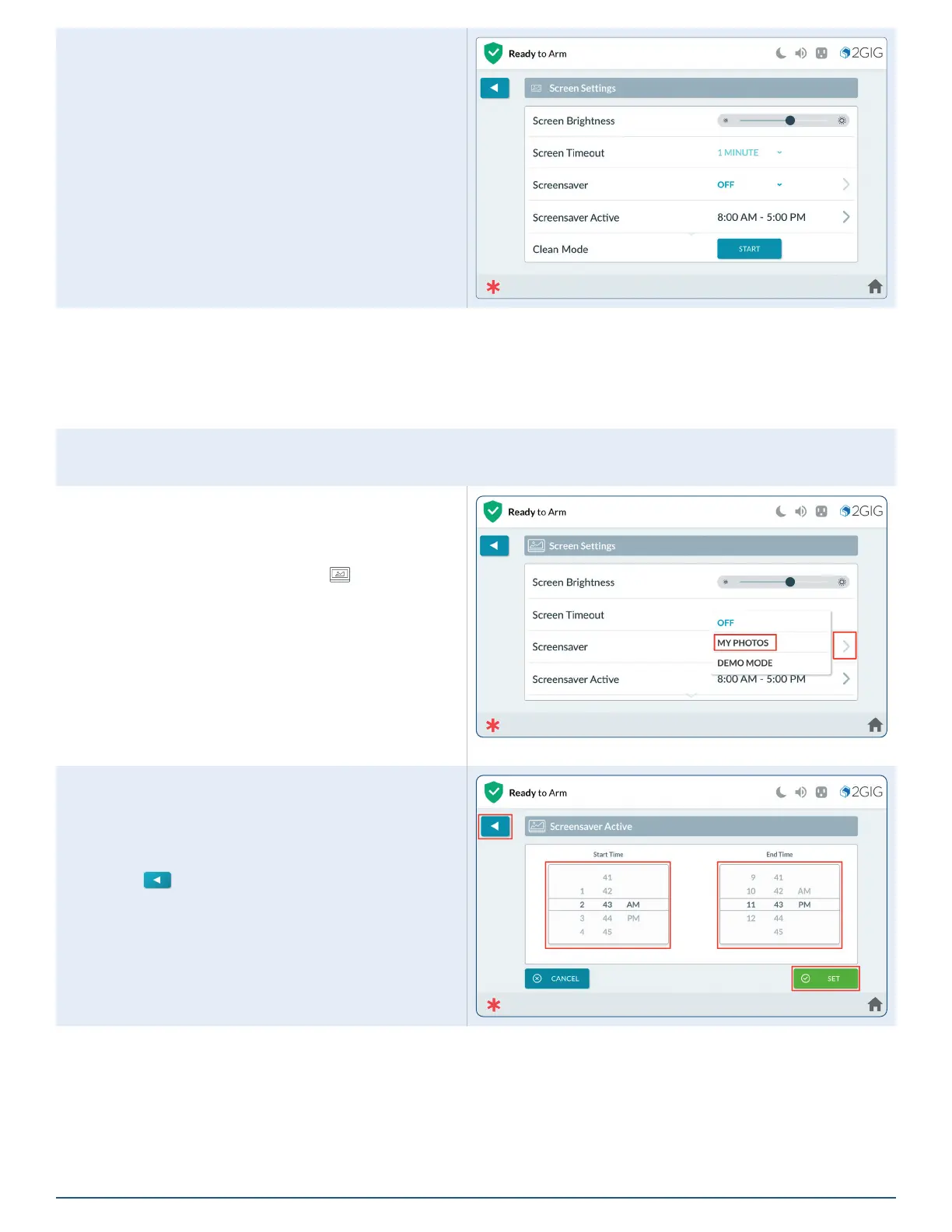
Use the Screen Settings options to adjust the
screen brightness, dim brightness, backlight timeout,
screensaver features, and to place the touchscreen into
Clean Mode.
Screen Brightness
Adjust the screen brightness to improve the readability of the text and images on the touchscreen and to avoid eye
discomfort in darker environments or at night.
To adjust the screen brightness, swipe the Screen Brightness slide control to the left or right to decrease or increase
the brightness.
Screen Timeout
Tap the current setting, then select a new time for the screen to timeout (30 seconds to 10 mins). Default is 2 min.
Screen Saver
The Screen Saver setting allows for photos to be
displayed when the screen times out.
1. Navigate to the Screen option ( ).
2. On the Screensaver settings, select the current
setting then select from the dropdown list:
»
OFF – No screensaver
»
MY PHOTOS – displays preloaded photos
or photos you load, see the next section
Screensaver: My Photos.
»
DEMO MODE – for dealer use (must be
congured in Installer Toolbox).
Screensaver Active
1. Use a nger to scroll time settings to select a
specic time for the screensaver to be active.
2. When nished, tap SET.
3. Tap
when nished to return to previous
menus.



 To Next Page
 Loading...