6.1 Live Viewer Controls
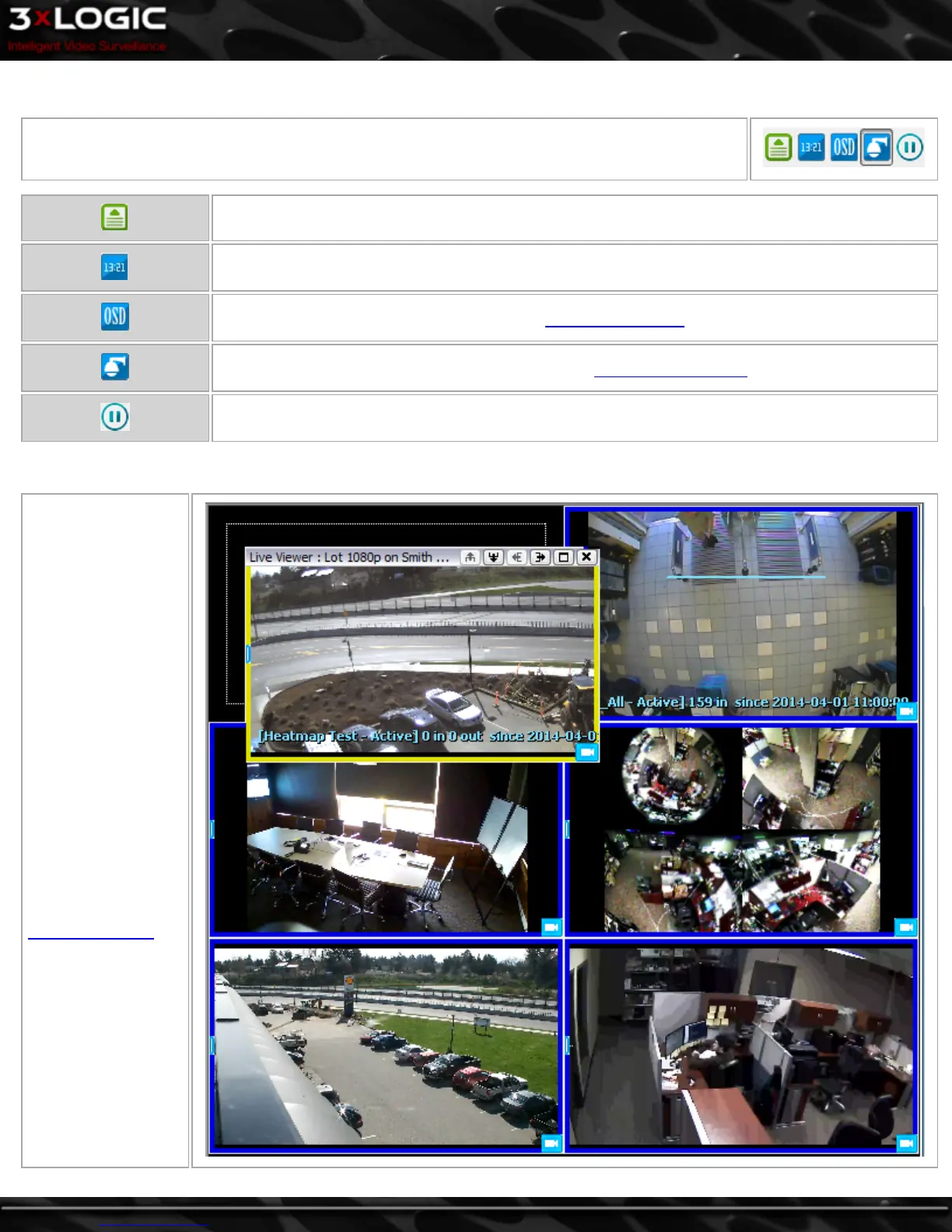
There is a tab at the bottom of the Cameras Sidebar that contains controls for the Live Viewer win-
dows. Actively selected controls will be depressed(i.e the Camera Control button in the example to
the right.)
Increase all Live Viewer Windows to the maximum speed available for each Camera.
Hides/displays the server timestamp in the top left corner of each Live Viewer Window.
Opens the OSD Configuration window. See the OSD Configuration section for details.
Click to open/close the Camera Control pad. See the PTZ Camera Controls section for details.
Click to Suspend / Resume all Live Feeds. This option will only suspend or resume the Live video
feeds, the windows will remain open.
6.2 Live Viewer Windows
Camera and Playback
Feeds are displayed in
windows that are by
default in an auto-
matically adjusting
layout. The coloured
border around each
window indicates the
associated camera’s
current recording
mode (See the
Recording Modes sec-
tion for details.)
©2014 3xLOGIC Inc. | VIGIL Client - User Guide -37-



 To Next Page