10.3 Audio Exporting
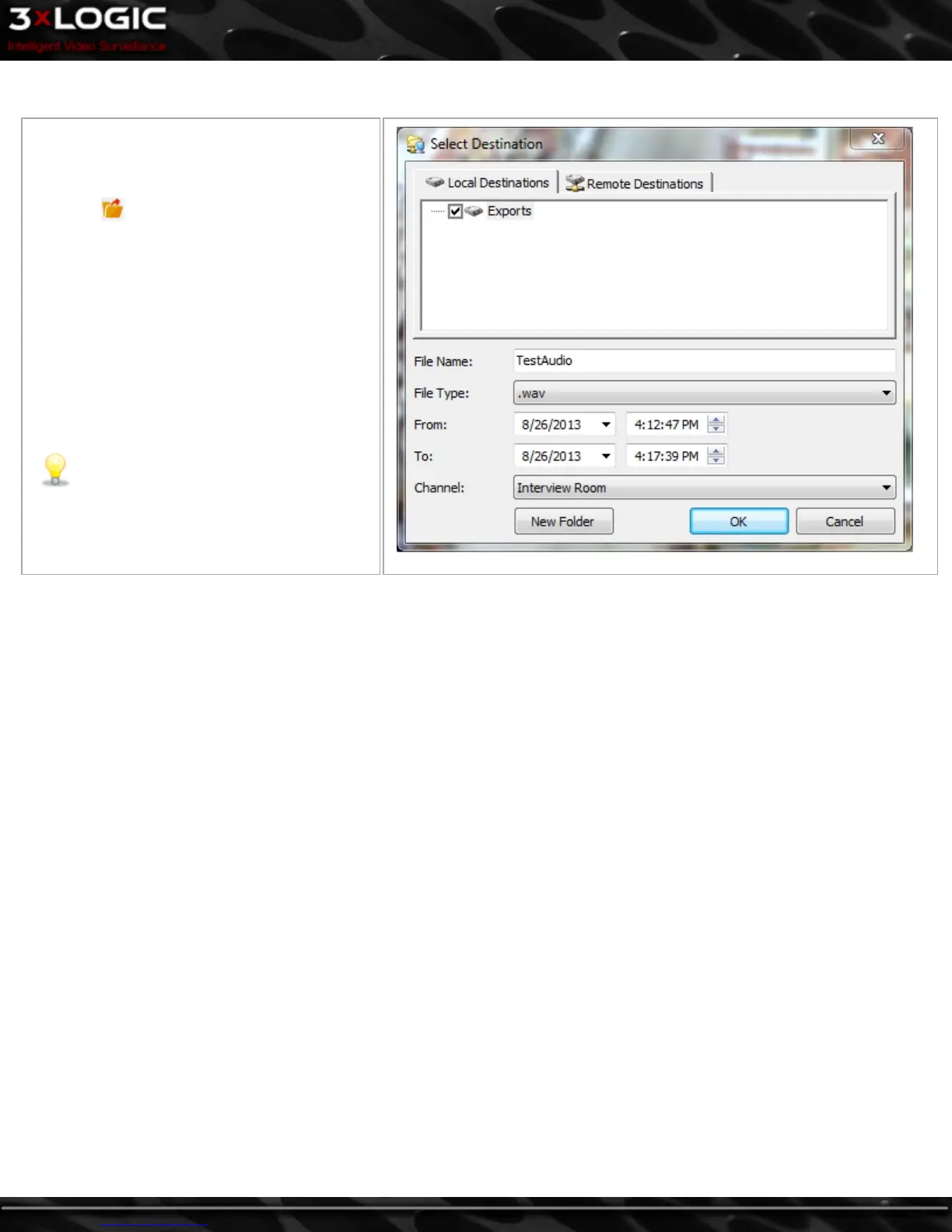
Click the export button and select Audio as
WAV File. You may choose a Local Destination(A
destination on your current system) or a Remote
Destination( a destination on the connected VIGIL
Server.)
This will allow you to export audio in .wav for-
mat with no accompanying video footage, Use
the From and To date and time boxes to select
the range of the audio footage to export, and
select the audio channel to export from the Chan-
nel drop-down menu.
Note: To export audio, an audio channel
must be configured on the VIGIL Server.
©2014 3xLOGIC Inc. | VIGIL Client - User Guide -83-



 To Next Page