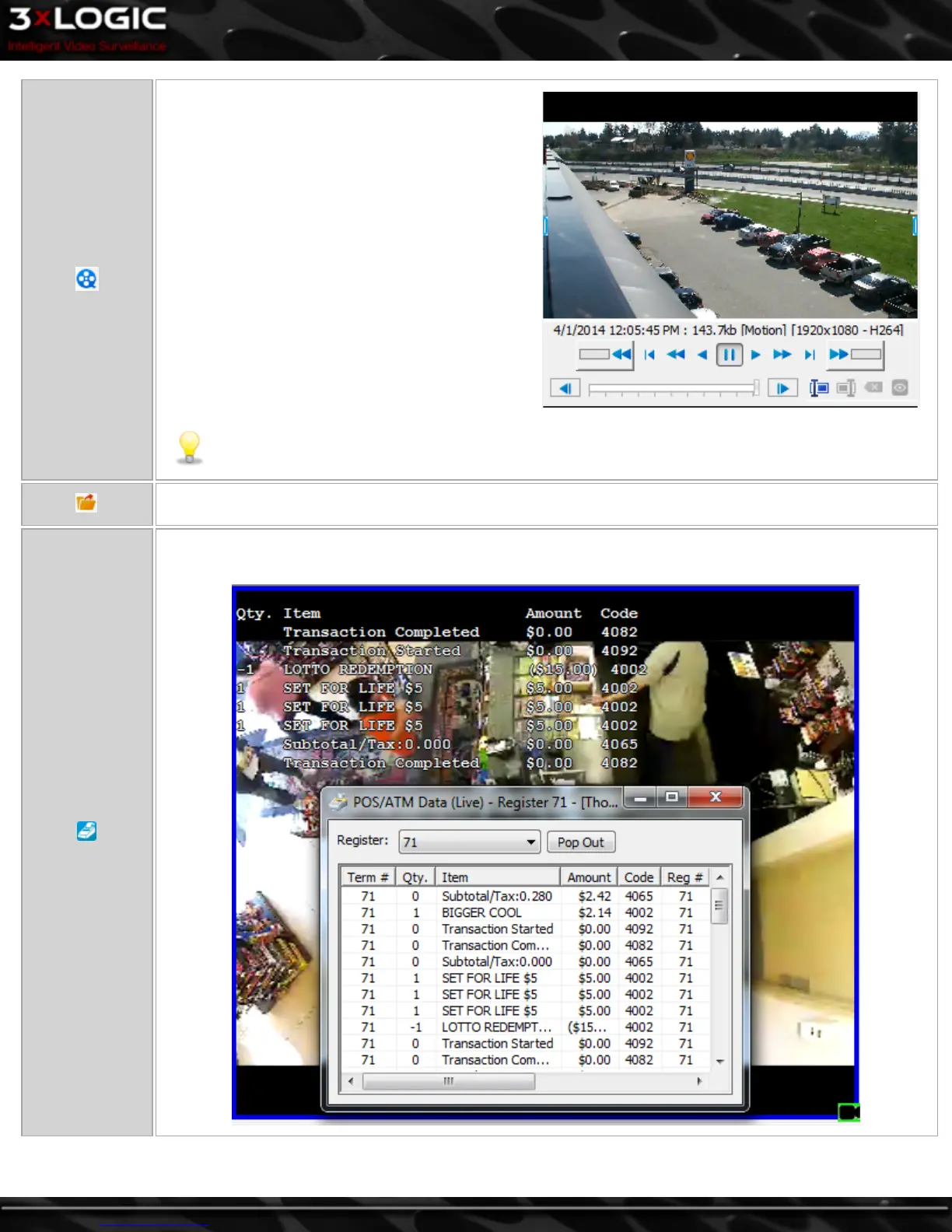
Click this button to open the Instant Playback fea-
ture. This option will replace the Live Viewer win-
dow of the camera you selected with a Playback
window) or on a seperate playback page depending
on your settings (the amount of playback time is
dependent on your playback time settings for Instant
Replay.)
See "Search Tab" on page 96
A basic playback options bar and playback slider bar
(pictured below)will appear on the selected camera
window so that you can select the portion of footage
that desire.
Note: If Seperate Live and Playback Pages is enabled in the VIGIL Client Settings>Startup Tab, the
instant playback footage will load on a seperate playback page.
Export a still shot of the current live frame. You will be promopted to name the file and select the Export des-
tination. A user may also adjust image quality at the bottom of the Select Destination window.
Click this button on applicable cameras to open the Live POS/ATM Data receipt/window. This window will dis-
play Live POS/ATm data as it is recieved and can be docked to the Sidebar for your convenience.
©2014 3xLOGIC Inc. | VIGIL Client - User Guide -39-



 To Next Page