Recording
44
4. Specify the recording type in the drop-down menu for
"Type":
Normal
Motion
Alarm
Motion or alarm
Motion and alarm
5. If you are entering time-dependent settings, you can
define up to eight time slots, between 00:00 and 00:00
in each case, but the individual time slots must not
overlap.
Click on Copy to apply these settings to other days or
the entire week.
Finalise your settings on the record screen by clicking on
Apply and then OK.
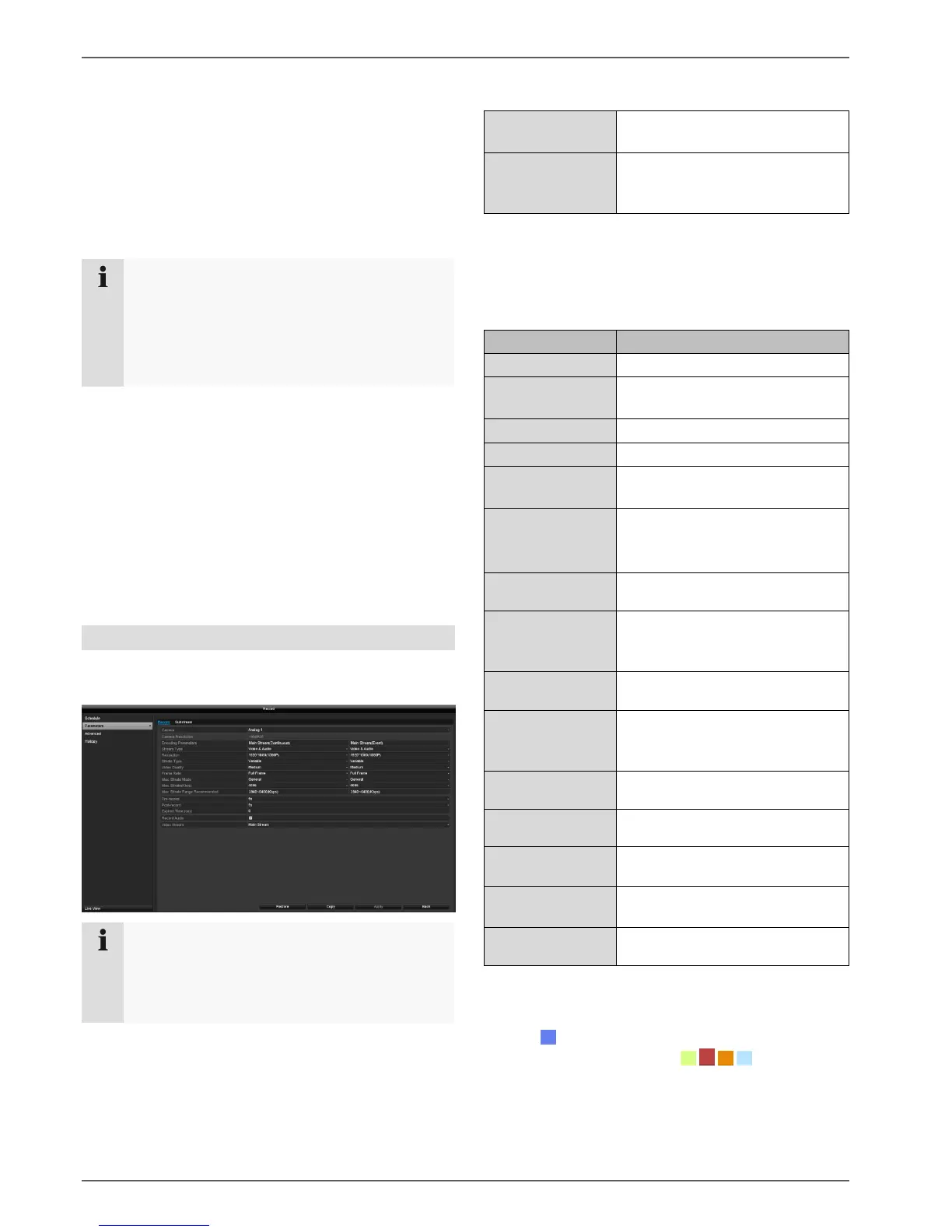
Stream settings
"Stream settings" is where the quality settings for the
individual video streams are set up on the recorder.
There are two types of configuration available:
Quality settings for continuous
and event-based recording.
Quality settings for the
substream, which is used mainly
for the live image display.
Record tab
The following setting options are available in this
submenu:
Stream to be set (continuous and
event)
Select a variable or constant
bitrate
There are various quality levels:
+++: medium quality
++++++: high quality
Settings for the stream frame
rate
Select the mode for setting the
bitrate
Settings for the maximum bitrate
Max. Bitrate
Range
Recommended
Recommended bit rate
depending on the set resolution,
frame rate etc.
Recording period before an
alarm (in seconds)
Recording period after an alarm
(in seconds)
Setting for the maximum
retention time for recorded files
recording with audio data
Stream type allocated for
recording
Dependent upon the programming, the recorder can
record at differing quality levels. The setting "Main
Stream (Continuous)" is used exclusively for continuous
recording . The setting "Main Stream (Event)" is used
for all recordings for the events .
For "Normal", you define the time period for
recording.
The other triggers, such as motion detection, only
trigger recording when the specific trigger has
occurred.
Note
If it is not possible to change the advanced
settings for resolution and bit-rate, this means that
the current recorder firmware does not support
this function.


 To Next Page