Panic recording
50
Panic recording
Recording
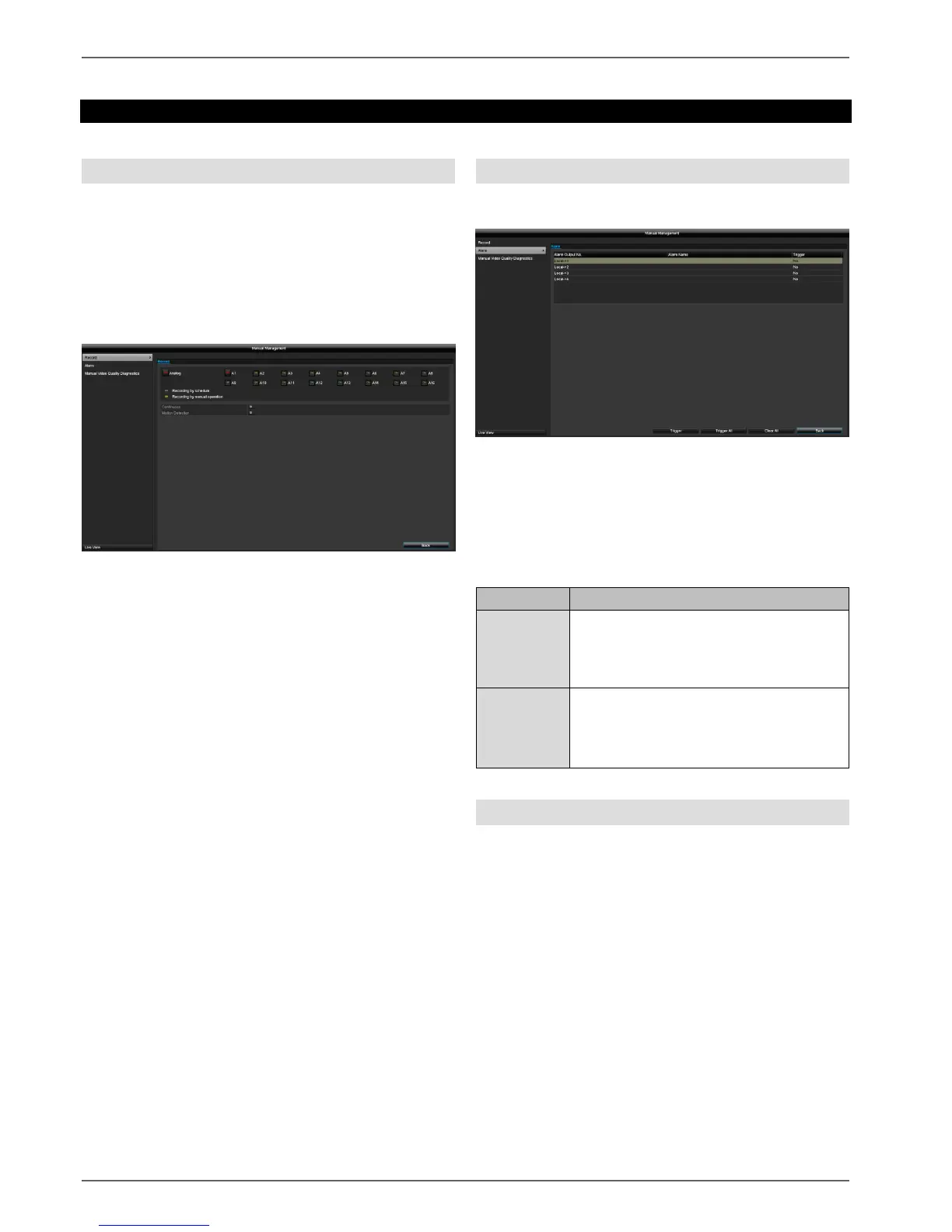
Press the REC button or navigate to Manual
Management in the main menu to start manual
picture/video recording.
If a recording is started manually, it also has to be
stopped manually. All manual recordings will be
deactivated when the recorder is rebooted.
Click on the "Record" submenu.
Select the settings for all cameras. Click on "Off" or "On"
to change the settings.
"On (green)" "Off (red)"
Manually stop recording
"Off (red)" "On (yellow)"
Manual continuous recording
"On (yellow)" "Off (red)"
Manual continuous recording is stopped and if a
schedule has been configured for the camera, it will be
activated automatically (green).
Alarm
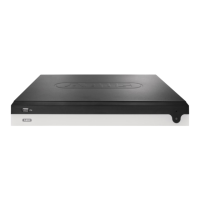
Here you can select the alarm output which should be
switched in the event of manual management.
You can switch several alarm outputs in the event of a
manual response.
Select Trigger to activate the selected alarm output.
Click on Trigger All to activate all of the alarm outputs.
Click on Clear All to remove the settings.
Manual Video Quality Diagnostics
Here, the cameras to be investigated using Manual Video
Quality Diagnostics can be selected. Be aware that the
diagnostics function for each channel must be switched
on and configured under the menu "Camera" in order to
do this.


 To Next Page