Safety information
10.5.7 Remote updates
Only visible to the administrator.
De ne whether your system can be remotely updated here. For details, see the installation manual,
“B/Wupgrade” appendix
“Disabled” A level-4 user cannot update your alarm panel.
“Enabled” Approval is granted so a level-4 user can update your system.
10.5.8 Time schedule active/inactive
Only visible to the administrator.
You can enable the "week planner" in this menu. For example, if on Monday to Friday you want the system
to disarm at 7a.m. and then arm at 6p.m. (a typical timeframe for a shop), you can set this up here.
We recommend setting up the week planner via the web interface (see "Web access"). "Web access –
Timescheduler" describes the setup of the week planner in detail.
10.6 Contacts
Only visible to the administrator.
You can manage your contacts in this menu. Use the telephone/IP interface or
similar of your Secvest, for example, to forward alarms. The contacts can be
adjusted here or new data entered. Not all elds must be completed.
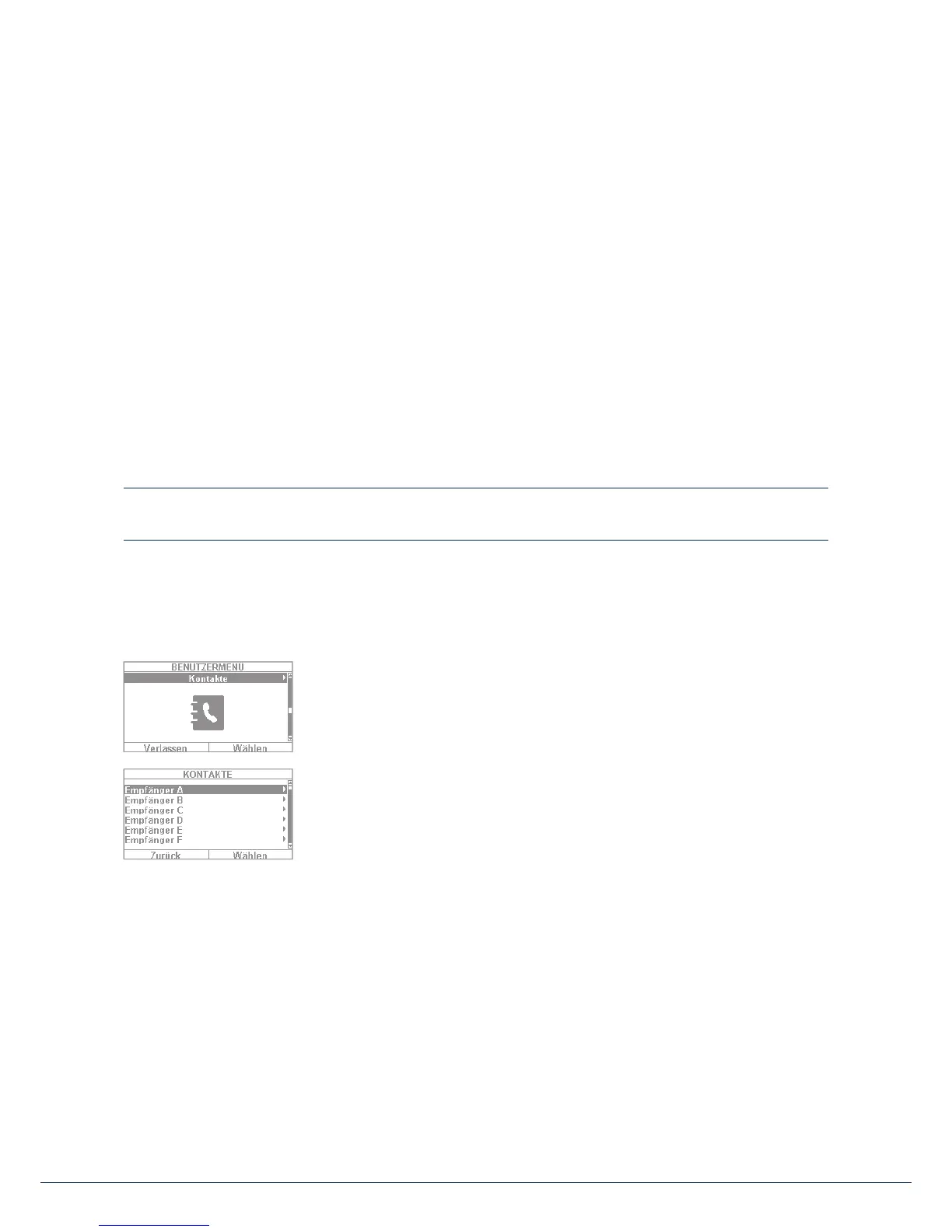
Select "Contacts" to access the following menu:
You can choose up to 12 contacts. Usually the contacts are initially set up in
consultation with your specialist installation contractor. Using the example of
"Contact A", the following options can be seen:
• Name: Enter the name of the contact
• Partitions The recipient can be assigned to sub-areas. This stipulates that the recipient will
only receive a message when an event occurs in the speci ed sub-area.
• Tel.Nr.1: Enter telephone number 1 of the contact
• Tel.Nr.2: Enter telephone number 2 of the contact here
• Email: Enter the email address of the contact
• IP address: This is the IP address of the monitoring station. Do not change this entry.
• SIP user ID: If VoIP is used, the "User ID" is entered here.
10. User menu



 To Next Page