Product Manual
19
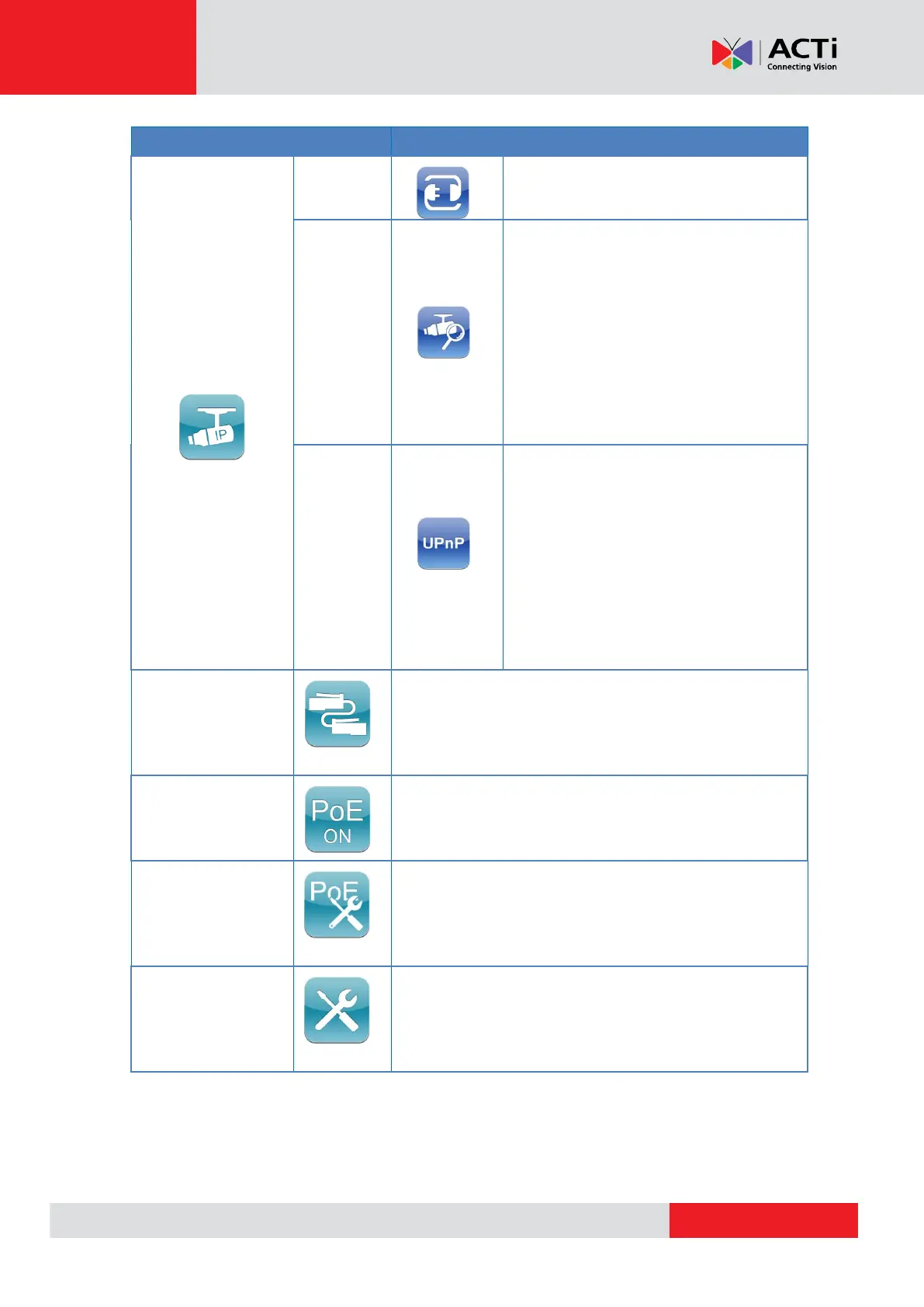
Directly connect to the IP Camera with
one touch.
Ideal for testing multiple IP Cameras. Tap
this icon to find all the IP Cameras in the
network. Then select a specific IP Camera
by IP or MAC from the address list.Users
have to access “Setup> Setup- IP>
Setup- IP connection” for choosing
Camera Type. And relative IP Cameras
will be filtered out.
Tap this icon to find all the IP Cameras
with UPnP names in the network. Then
select a specific IP Camera from the
address list.
Users have to access “Setup> Setup- IP>
Setup- IP connection” for choosing
Camera Type. And relative IP Cameras
will be filtered out.
Detects the CAT5 Cable for wiring types (Straight/Cross)
or errors (Short / Open / Miswired).
Tap this icon to enable Power over Ethernet (PoE) output
for IP Cameras that are PoE / PoE Plus enabled. And the
Camera will drain power from the Device’s internal battery.
Select for PoE Setups including Power Level, Power over
Ethernet (PoE) measurement, PoE measurement display,
Enable PoE when booting, and PoE auto-shutdown time.
Various Setups for cameras and the Camera Installation
Kit can be configured here. Each setup is shown in the
following section: Setup Menu.


 To Next Page