Product Manual
58
Step 2: Press the <USB> button, and the firmware in the USB drive shall be found. The
firmware details will be displayed in the blank field of the file selection menu.
Step 3: Check the <Complete upgrade> tick box by tapping, and tap <Enter/Save>
button to start upgrade. Then the notice of firmware upgrade confirmation will pop up. Tap
<OK> and the firmware upgrade will proceed.
Reset to Factory Defaults
Users can restore the Device system to factory defaults by implementing this function.
Step 1: Tap the <Default> button. Then the notice of resetting to factory default will pop up.
Tap <OK> to continue.
Step 2: The pop-up message of stating successful reset with request for system reboot
will display on the screen. Tap <OK> and the Device will be shut down.
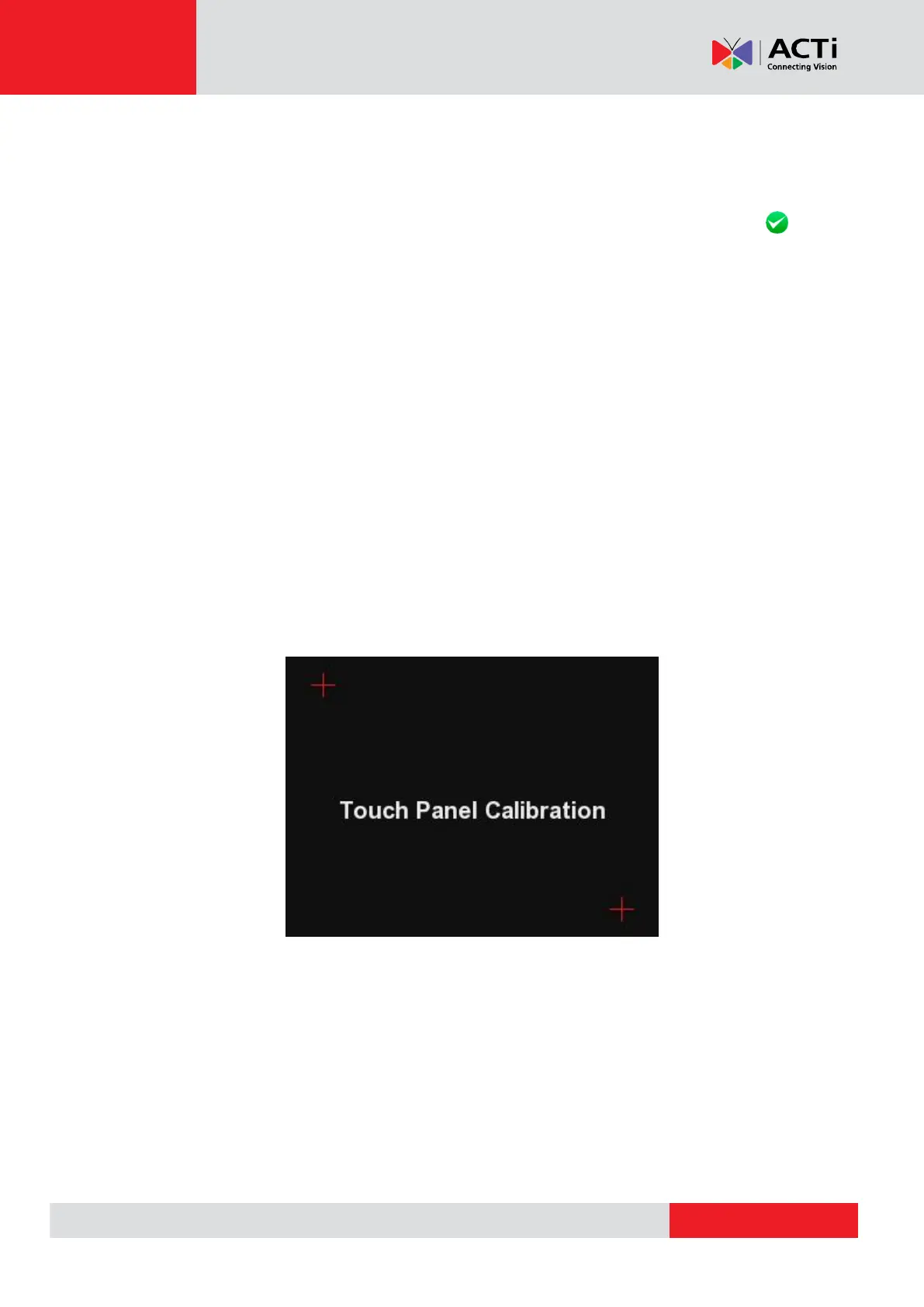
Step 3: Reboot the Camera Installation Kit after system reset. You will be first directed to the
Touch Panel Calibration mode as shown below.
Step 4: Tap the flashing cross on the left top of the screen. And then hit the other flashing
cross located diagonally.


 To Next Page