ADOBE PREMIERE PRO 2.0
User Guide
12
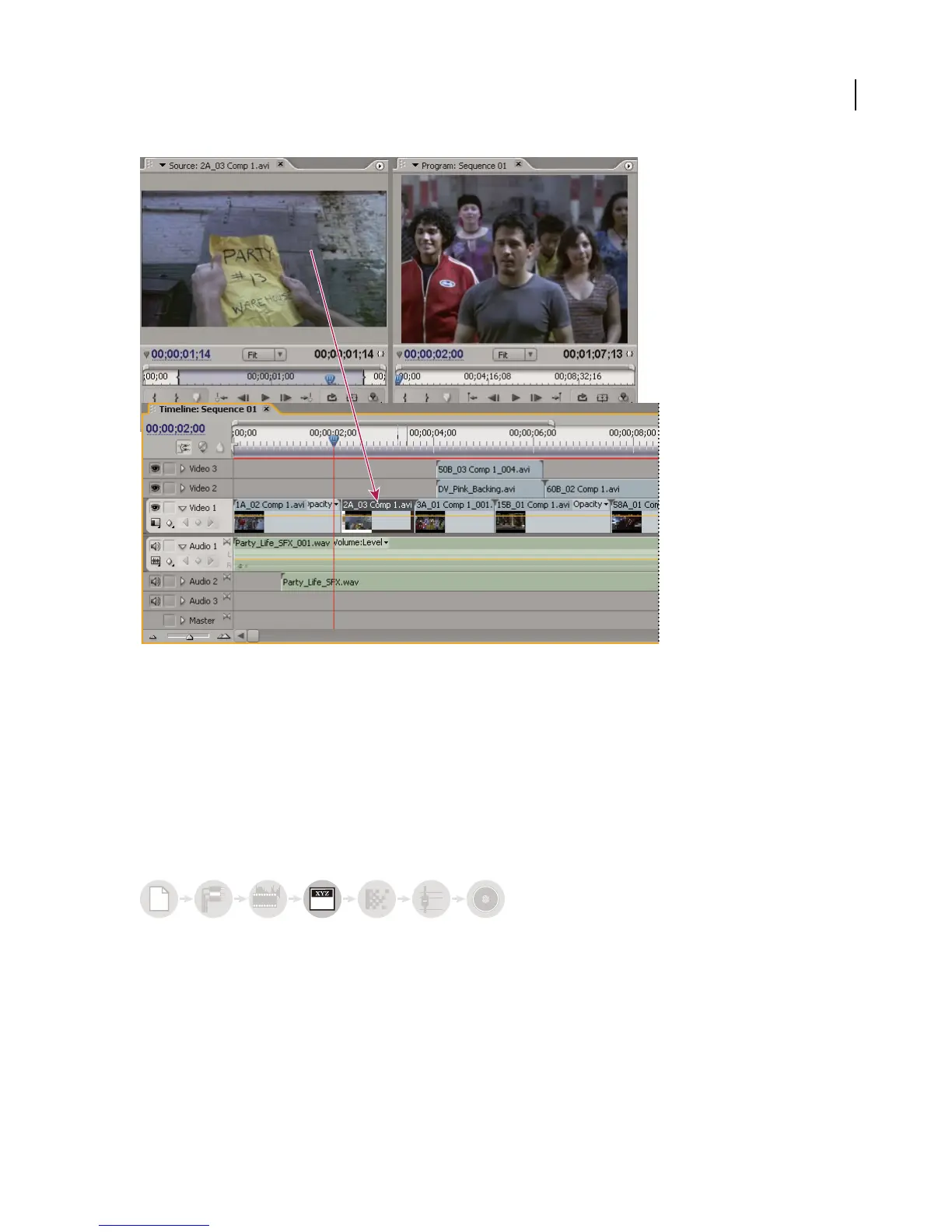
Source Monitor, Program Monitor, and Timeline panel
You add clips to a sequence in the Timeline panel by dragging or by using controls in the Source Monitor. You can
automatically assemble clips into a sequence that reflects their order in the Project panel. You can view the edited
sequence in the Program Monitor or watch the full-screen, full-quality video on an attached television monitor. (See
“About the Timeline panel” on page 107 and “Adding clips to a sequence” on page 115.)
Refine the sequence by manipulating clips in the Timeline panel, with either context-sensitive tools or tools in the
Tools panel. Use the specialized Trim Monitor to fine-tune the cut point between clips. By nesting sequences—using
a sequence as a clip within another sequence—you can create effects you couldn’t achieve otherwise.
Add titles
Using the Adobe Premiere Pro full-featured Titler, create stylish still titles, title rolls, or title crawls that you can easily
superimpose over video. If you prefer, you can modify any of a wide range of provided title templates. As with any
clip, you can edit, fade, animate, or add effects to the titles in a sequence. (See “About the Titler” on page 203.)
a
bcabc
6



 To Next Page