ADOBE PREMIERE PRO 2.0
User Guide
293
Clip Result Values Prevents all functions from creating color values that exceed the valid range. If this option is not
selected, some color values may wrap around from on to off, or vice versa.
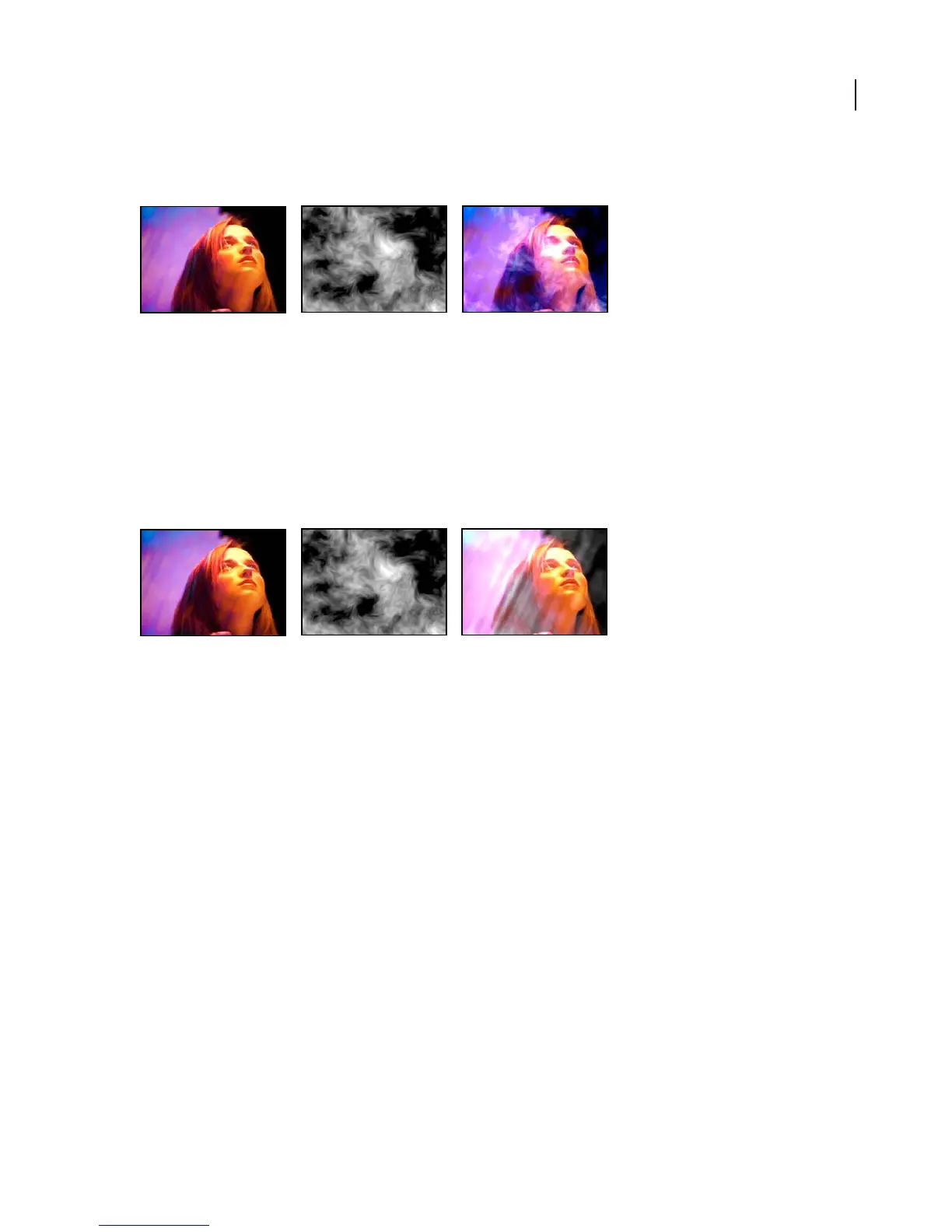
Arithmetic effect: Original images (left and center) and with Arithmetic effect applied (right)
Blend effect
The Blend effect blends two clips using one of five modes. A crossfade is a standard transition between two images:
The original image fades out while the new image fades in. After you blend clips using this effect, disable the clip you
selected from the Blend with Layer menu by selecting the clip and choosing Clip > Enable.
Calculations effect
The Calculations effect combines the channels of one clip with the channels of another.
Calculations effect: Original images (left and center) and with Calculations effect applied (right)
Adjust the following controls for the Calculations effect:
Input Channel Specifies the channel to extract and blend with the original clip:
• RGBA Displays all channels normally.
• Gray Shows the luminance of the original RGBA image.
• Red/Green/Blue/Alpha Converts all channels to the value of the specified channel.
Invert Input Inverts the clip before the effect extracts the specified channel information.
Second Layer Specifies the video track with which Calculations blends the original clip.
Second Layer Channel Specifies the channel to be blended with the input channels.
Second Layer Opacity Specifies the transparency of the Second Layer.
Invert Second Layer Inverts the Second Layer before the effect extracts the specified channel information and calcu-
lates the blend.
Stretch Second Layer To Fit Stretches the Second Layer’s edges to the original layer’s edges before blending. If you
don’t select this control, the Calculations effect centers the second source layer in the original layer and crops it to fit
the effect layer’s boundaries.
Blending Mode Specifies the blend mode used for the blend of the original clip and Second Layer.
Preserve Transparency Ensures that the affected clip’s alpha channel is not modified.



 To Next Page