ADOBE PREMIERE PRO 2.0
User Guide
242
Controlling effect changes using keyframe
interpolation
About interpolation
Interpolation is the process of filling in the unknown data between two known values. In digital video and film, this
usually means generating new values between two keyframes. For example, if you want a graphic element (such as a
title) to move fifty pixels across the screen to the left, and you want it to do so in 15 frames, you’d set the position of
the graphic in the first and 15th frames, and mark them both as keyframes. Then the software would complete the
work of interpolating the frames in between to make the movement appear smooth. Because interpolation generates
all the frames in between the two keyframes, interpolation is sometimes called tweening. Interpolation between
keyframes can be used to animate movement, effects, audio levels, image adjustments, transparency, color changes,
and many other visual and auditory elements.
The two most common types of interpolation are linear interpolation and Bezier interpolation.
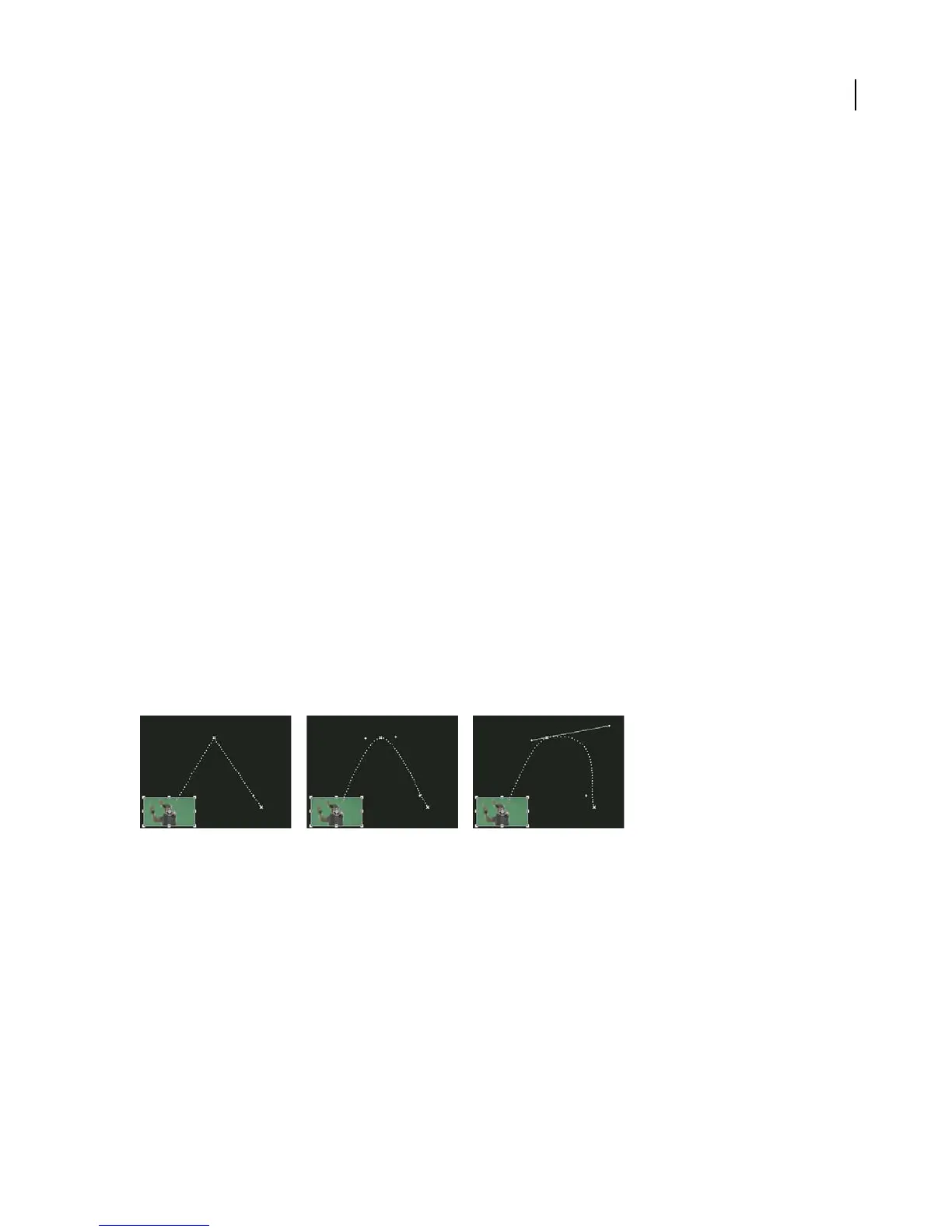
Linear interpolation Creates an evenly-paced change from one keyframe to another, with each in-between frame
given an equal share of the changed value. Changes created with linear interpolation start and stop abruptly and
develop at a constant rate between each pair of keyframes.
Bezier interpolation Allows the rate of change to accelerate or decelerate based on the shape of a Bezier curve, such
as gently picking up speed at the first keyframe and then slowly decelerating into the second.
To change a keyframe’s interpolation method
By changing and adjusting keyframe interpolation, you gain precise control over the changes in your animations. You
can either choose an interpolation type from a context menu or you can directly change one keyframe type to
another by manually adjusting the keyframe or the handles.
Note: You can also use the Ease In and Ease Out commands to quickly adjust keyframe interpolation.
Changing keyframe interpolation
A Linear spatial keyframe B. Auto Bezier interpolation C. Continuous Bezier interpolation
1 Do one of the following:
• In the Effect Controls panel, right-click a keyframe marker.
• In the Timeline panel, right-click a keyframe.
2 Choose an interpolation method from the context menu:
Linear Creates a uniform rate of change between keyframes.
Bezier Lets you manually adjust the shape of the graph on either side of a keyframe. You can create very smooth
changes using this method.
ABC



 To Next Page