ADOBE PREMIERE PRO 2.0
User Guide
418
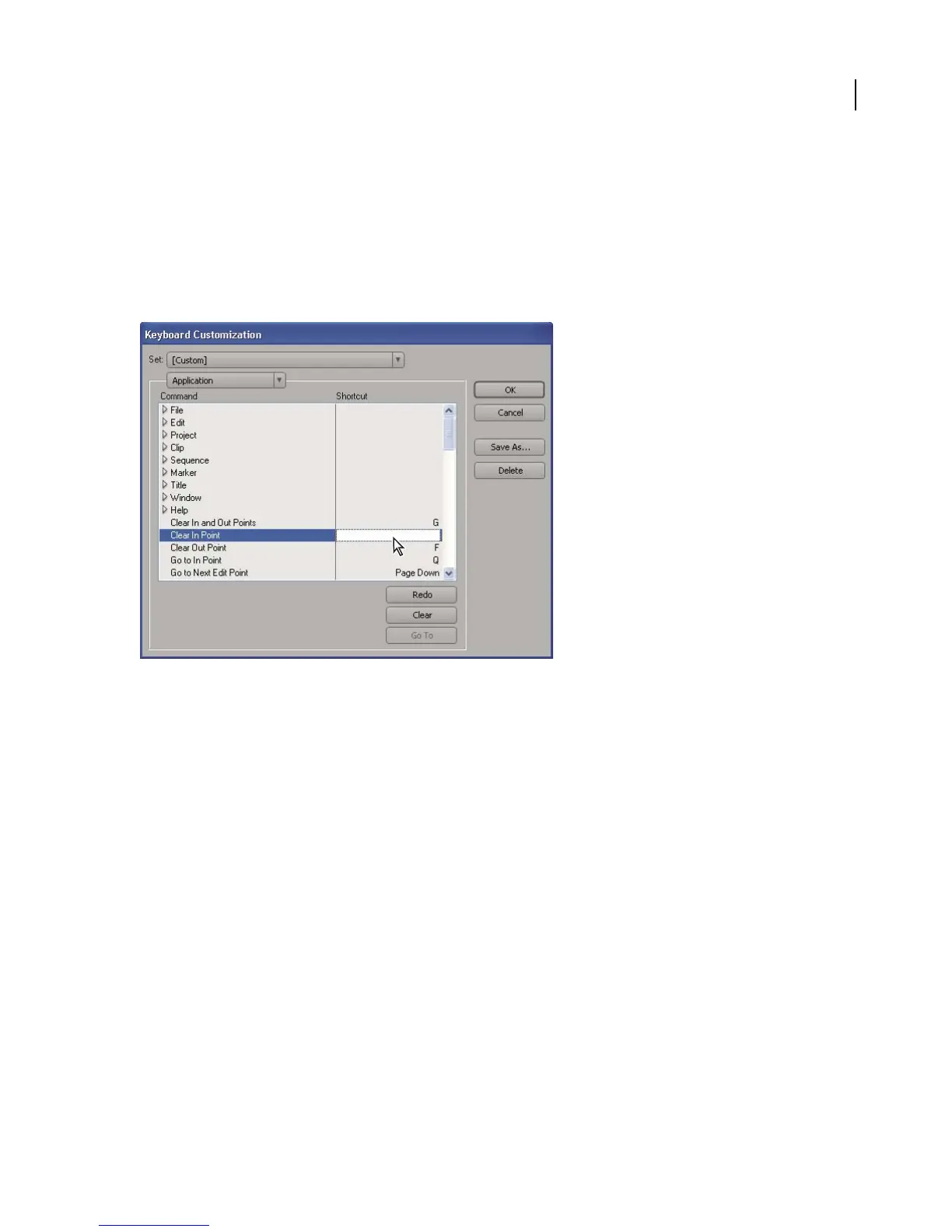
5 Click in the item’s shortcut field to select it.
6 Typetheshortcutyouwanttousefortheitem.Iftheshortcutisalreadyinuse,youareaskedtoeitherreplacethe
existing shortcut or cancel.
7 To erase a shortcut so you can enter a different one, click Undo. Click Redo to restore the previously entered
shortcut.
8 Repeat the procedure to enter as many shortcuts as you want. When you’re finished, click Save As, type a name
for your Key Set, and click Save.
Selecting a shortcut
Note: Some commands are reserved by the operating system and cannot be reassigned to Adobe Premiere Pro. Also, you
cannot assign the plus (+) and minus (–) keys on the numeric keypad because they are necessary for entering relative
timecode values. You can assign the plus (+) and minus (–) keys on the keyboard, however.
To remove shortcuts
1 Choose Edit > Keyboard Customization.
2 Do one of the following:
• To remove a shortcut, select the shortcut you want to remove, and click Clear.
• To remove a set of shortcuts, choose the key set from the Set pop-up menu and click Delete. When prompted in
the warning dialog box, click Delete to confirm your choice.
To switch to a different set of shortcuts
1 Choose Edit > Keyboard Customization.
2 Choose the set of shortcuts you want to use from the Set pop-up menu.



 To Next Page