ADOBE PREMIERE PRO 2.0
User Guide
233
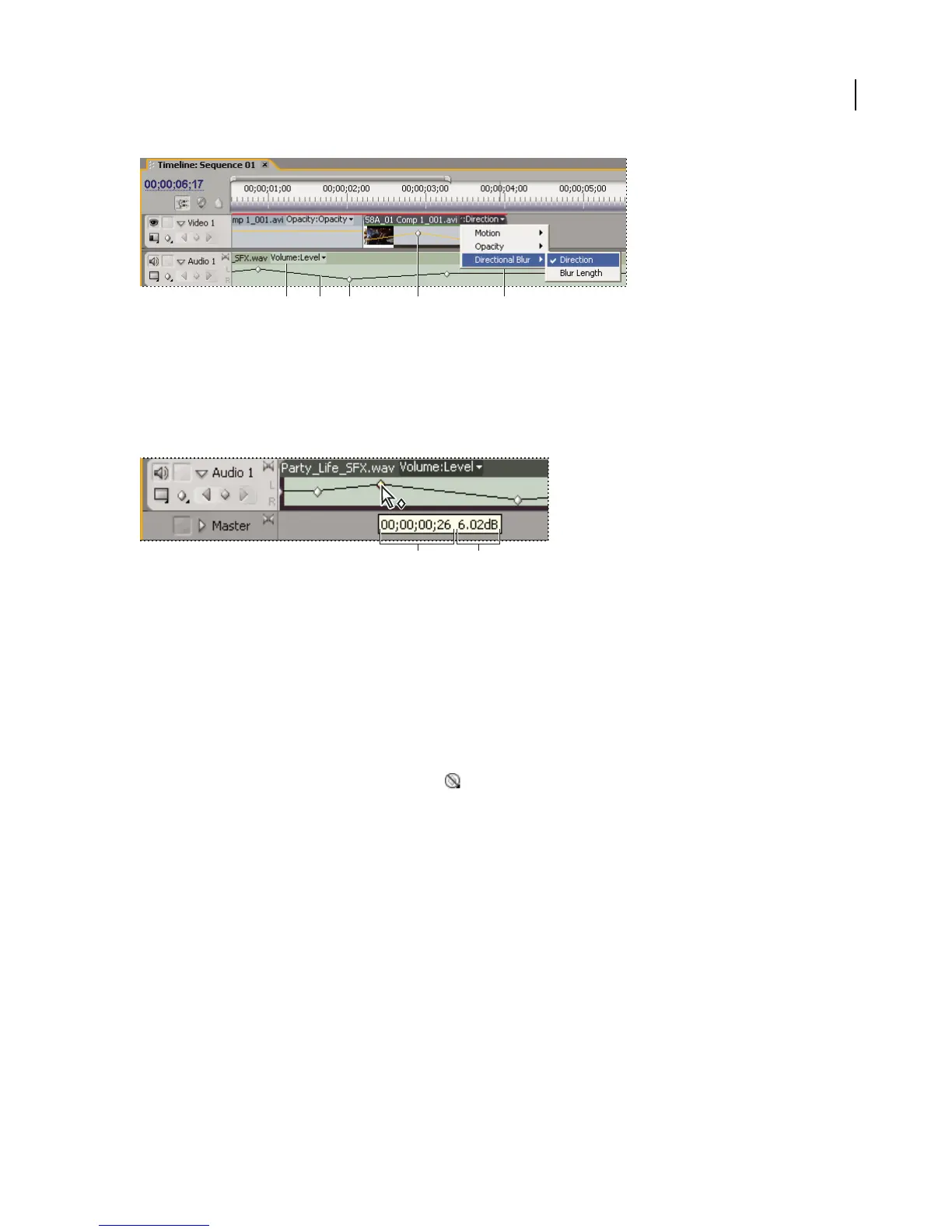
Track keyframe controls in Timeline panel
A. Track effect properties B. Keyframe graph C. Audio track keyframes D. Video clip keyframes E. Clip effect properties
Adobe Premiere Pro provides a tool tip display of a keyframe’s location, as well as the property and options you set
for it in the Effect Controls panel. This information is useful for making precise keyframe placements, quickly noting
the value you’ve set for a keyframe, and quickly comparing the location and change in value of two or more
keyframes.
Keyframe tool tip
A. Timecode B. Property value
See also
“About keyframes” on page 230
To view keyframes and properties in the Timeline panel
If you’ve added keyframes to animate an effect, you can view them and their properties in the Timeline panel.
1 (Optional) If the track is collapsed, click the triangle to the left of the track name to expand it.
2 For a video track, click the Show Keyframes icon and choose any of the following from the menu:
Show Keyframes Displays the graph and keyframes of any video effect applied to clips in the track. An effect menu
appears next to the clip name so you can choose the effect you want to view.
Show Opacity Handles Displays the graph and keyframes of the Opacity effect for each clips in the track.
Hide Keyframes Hides the graphs and keyframes for all clips in the track.
3 For an audio track, click the Show Keyframes button and choose any of the following from the menu:
Show Clip Keyframes Displays the graph and keyframes of any audio effect applied to clips in the track. An effect
menu appears next to the clip name so you can choose the effect you want to view.
Show Clip Volume Displays the graph and keyframes of the Volume effect for each clips in the track.
Show Track Keyframes Displays the graph and keyframes of any audio effect applied to the entire track. An effect
menu appears at the beginning of the track so you can choose the effect you want to view.
Show Track Volume Displays the graph and keyframes of the Volume effect applied to the entire track.
Hide Keyframes Hides the graphs and keyframes for all clips in the track.
E D C B A
A B



 To Next Page