ADOBE PREMIERE PRO 2.0
User Guide
255
Adjusting effects
About the Effect Controls panel
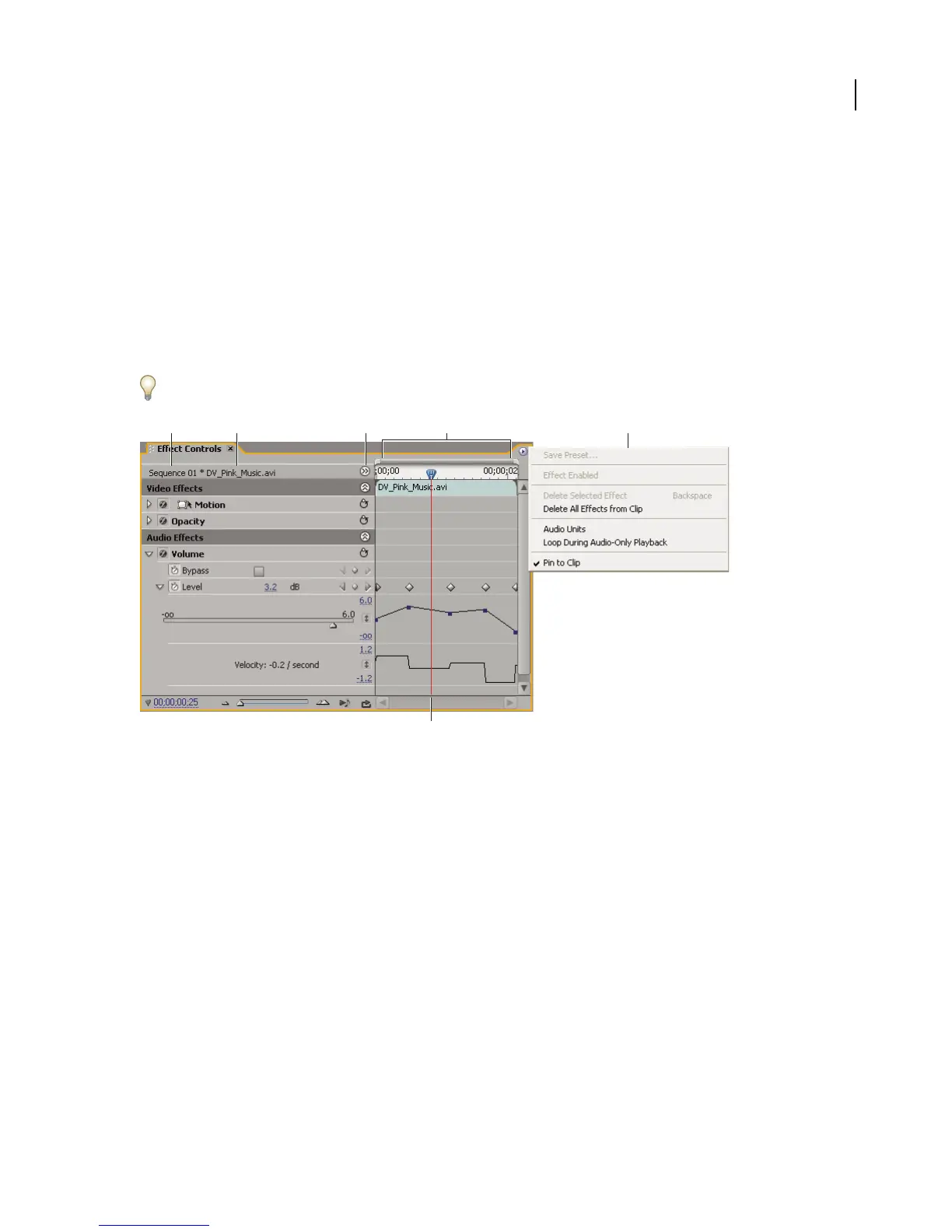
When you apply an effect, the Effect Controls panel lists all the effects that are applied to the currently selected clip.
Fixed effects are included with every clip: the Motion and Opacity effects are listed in the Video Effects section and
the Volume effect is listed in the Audio Effects section. The Volume effect is included only for audio clips or video
clips with linked audio.
Choose Window > Effect Controls or click the Effect Controls tab to view the Effect Controls panel. Although you
can view the Effect Controls panel in a separate panel, you can also dock it by dragging the tab onto another panel.
You can quickly optimize the workspace for effects editing by choosing Window > Workspace > Effects.
Effect Controls panel
A. Sequence name B. Clip name C. Show/HideTimelinebutton D. Keyframe area E. Effect Controls panel menu F. Current -time indicator
The Effect Controls panel includes a timeline, current-time indicator, zoom controls, and a navigator area similar to
thosefoundintheProgramMonitorandTimelinepanel.Whenyouanimateeffectpropertiesusingkeyframing,you
can click the triangle to expand an effect property to display the Value (for properties) and Velocity (speed of the
property changes) graphs for making precise adjustments to keyframes. You can fine-tune the speed and smoothness
of an effect’s animation by manipulating a keyframe’s Bezier handles to change the shape of the graph.
A B C E
F



 To Next Page