ADOBE PREMIERE PRO 2.0
User Guide
341
Write-on effect
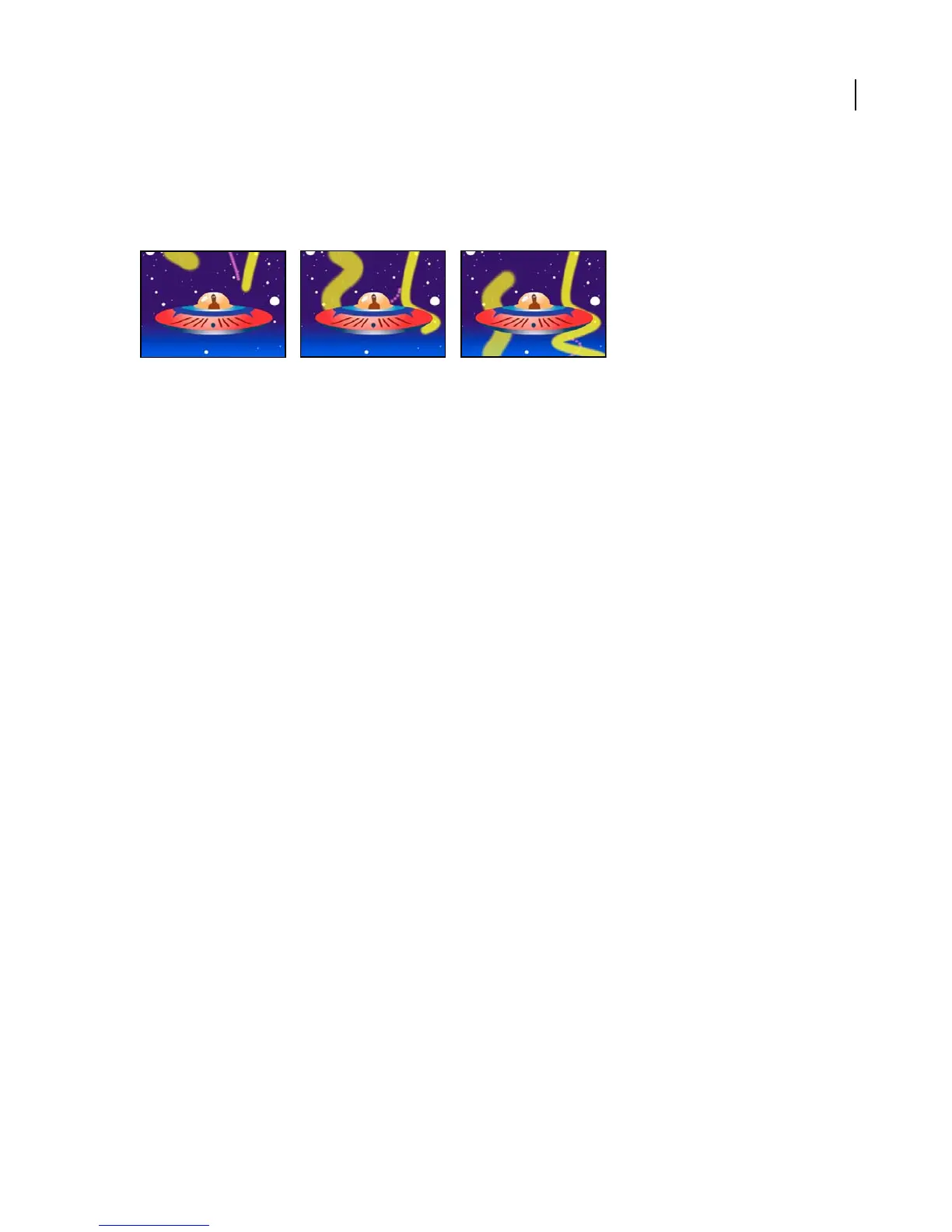
The Write-on effect animates strokes on a clip. For example, you can simulate the writing of cursive text or create
snakelike movement for a stroke. Using the Write-on effect, you can animate the brush size, color, hardness, and
opacity of a stroke.
Write-on effect: Animating strokes
Adjust the following controls for the Write-on effect:
Brush Position Specifies where the stroke begins.
Color, Brush Size, Brush Hardness, and Brush Opacity Specify the size and appearance of the stroke.
Stroke Length Specifies the length, in seconds, of the stroke at any moment. If this value is 0, the stroke has
unlimited length. Use a single stroke length (not 0) for all keyframes to create a snakelike movement of the stroke
across the clip. Change the stroke length at keyframes to make the length of the stroke expand and contract as it is
drawn.
Brush Spacing Specifies the time interval, in seconds, between dabs of color as the stroke is drawn. Smaller values
produce smoother paint strokes but take more time to render.
Paint Time Properties Specifies whether paint properties (color and opacity) are applied to each stroke segment or
to the entire stroke:
• None Applies color and opacity specified at each keyframe to the entire stroke.
• Color Appliesthecolorspecifiedatakeyframetothestrokestartingatthatkeyframeuntilitischangedatalater
keyframe. The opacity specified at each keyframe is applied to the entire stroke.
• Opacity Appliestheopacityspecifiedatakeyframetothestrokestartingatthatkeyframeuntilitischangedata
later keyframe. The color specified at each keyframe is applied to the entire stroke.
Brush Time Properties Specifies whether brush properties (size and hardness) are applied to each stroke segment or
to the entire stroke:
• None Applies the brush size and hardness specified at each keyframe to the entire stroke.
• Size Applies the brush size specified at a keyframe to the stroke starting at that keyframe until it is changed at a
later keyframe. The hardness specified at each keyframe is applied to the entire stroke.
• Hardness Applies the hardness specified at a keyframe to the stroke starting at that keyframe until it is changed
at a later keyframe. The size specified at each keyframe is applied to the entire stroke.
• Size & Hardness Applies both the brush size and hardness specified at a keyframe to the stroke starting at that
keyframe until they are changed at a later keyframe.
Paint Style Specifies whether the stroke is applied to the original layer or to a transparent layer.
See also
“About keyframes” on page 230



 To Next Page