Deployment Guide 111
INSTALLING AND CONNECTING TO THE HIVEMANAGER GUI
Connecting to the GUI through the MGT Interface
1. Connect Ethernet cables from the MGT interface and LAN interface—if you are using it—to the network.
2. Connect an Ethernet cable from your management system to the network so that you can make an HTTPS
connection to the IP address that you set for the MGT interface.
3. Open a web browser and enter the IP address of the MGT interface in the address field. For example, if you
changed the IP address to 10.1.1.8, enter this in the address field: https://10.1.1.8 If you later add a
GuestManager license, log in to HiveManager by entering https://10.1.1.8/hm and log in to GuestManager
by entering https://10.1.1.8/gm
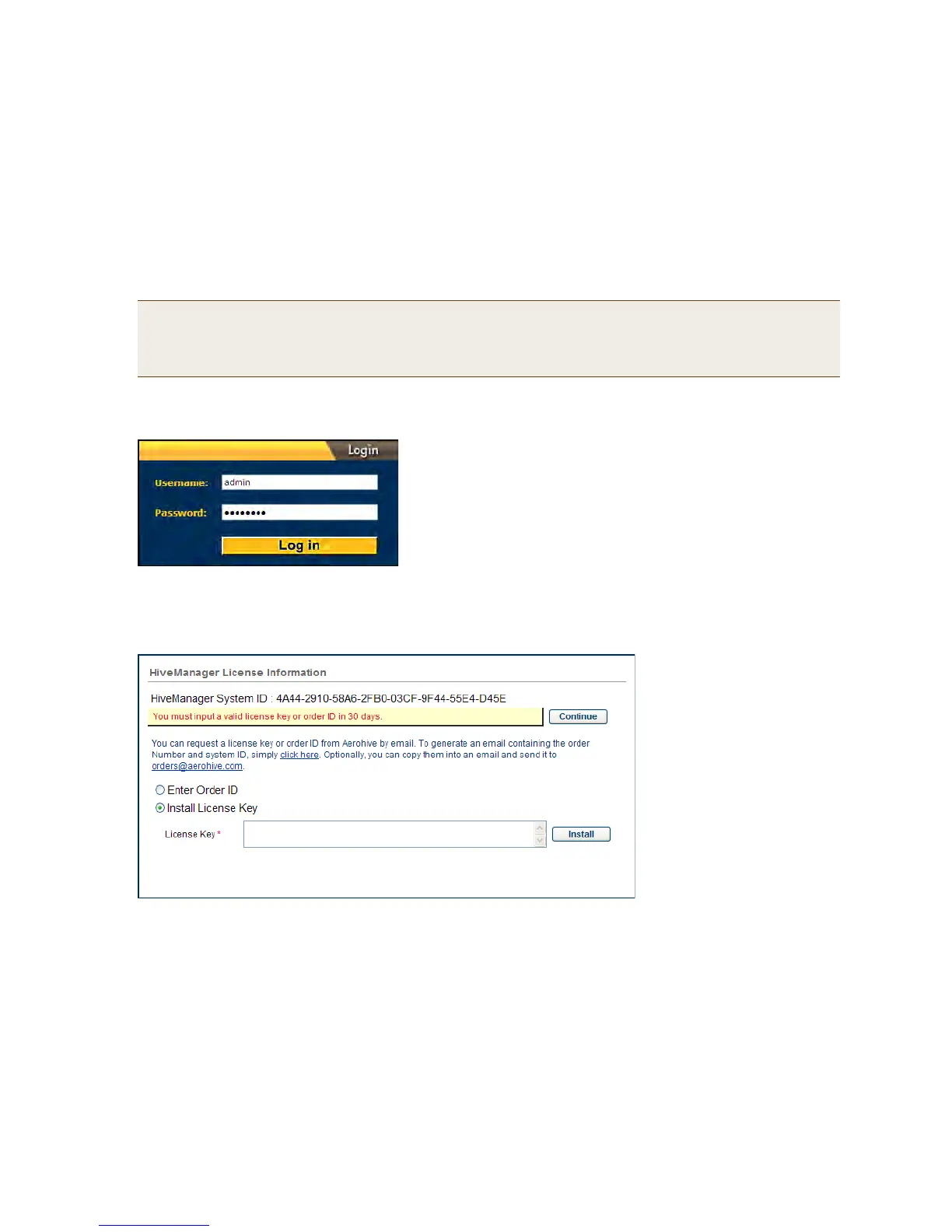
A login prompt appears.
4. Type the default name (admin) and password (aerohive) in the login fields, and then click Log in.
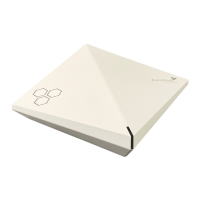
5. If you have not yet installed a HiveManager license on your HiveManager appliance, a prompt to enter an order
ID or install a HiveManager license key appears (as shown below). For HiveManager Virtual Appliance, a prompt
to enter an order ID appears immediately after logging in. For HiveManager Online, you first enter MyHive after
logging in. Then the prompt to enter an order ID appears after you click the HiveManager Online button.
For a HiveManager appliance with Internet access, select Enter Order ID. Copy the order ID text string that
Aerohive sent you in an email message, paste it in the Order ID field, and then click Enter. For HiveManager
Online and HiveManager Virtual Appliance, copy the order ID text string, paste it in the Order ID field, and then
click Enter. HiveManager transmits the order ID to the online Aerohive license server, which replies with all
licenses associated with that order ID.
For a physical HiveManager appliance, you also have the option of installing a HiveManager license key, which is
particularly useful if you are working with the appliance in a location that does not have Internet access, such
as a test lab. If you already have a license, select Install License Key, copy the license key text string
previously supplied by Aerohive in an email message, paste it in the License Key field, and then click Install.
Note: If you ever forget the IP address of the MGT interface and cannot make an HTTPS connection to
HiveManager, make a serial connection to its console port and enter 1 for "Network Settings and Tools"
and then 1 again for "View/Set IP/Netmask/Gateway/DNS Settings". The serial connection settings are
explained in "Changing Network Settings" on page 109.


 To Next Page