BeHear SMARTO User Manual Page 20 of 41
Product Name: BeHear SMARTO Product No.: ABH-410 Doc. No. BHAUM202206.15
Conducting the Hearing Assessment
To start the assessment:
1. Tap the Personal icon at the bottom of the BeHear app screen and select the Assessment
option.
2. Tap an icon showing the type of the headset you’ve plugged in the amplifier.
3. Tap the START button at the bottom of the screen.
The hearing assessment starts with the left ear, goes through six different frequencies and then
repeats with the right ear. Advancing to the next frequency (by pressing the SAVE button in the
upper right-hand corner of the app) can be done only after completing the previous one.
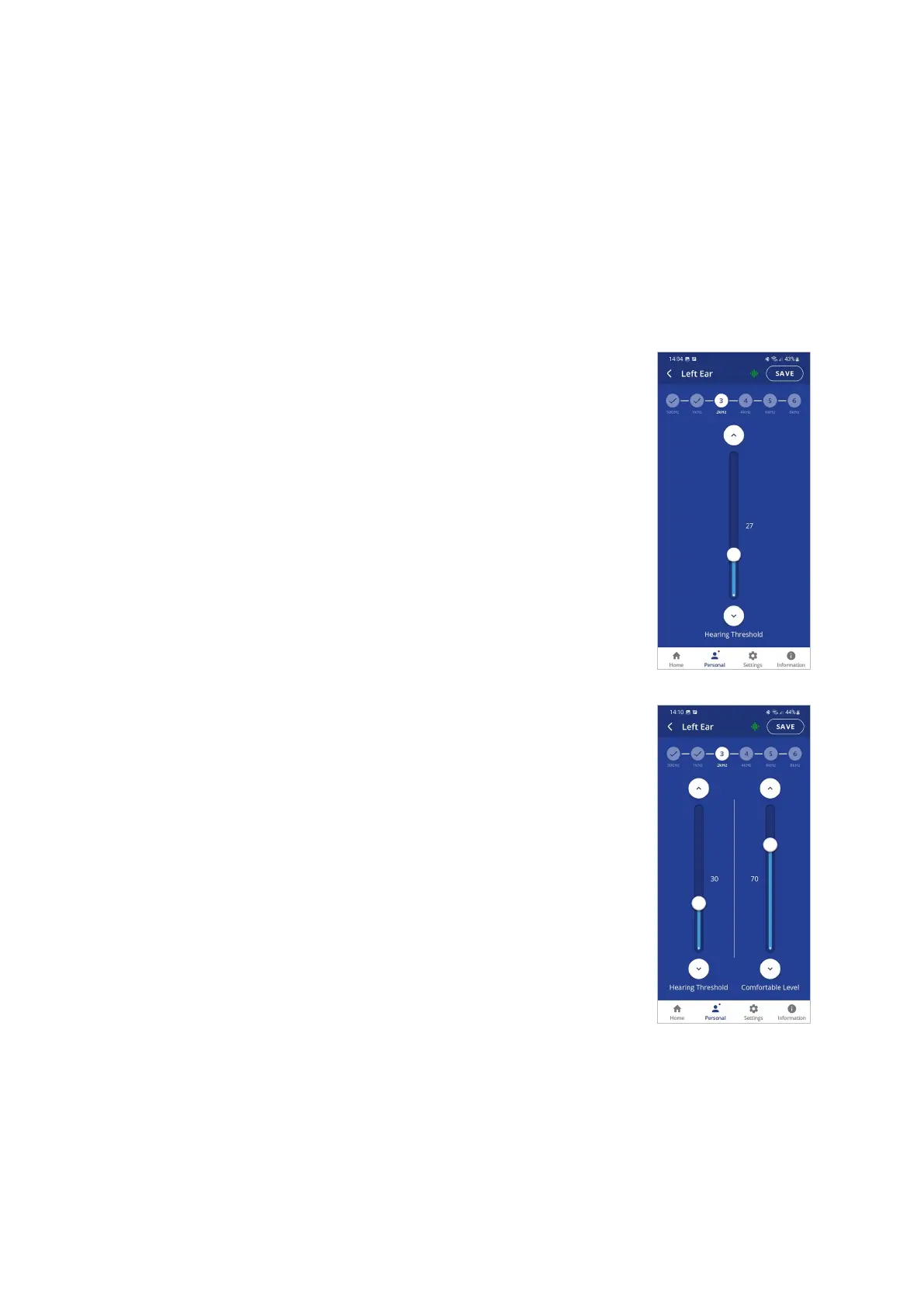
If you use the Basic assessment:
1. Set the Hearing Threshold level by placing your finger on the round
button on the scale and sliding it up until you clearly hear the
sound. Then, slowly move the button down to the lowest level at
which you can still hear the sound. You can do this as many times
as needed to find the correct sound threshold level for your ear.
2. Once the slider is set to the desired position, tap the SAVE button
at the top right corner of the screen.
3. Repeat that action for the five remaining testing sounds for the left
ear, and then repeat the process for the right ear.
4. Save the results, as instructed by the app prompts.
Note: The “∧” and “∨“ buttons on the screen as well as the volume
buttons on the phone can also be used to adjust the volume of
the testing sound.
If you use the Advanced assessment:
1. Set the Hearing Threshold level by placing your finger on the round
button on the scale and sliding it up until you clearly hear the
sound, then slowly move it down to the lowest level at which you
can still hear the sound. You can do this as many times as needed
to find the correct sound threshold level for you.
2. Move the Comfortable Level slider to find the most comfortable
listening level for the testing sound in the left ear (neither too loud
nor too soft).
Note: The Comfortable Level will always be higher (louder) than the
Hearing Threshold.
3. Once both sliders are set to the desired positions, tap the SAVE
button at the top right corner of the screen.
4. Repeat those actions for the five remaining testing sounds for the
left ear, and then repeat the process for the right ear.
5. Save the results, as instructed by the app prompts.
Note: Before saving the assessment results you can return at any time to the previous stages of
the assessment to verify and modify your input. Simply tap the relevant frequency
indicator at the top of the screen to review and/or repeat the assessment for that
frequency.



 To Next Page