BeHear SMARTO User Manual Page 29 of 41
Product Name: BeHear SMARTO Product No.: ABH-410 Doc. No. BHAUM202206.15
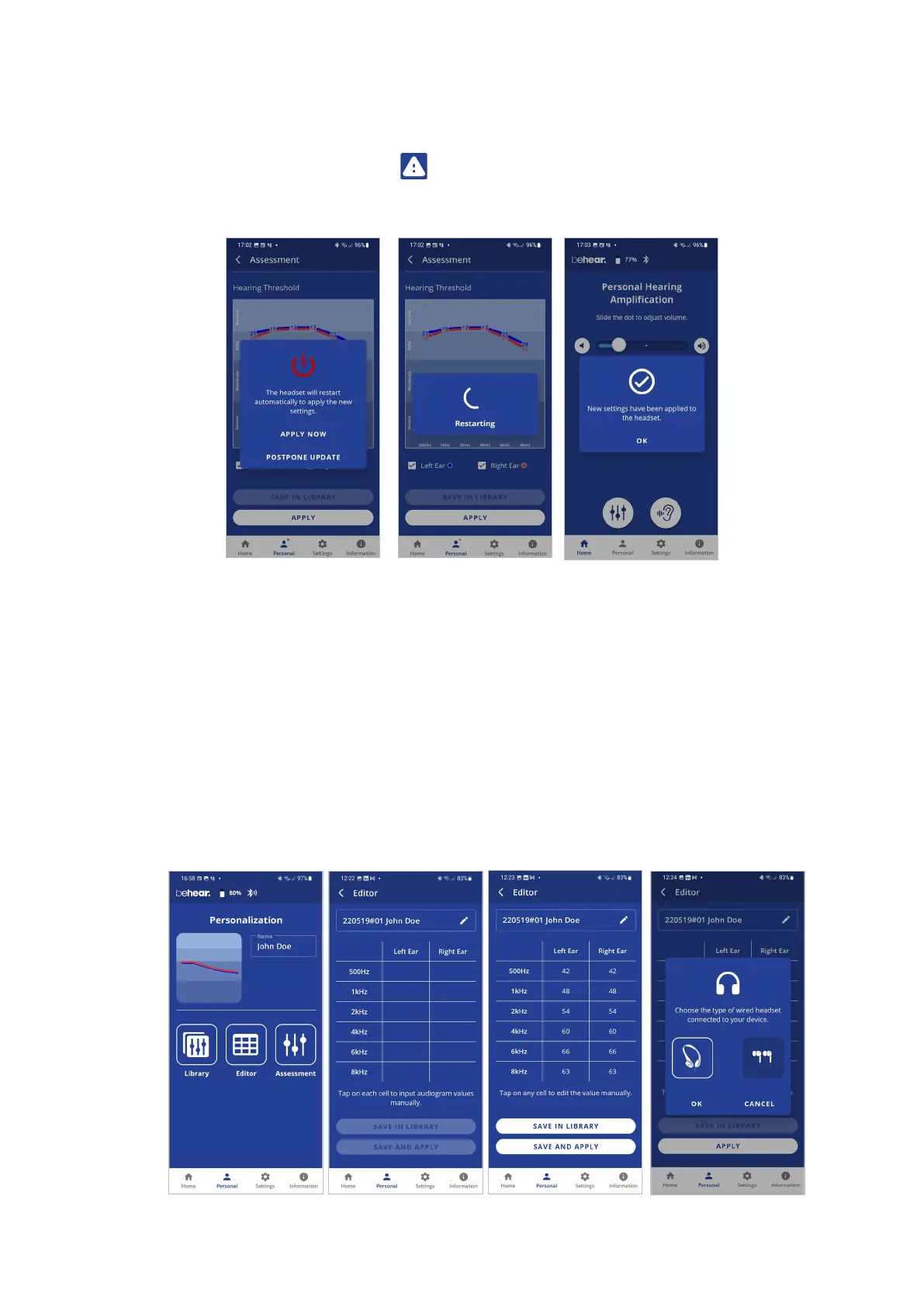
• If the POSTPONE UPDATE option is selected, the amplifier and the app will continue to
operate normally (without applying the results of the assessment until the amplifier is
turned off). The warning icon , along with a red dot near the Personal icon will remind
you that you have a postponed action. Results of the last assessment are applied
automatically when the amplifier is turned back on.
Edit Audiogram
The Editor allows you to create a new audiogram by entering hearing loss values manually
(typically from the results of a hearing test performed elsewhere). Modifications of existing
audiograms can be done here as well.
• Choose Editor in the Personalization screen to open an empty table for inputting values.
The automatically created file name can be changed by tapping on it.
• Input the hearing loss values as they appear in your external audiogram.
• To modify an existing audiogram, tap EDIT while viewing the relevant chart.
• Tap SAVE IN LIBRARY to store the file or SAVE AND APPLY to store the file and apply these
personalized parameters to the connected BeHear SMARTO amplifier. You will be prompted
to choose the type of wired headset connected to the amplifier (on-ear or in-ear).



 To Next Page