BeHear SMARTO User Manual Page 27 of 41
Product Name: BeHear SMARTO Product No.: ABH-410 Doc. No. BHAUM202206.15
Personalization
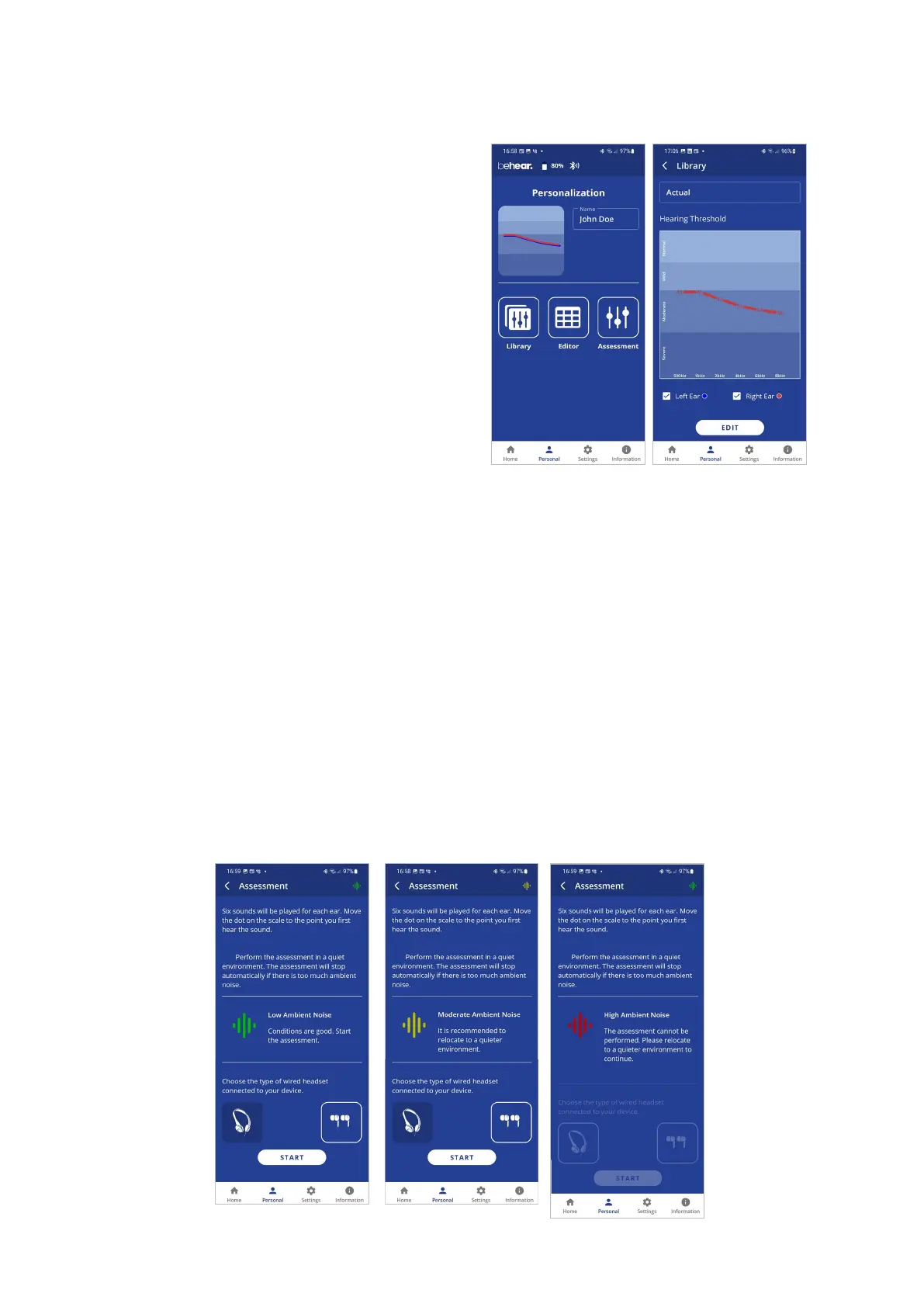
Tap the Personal icon in the bottom menu to
access the Personalization options.
Library
Tap the Library button to open the library of
audiograms.
Editor
Tap the Edit button to open the editor where
personal audiogram values can be entered and
modified manually.
Assessment
Tap the Assessment button to start the
Personal Hearing Assessment (to personalize
your headset).
User Name
Unique names are generated and saved as the
User Name for each personal audiogram saved in the library. You can edit the name by tapping
on it.
Actual Audiogram
The displayed chart depicts the current audiogram values of the connected BeHear ACCESS
headset. Tap the chart to display the audiogram in full screen mode.
Here you can:
View the current values
Tap EDIT to enable manual editing of the values
Personal Hearing Assessment
Choose the Assessment option in the menu to access the hearing assessment screens.
Initial screens of the Hearing Assessment allow you to:
• Start the assessment
• Resume a previously interrupted assessment or discard it and start a new assessment.
You can perform the assessment only if you are in a quiet environment. It is not possible to
perform the assessment if the ambient noise level (as determined by the app) is too high.



 To Next Page