BeHear SMARTO User Manual Page 25 of 41
Product Name: BeHear SMARTO Product No.: ABH-410 Doc. No. BHAUM202206.15
WARNING:
The Home screen icon, as well as parts of other screens, are disabled (grayed out) when the
BeHear SMARTO amplifier is not connected to the phone. Connect the amplifier to a
smartphone to get full functionality from the BeHear app.
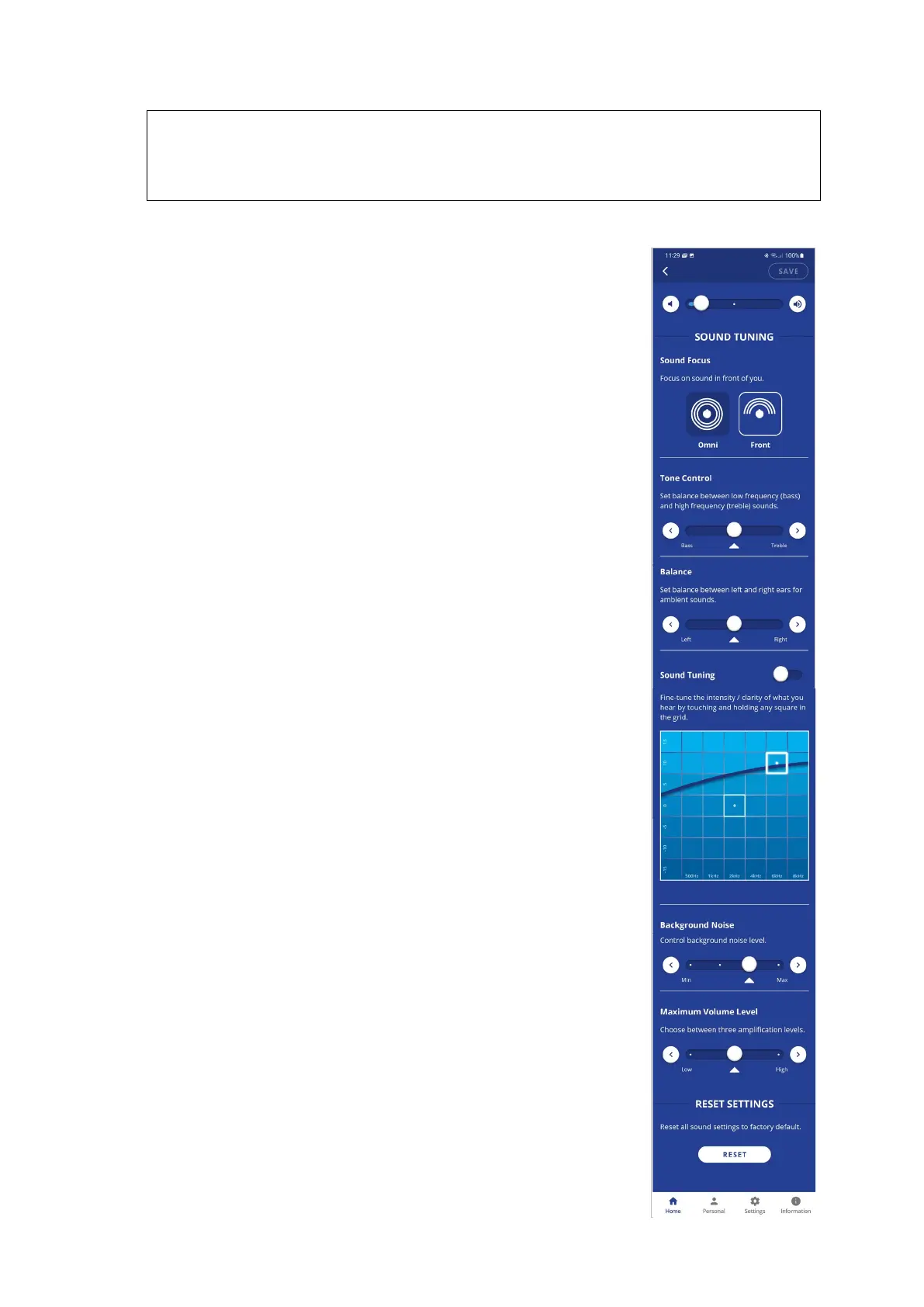
Advanced Sound Tuning for Hearing Amplification Stae
Volume
This control sets the desired volume of the ambient sound by touching
the round button and dragging it left (softer) or right (louder).
Sound Focus
The Sound Focus control allows you to restrict the amplification of
ambient sounds reaching your ears to a limited angle in front of you.
Limiting the angle reduces background noise and improves
intelligibility of speech.
Tap any of the two buttons to set the desired sound focus (Omni – no
limitation, Front - 180◦).
Tone Control
This control sets the balance between low frequency (bass) and high
frequency (treble) sounds. Touching the round button on the scale and
dragging it left will emphasize bass while dragging it right will
emphasize treble.
Balance
This control sets the desired amplification balance between left and
right ears. This control manipulates the balance beyond what was
determined by the hearing assessment.
The setting is applied to the volume control – in addition to the results
of the built-in hearing assessment – and will be active in personal
hearing mode only.
Note: To set the balance for phone calls and music use the Balance
control located in the Settings->Device menu.
Slide the round button to set the desired amplification balance
between left and right ears.
Touch the triangle to reset the button in the middle of the slider to
return it to the levels determined by the hearing assessment (if the
assessment was performed).
Sound Tuning
This control allows you to adjust sound parameters for the active
hearing profile.
Slide the round dot to the right to activate this option. Then, touch and
hold any square in the grid until you feel a vibration under your finger.
The selected square will be framed in white, and relevant sound
changes will be applied to the headset.
Moving to the right from the center position increases the
amplification of high frequency signals, while moving to the left
increases the amplification of low frequency signals. Moving up and
down increases and decreases sound gain, respectively.
The dark blue arc indicates how the modified selection affects the
current audiogram.
Return to the recommended position (factory default) by touching and
holding the Center square.



 To Next Page