BeHear SMARTO User Manual Page 26 of 41
Product Name: BeHear SMARTO Product No.: ABH-410 Doc. No. BHAUM202206.15
Background Noise
This control sets the level of Background Noise.
Touch the round button and drag it left (Min) or right (Max).
The recommended setting (factory default) is indicated by a triangle.
Maximum Volume Level
This control one of the three available ranges of maximum volume. Volume control slider is
scaled according to the selected range.
Touch the round button and drag it left (Low) or right (High).
The recommended setting (factory default) is indicated by a triangle.
SAVE
The SAVE button is activated to save the changes made for some of the properties. The
reminder “Press SAVE to apply settings” appears when the first change is detected.
RESET SETTINGS
The RESET button restores all settings to their factory default values.
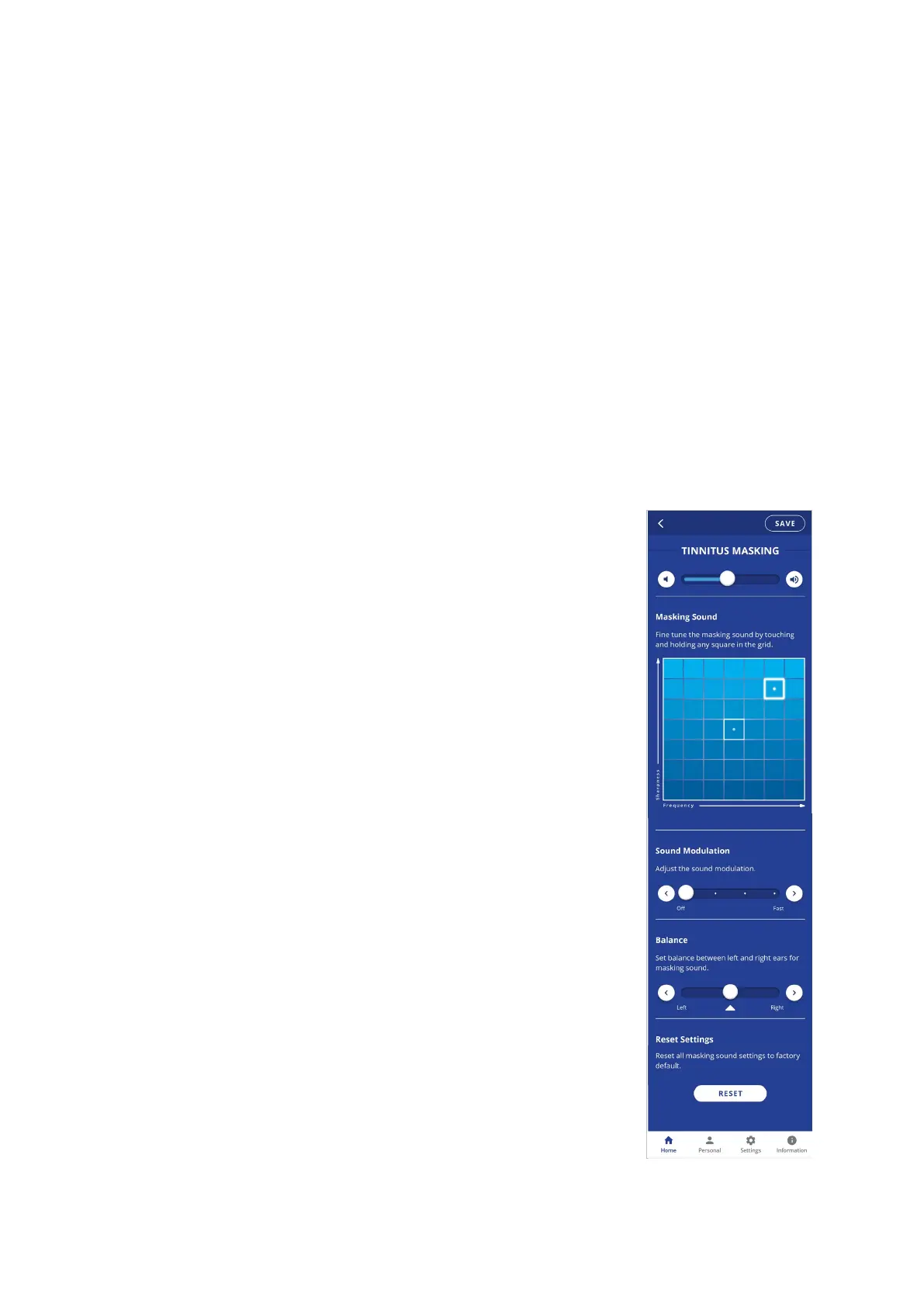
Tinnitus Masking Noise
Volume
This control sets the desired volume of the masking noise. Touch the
round button and drag it left (softer) or right (louder).
Setting the slider to the far-left position will deactivate the masking
noise. Moving the slider to the right will reactivate the noise.
Note: All masking settings are hidden when Tinnitus Masking is
deactivated.
Masking Sound
This control sets the most comfortable masking sound. Touch and
hold a square in the Masking Sound grid with your finger until you
feel a vibration. The change is applied immediately (a white frame will
appear around the relevant square). Repeat this with other squares
to find the position where the sound is most pleasant to your ears.
The Y axis represents changes in sharpness of the signal (from fuzzy
noise at the bottom to sharper tones at the top). The X axis represents
different sound frequencies, from low on the left to high on the right.
Sound Modulation
This control sets the modulation of the masking noise:
Off - the volume of the masking noise is consistent.
Any other position – the volume of the masking noise will increase
and decrease periodically. The period varies on a scale from 10 sec to
1 sec (Fast).
Balance
This control sets the desired balance between left and right ears for
the masking noise. Touch and drag the round button to the left to
favor the left ear, and to the right to favor the right ear.
SAVE
The SAVE button saves the changes made for the TINNITUS MASKING
feature. The reminder “Press SAVE to apply settings” appears when
the first change is detected.
Reset Settings
The RESET button restores all TINNITUS MASKING settings to their factory default values.



 To Next Page