BeHear SMARTO User Manual Page 24 of 41
Product Name: BeHear SMARTO Product No.: ABH-410 Doc. No. BHAUM202206.15
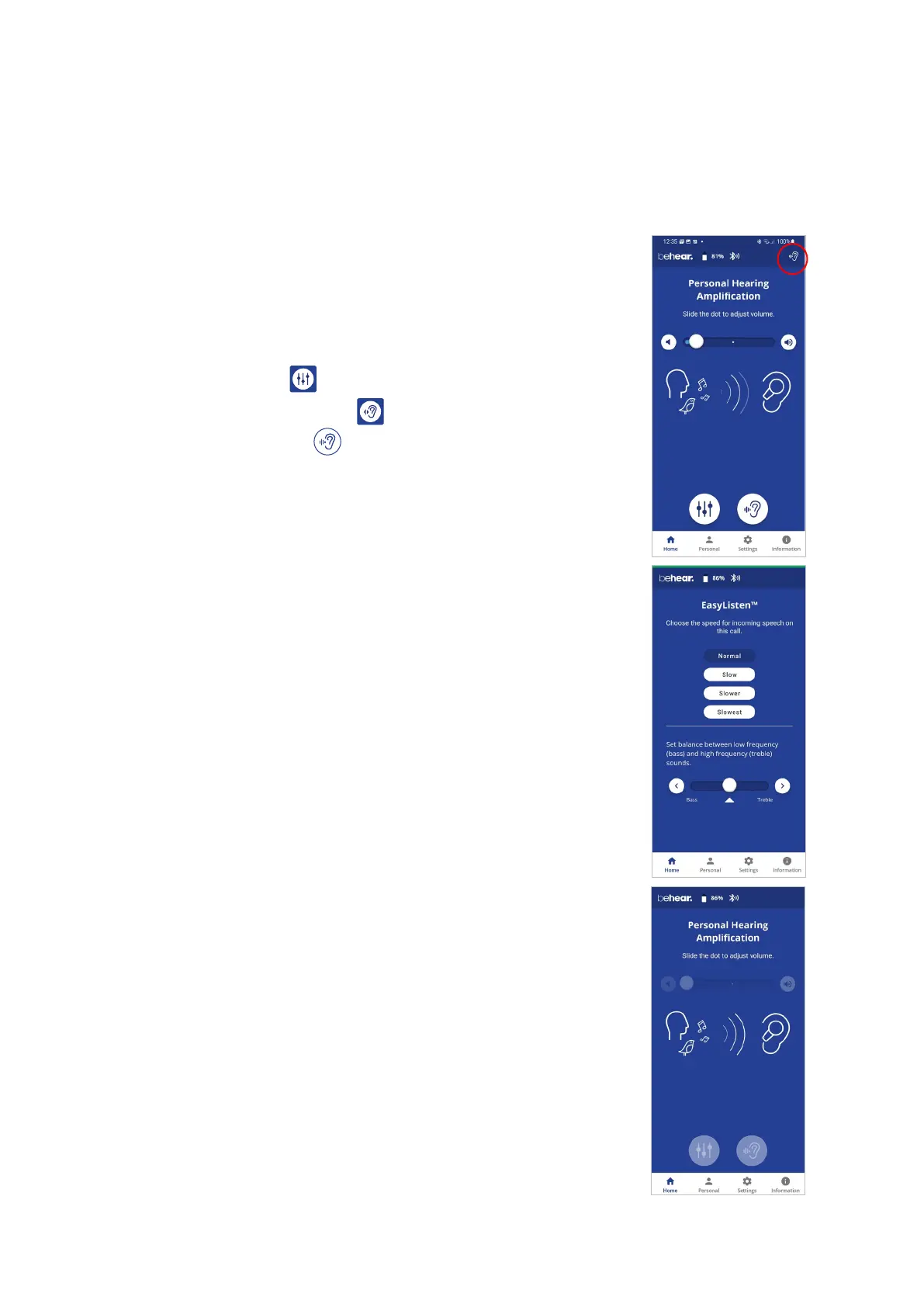
Home Screens
The application’s Home screen changes automatically depending on the actual state of the
headset (personal hearing amplification, phone call handling, or audio play).
Tap the Home icon in the bottom menu to return to the Home screen from anywhere in the
app.
Personal Hearing Amplification State
In this state the Home screen supports managing BeHear SMARTO as
a personal sound amplifier. Available control functions are:
• Hearing volume control slider with an option to turn hearing
amplification OFF and ON.
• Tuning button to manage advanced sound tuning options.
• Tinnitus Masking button to manage Tinnitus Masking sound
options. The icon appears in the top status bar when the
Tinnitus Masking sound is generated.
Phone Call State
In this state the Home screen supports managing the EasyListen
function of the BeHear SMARTO, working as a headset during the
mobile phone call. Available control functions are:
• Speech tempo selection buttons – Normal (EasyListen disabled),
Slow, Slower, Slowest
• Tone control slider
Audio Player State
In this state the Home screen is disabled.



 To Next Page