malletKAT User Manual (ver.07-17-18)
controllers, refer to the section Working With Gate Settings(https://alternatemode.com/online-
docs/malletkat/#working-with-gate-settings)
5.3.2. Blend Mode
Blend mode allows the use a foot controller pedal to crossfade the sounds of Controller One and Two. At either
extreme of the pedal, only one of the sounds will play. The middle range is a varying degree of both sounds.
To utilize Blend Mode follow these three steps:
1) Set the Layer Mode for the User Kit to HANG.
2) Set up your User Kit Controllers to the sound patches you want to use.
3) Assign Foot Controller 1 or 2 to the BLEND function.
Since Blend Mode requires one foot controller to switch between layers, you should also configure the Sustain 1
pedal to work for both layers.
Further details on setting up Controllers and foot pedals can be found in the section Working With User
Kits(https://alternatemode.com/online-docs/malletkat/#building-custom-user-kits)
5.3.3. Split Mode
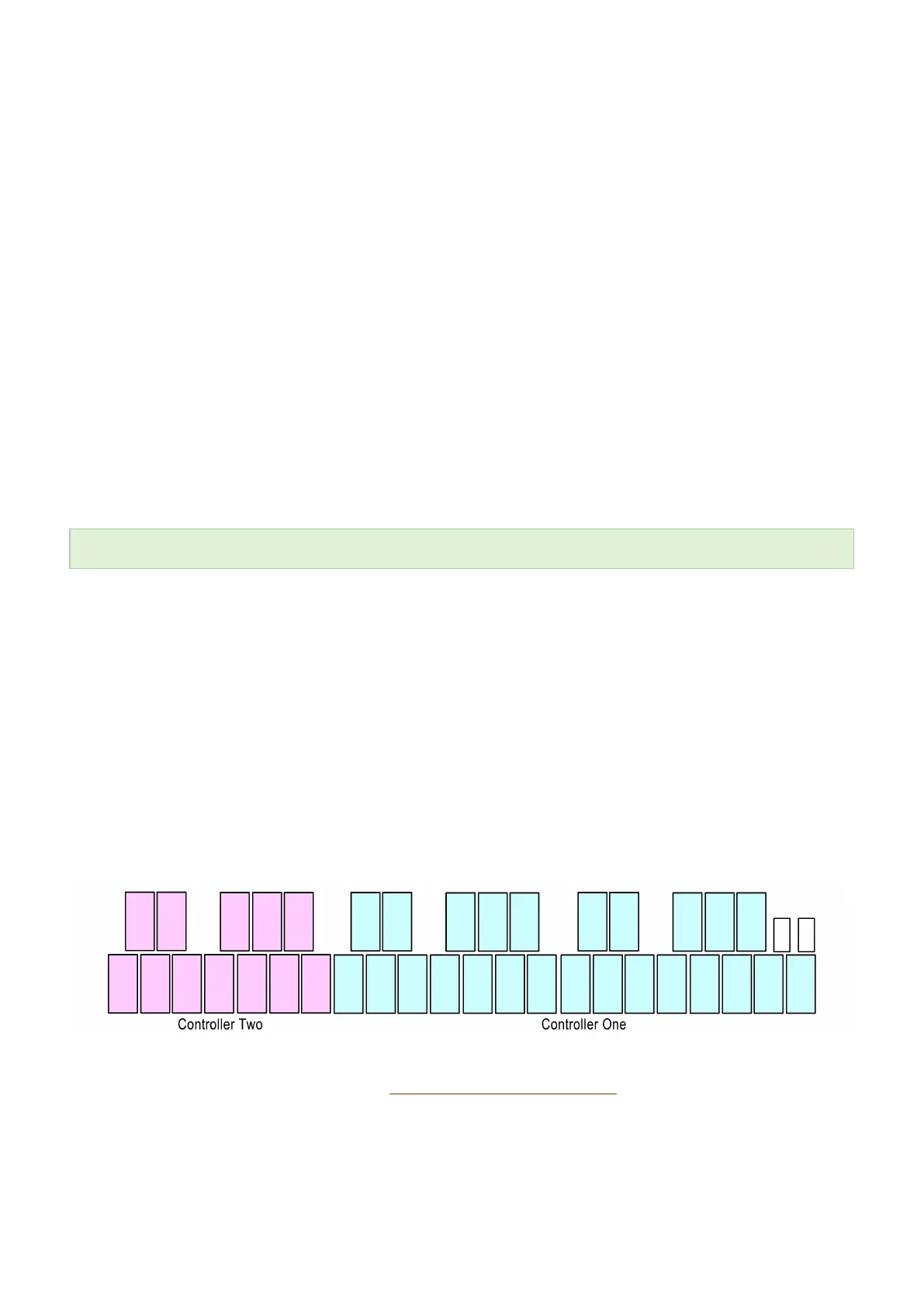
When you see Splt on the first line on the display, it means that the malletKAT is in SPLIT MODE. This mode
allows the malletKAT to play two sounds without having to step on the SUSTAIN TWO . Each of the sounds from
CONTROLLER ONE and TWO can have their own SPLIT point on the keyboard. This means that the two sound
layers can overlap or split. It is even possible to have “dead” notes between the two SPLIT Zones.
NOTE: SPLIT Mode has a few extra configuration steps!!
Both Controller One and Two need to have their own split points assigned in order for this function to
work properly.
To create a split, refer to the section, How to Create a Split(https://alternatemode.com/online-docs/malletkat/#how-
to-create-a-split)
45 / 109


 To Next Page