malletKAT User Manual (ver.07-17-18)
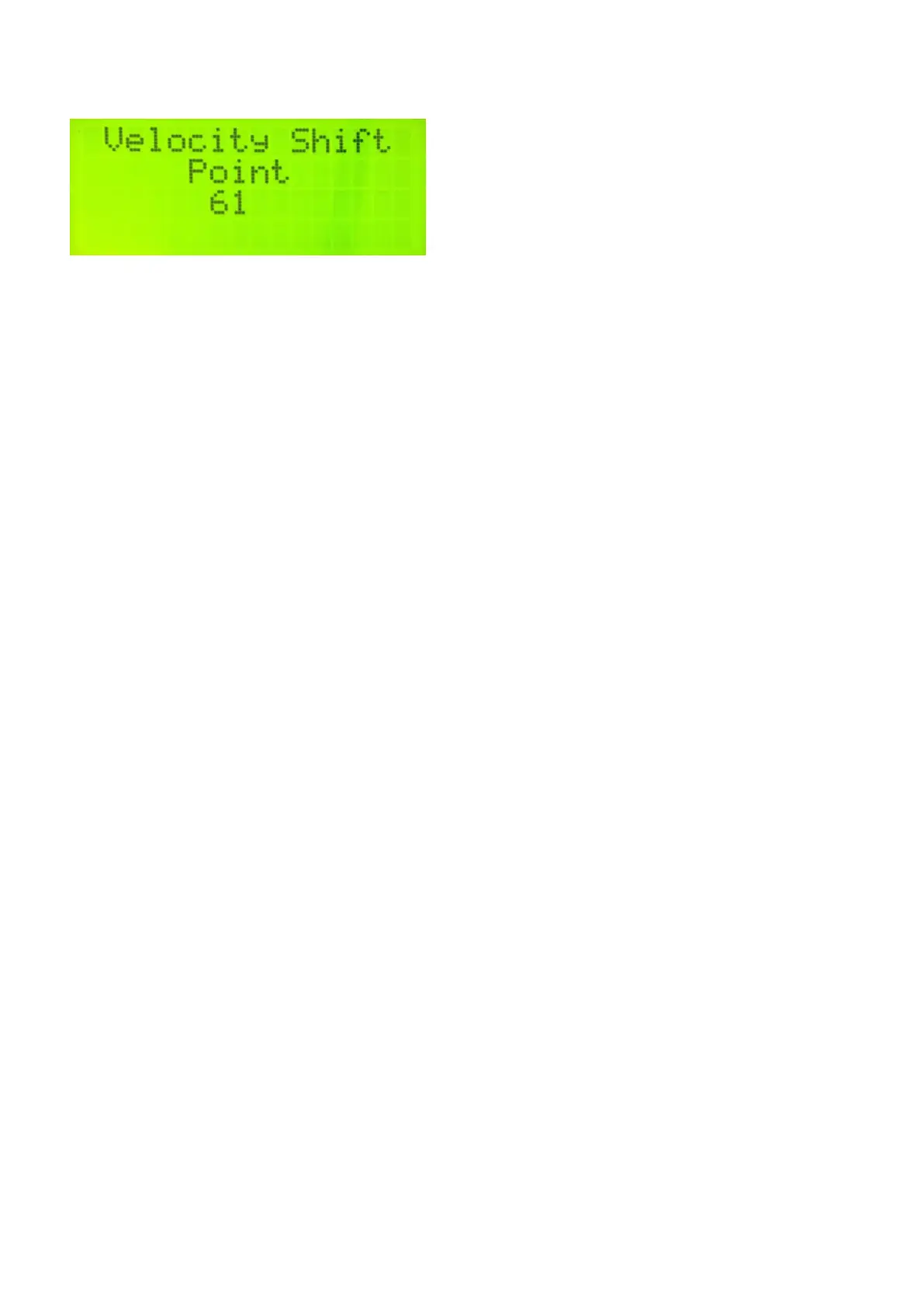
Any notes struck at or below this velocity point will use Controller 1. Any notes struck above this velocity point
will use Controller 2.
For convenience, you can configure the Sustain One Footswitch to control the sustaining of both sounds at the
same time. Read more in the section Setting Up the Pedal Inputs(https://alternatemode.com/online-
docs/malletkat/#setting-up-the-pedal-inputs)
.
5.3.7. Alternate Mode
When you see Alt on the screen, you are in Alternate Mode. In this mode, every time you hit the keyboard, the
sound switches between CONTROLLER ONE and CONTROLLER TWO.
You can access the ALT mode by stepping on the EDIT , and while held down, tap the “Layer” pad (E natural)
THREE TIMES.
For convenience, you can configure the Sustain One Footswitch to control the sustaining of both sounds at the
same time. Read more in the section Setting Up the Pedal Inputs(https://alternatemode.com/online-
docs/malletkat/#setting-up-the-pedal-inputs)
.
5.4. Warp Mode
Warp Mode gives the malletKAT the ability to repeat any pattern in real time. The amount of repeats is
controllable, along with the tempo. Besides the echo being repeated, it is also possible to change the pitch of
each of the echo’s by plus or minus 12 semitones.
This means that each note struck can create a short musical sequence. To make this even more interesting,
instead of just playing back the notes evenly, we have added 8 rhythmic patterns that superimpose themselves
over the real notes played.
Configuring a User Kit to use Warp Mode requires a few steps. Full details are found in the section Using Warp
Mode(https://alternatemode.com/online-docs/malletkat/#using-warp-mode)
6. Working With User Kits
You have 128 User Kits that can be configured to accomplish an endless
combination of creative ways.
48 / 109


 To Next Page