malletKAT User Manual (ver.07-17-18)
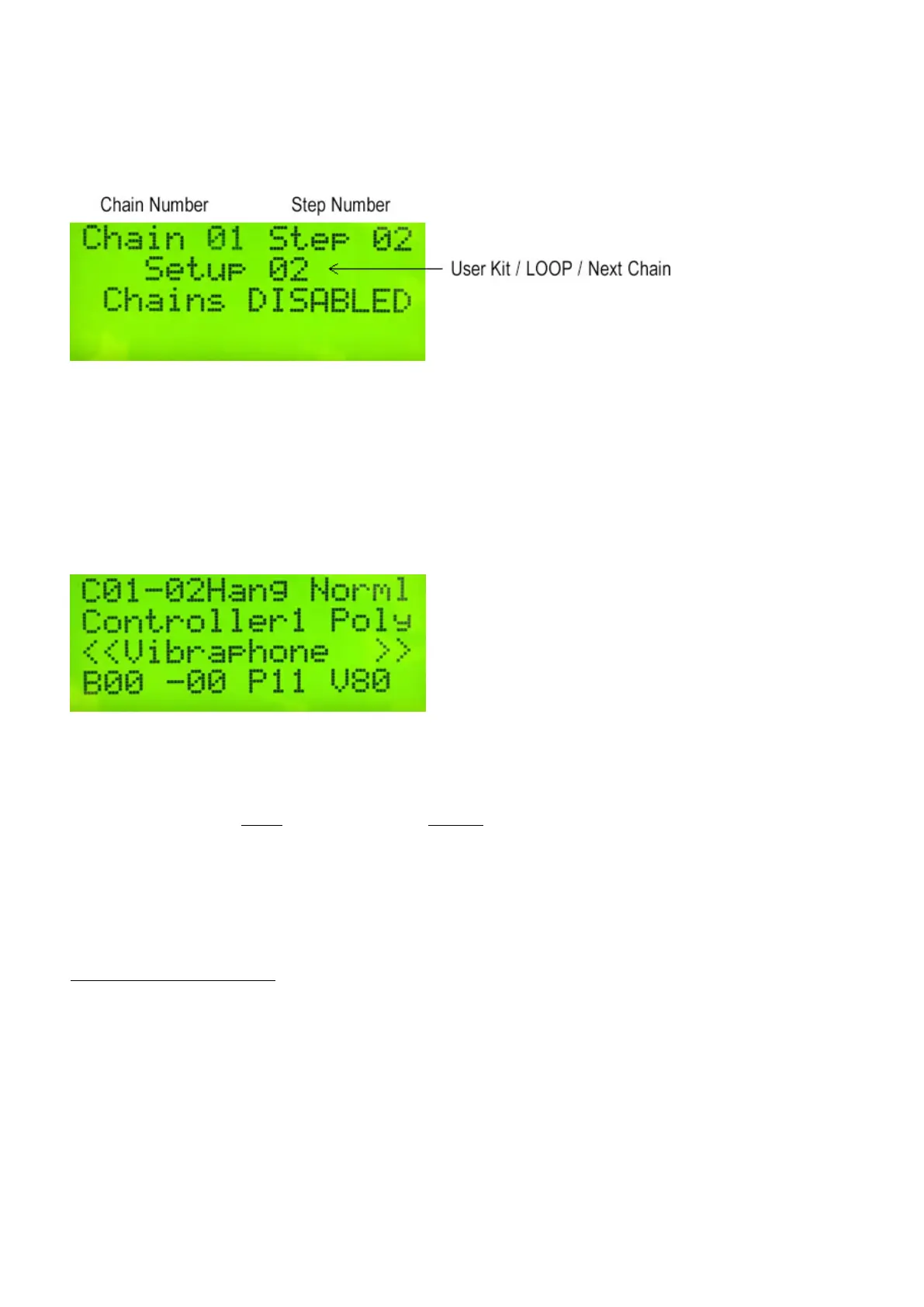
In the Global Auxiliary, you determine What Chain you are editing (#46), which one of the 16 Steps you are
editing (#47), and what User Kit (#48) you want in the slot. After you choose one of the 128 User Kits, you can
also tell the malletKAT to advance to the NEXT CHAIN or to LOOP the Chain that you are editing.
The third line on this screen indicates whether or not the malletKAT is currently in Chain Mode. This will
automatically change when enabling Chain Mode.
Enabling Chain Mode
Step on the Edit footswitch and tap the Bank Select pad, and then the INCREMENT or DECREMENT pad until
the screen reads “CHAIN SETUPS Have Been Enabled”. Release the Footswitch to play.
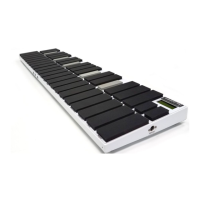
When you Enable the Chain Mode, the first character on the display in Play Mode tells you what Chain you are in
and what Step you are in. For example, C01-02 means that you are in Chain number 1, and that you are in the
second step.
The screen gives the Kit Name, but not the User Kit Number. If you want to know what User Kit you are in, step
on the Edit Footswitch and hit the Setup Pad (low C on the highest octave). The screen will display the current
User Kit Number.
Selecting The Chain To Use — SHORTCUT!
When Chain Mode is Enabled, it is possible to quickly change Chain Numbers. If you want to go to a different
Chain, hold down the Edit Footswitch, hit the Global Auxiliary Pad then hit the INCREMENT or DECREMENT
pad to cycle through the Chains. Release the Footswitch to play.
4.11. How to Create a Split
Creating a split on your malletKAT requires configuring BOTH Controller One and Controller Two in your User
Setup.
If you are unclear on how to create two different Program patches (sounds) on these two controllers, please refer
35 / 109


 To Next Page