malletKAT User Manual (ver.07-17-18)
4. Release the Edit footswitch. Now this Setup has all of your defaults loaded into it.
5.
6. The Default for Program Change is always the n of the Setup you are in. Therefore, you are unable to
change the Default for Program Change.
The Default for Gate Time for Controller 2 in Hang Mode is always “Infinite.” The Default Gate Time for Controller
1 and for Controller 2 in Split and Double (Layer) is user definable.
If you change one of your Defaults for a particular setting and want to get it back to the original Factory setting,
the method is as follows:
<Edit foot down> <Default> <setting> <Default> <Edit foot up>
For example, if you want to return the Default for Minimum Velocity to the original Factory setting:
1) Depress the Edit and keep it depressed during the following.
2) Hit the “Default” Pad, (F# on the highest octave).
3) Hit the “Minimum Velocity” Pad (F on the highest octave).
4) Hit the “Default” Pad again, (F# on the highest octave)
5) Release the Edit .
Now the Default for Minimum Velocity has been returned to the original Factory setting.
SETUP COPY = G# (highest octave)
This function allows you to copy the current FACTORY or USER Setup to any other USER SETUP number.
To do this, perform the following steps:
1. Hit the SETUP COPY pad (G# on the highest octave) while the Edit is pressed.
2. Enter the digits of the Setup Number to which you would like to copy the current setup by using the INC/DEC
Keys.
3. Hit the SETUPCOPY pad again to see the con rmation screen.
4. Hit the SETUP COPY pad a third time to perform the copy. After the copy is performed,
the SETUP that you copied to is the CURRENT Setup
CANCEL = A# (highest octave)
To recover from unwanted changes, simply hit the CANCEL pad (A# on the Highest Octave). Changes that you
have made to a Setup may be undone as long as you have not gone away from this Setup to another one.
Function Pad 1 = Backwards
Function Pad 2 = Forwards
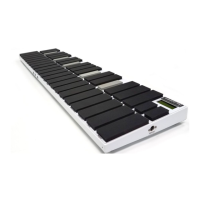
These are the little pads on the far right of the malletKAT. In PLAY MODE, hitting the pads allow you to
ADVANCE or go BACKWARDS to the next Setup. You need to hit them twice to start the Setup changing, but
once you do, one hit moves the Setup one kit back or forwards.
When the TAP TEMPO / GROOVE is ENABLED, hitting the BACWARDS pad twice with the EDIT Footswitch
down will determine the new Tempo. The screen will display the new tempo after the pad is struck twice.
When the TAP TEMPO/ GROOVE is Enabled, hitting the FORWARD pad toggles the GROOVE ON or OFF.
74 / 109


 To Next Page