Wizard 411 29
II – 1 Installation Setup
8 Use the Up or Down arrow keys or the numeric keys to move the
cursor to the correction point to be added or changed. Press ENTER.
8 Enter the known error which exists at this point. Press ENTER.
8 When completed, press C key to exit the table and return to the Error
Compensation form.
Reading the Graph
The error compensation table may be viewed in table or graphical
formats. The graph shows a plot of a translation error vs. measured
value. The graph has a fixed scale. As the cursor is moved through the
form, the location of the point on the graph is indicated with a vertical
line.
Viewing the Compensation Table
8 Press the EDIT TABLE soft key.
8 To switch between the table and graph views, press the VIEW soft
key.
8 Press the UP OR DOWN ARROW keys or the numeric keys to move the
cursor within the table.
The error compensation table data may be saved to or loaded from a
PC via the USB port.
Exporting the Current Compensation Table
8 Press the EDIT TABLE soft key
8 Press the IMPORT/EXPORT soft key.
8 Press the EXPORT TABLE soft key.
Importing a New Compensation Table
8 Press the EDIT TABLE soft key.
8 Press the IMPORT/EXPORT soft key.
8 Press the IMPORT TABLE soft key.
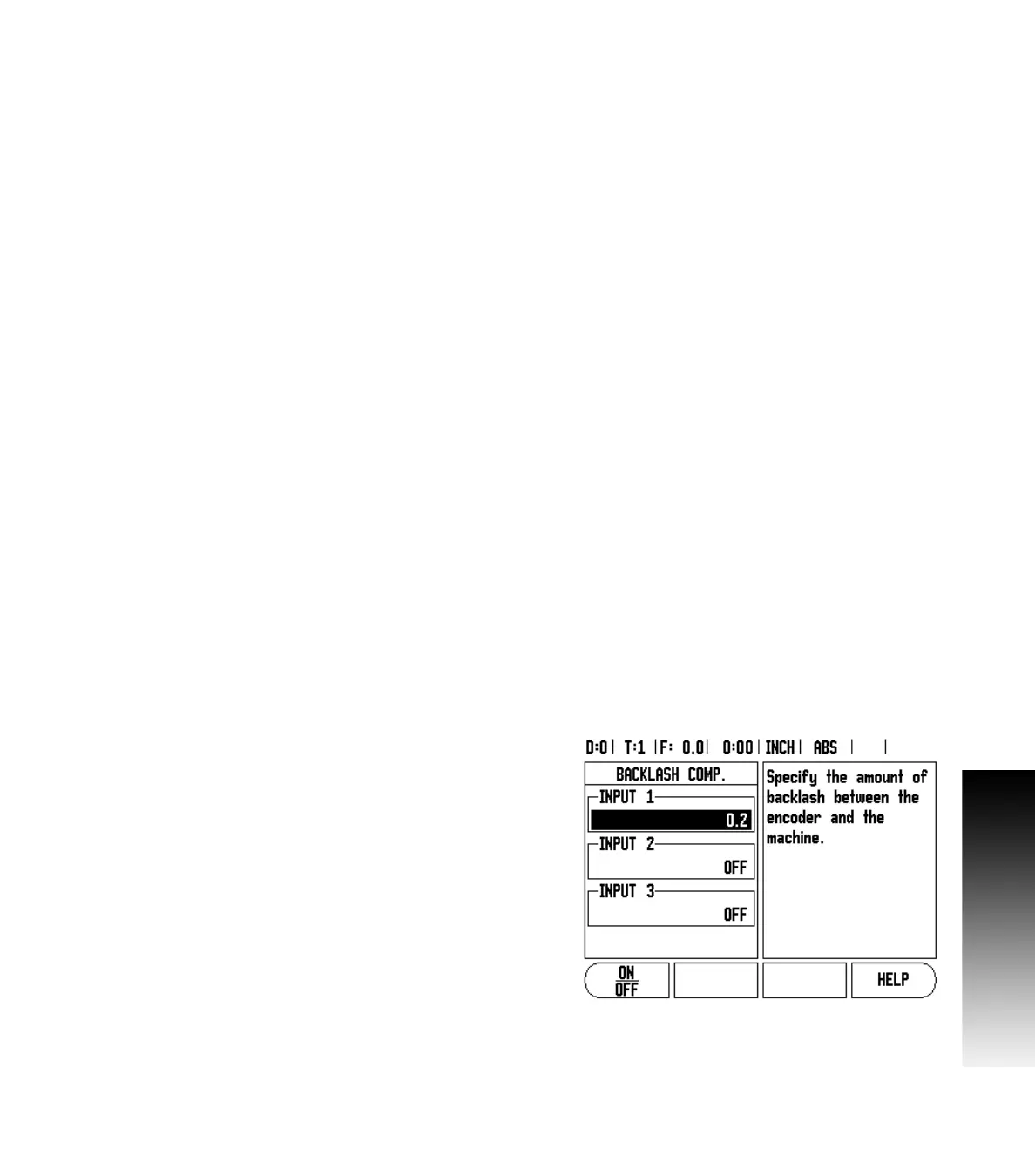
Backlash Compensation
When using a rotary encoder with a lead screw, a change in direction
of the table might cause an error in the displayed position due to
clearances within the lead screw assembly. This clearance is referred
to as backlash. This error can be compensated for by inputting the
amount of backlash within the lead screw into the Backlash
Compensation feature. See Fig. II.7.
If the rotary encoder is ahead of the table (displayed value is greater
than the table’s true position), this is called positive backlash and the
value entered should be the positive value of the amount of error.
No Backlash Compensation is 0.000.
Fig. II.7 Backlash compensation form



 To Next Page