Diagnostics
-Definition DVR DCX3520e-M • Installation Manual
-095-25080-x.1
Diagnostics are displayed on the on-screen display (OSD) and front-panel display. They confirm proper
installation, including:
• Checking error states and signal integrity
• Identifying the cable terminal on the network
• Verifying communications with the headend
For the diagnostics described in this section:
• All indicators are in decimal notation, unless otherwise noted.
• All signal-level and quality indicators use a 1% to 100% scale, unless otherwise noted.
• All sample displays are illustrative; actual data may differ from the examples.
Using the Diagnostics
To use the diagnostics:
1. Ensure that the DCX3520e-M is installed with the Thin Client software and that it is connected to an
AC outlet.
2. Ensure the set-top is powered on.
3. Press power to put the set-top in stand-by mode. Within two (2) seconds, press select on the
remote control to enable the diagnostic mode.
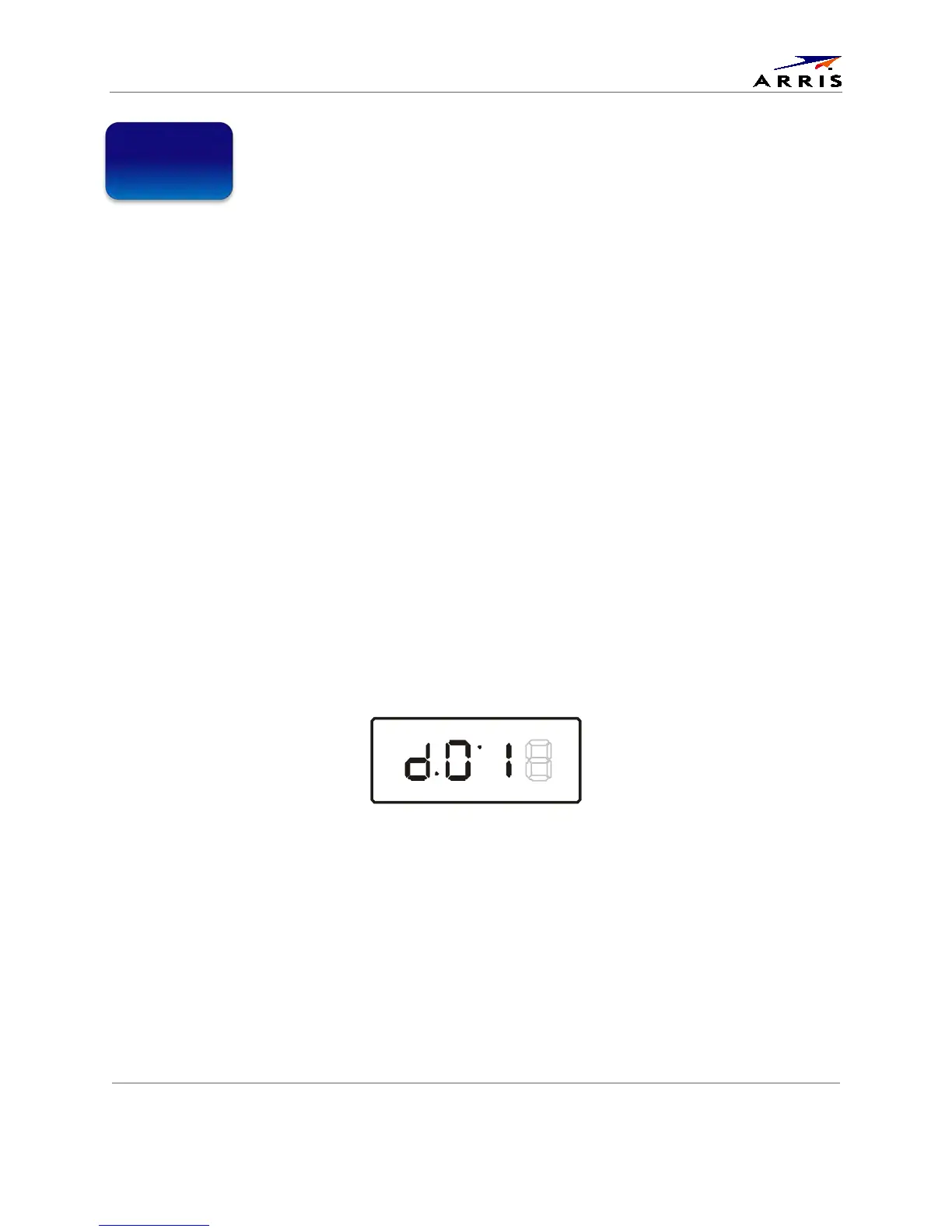
4. The Diagnostics main menu is displayed on the OSD, and d01 is displayed on the front panel:
You can use the following keys on the remote control to navigate the diagnostics menus:
• Press channel ▲, channel ▼, cursor ▲, or cursor ▼ to select d01 through E.
• Press cursor ◄, cursor ►, select or enter to execute the selected diagnostic.
• Select E from the main menu or press power to exit.
5



 To Next Page