Playlists are then further organized into Songs, which in turn have Presets for each song.
You can then send them into AstroLab, where they show up as Playlists with the same
Songs and Presets. We cover this in detail in the chapter devoted to Playlists [p.45].
3.5. Filtering Shortcuts
You can browse Presets by category (Type, Instrument, My Library, or Sound Banks) without
always going to the Home Screen. When in Preset Mode, simply press the Screen Encoder
to see a list of Presets filtered by the currently selected category.
Also, If you’re browsing by something other than Types, you can press one of the Preset
Type buttons to add its filter to the results. For example, you could be looking all Presets
that use the SEM V Instrument. Press Strings and you’ll now see only SEM V Presets tagged
Strings.
Long-pressing the button will let you select and add a Subtype.
3.6. Saving Presets
To save any changes you’ve made to a Preset (e.g., by turning the Macro or FX knobs),
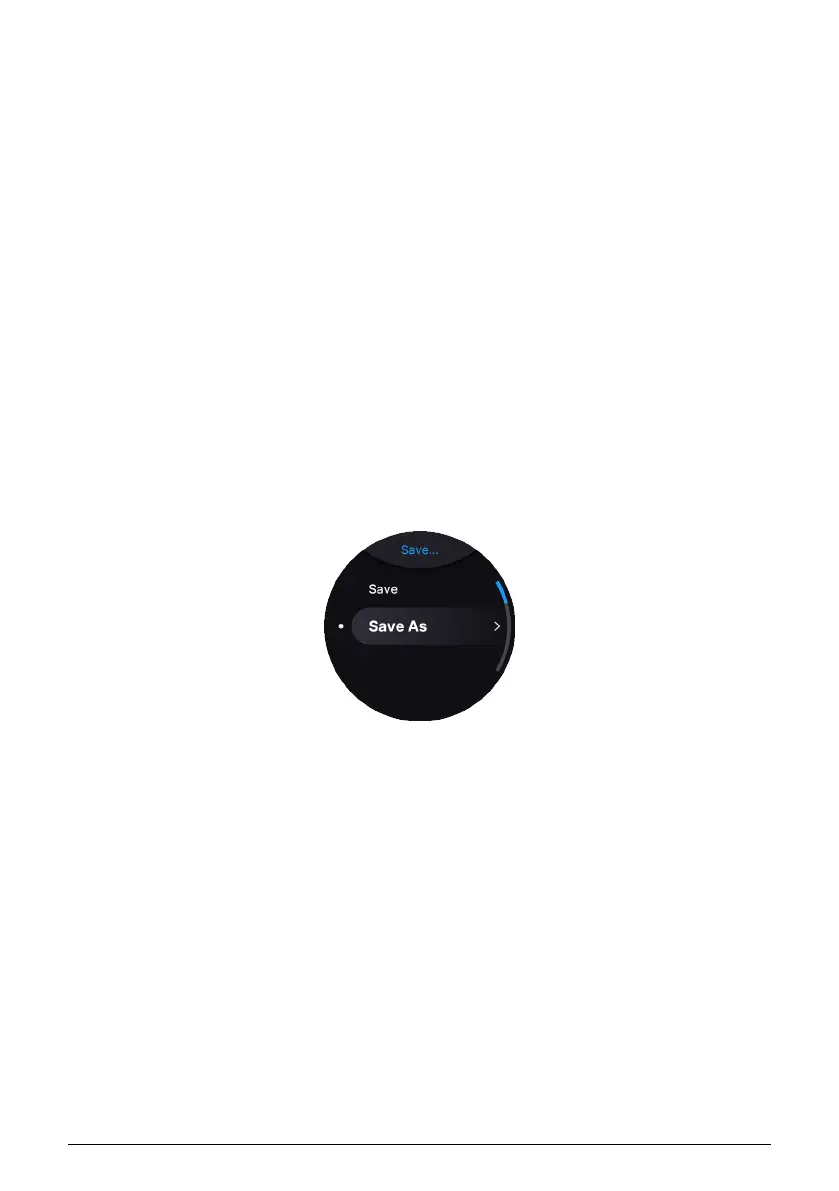
quickly press the Shift plus Playlist buttons. This will bring up a menu:
• Save: Use the same Preset name, thus over-writing the original Preset.
• Save As: Give your edited Preset a new name and keep the original Preset.
3.6.1. Quick Save
To save a Preset without changing the Type/Subtype, simply hold Shift plus Playlist until the
screen displays “Saving Preset.”
22 Arturia - User Manual AstroLab - BASIC OPERATIONS



 To Next Page