7.2.2. Exiting Playlist Mode
When in Playlist mode, press the Playlist button again to return to the regular Preset View.
The last Preset that was used before you entered Playlist mode will be loaded.
The next time you enter Playlist mode, the most recently used Playlist, Song, and Preset are
reloaded.
7.3. Creating and Populating a New Playlist
If Analog Lab is not at arm’s reach for making Playlists, you can create Playlists directly
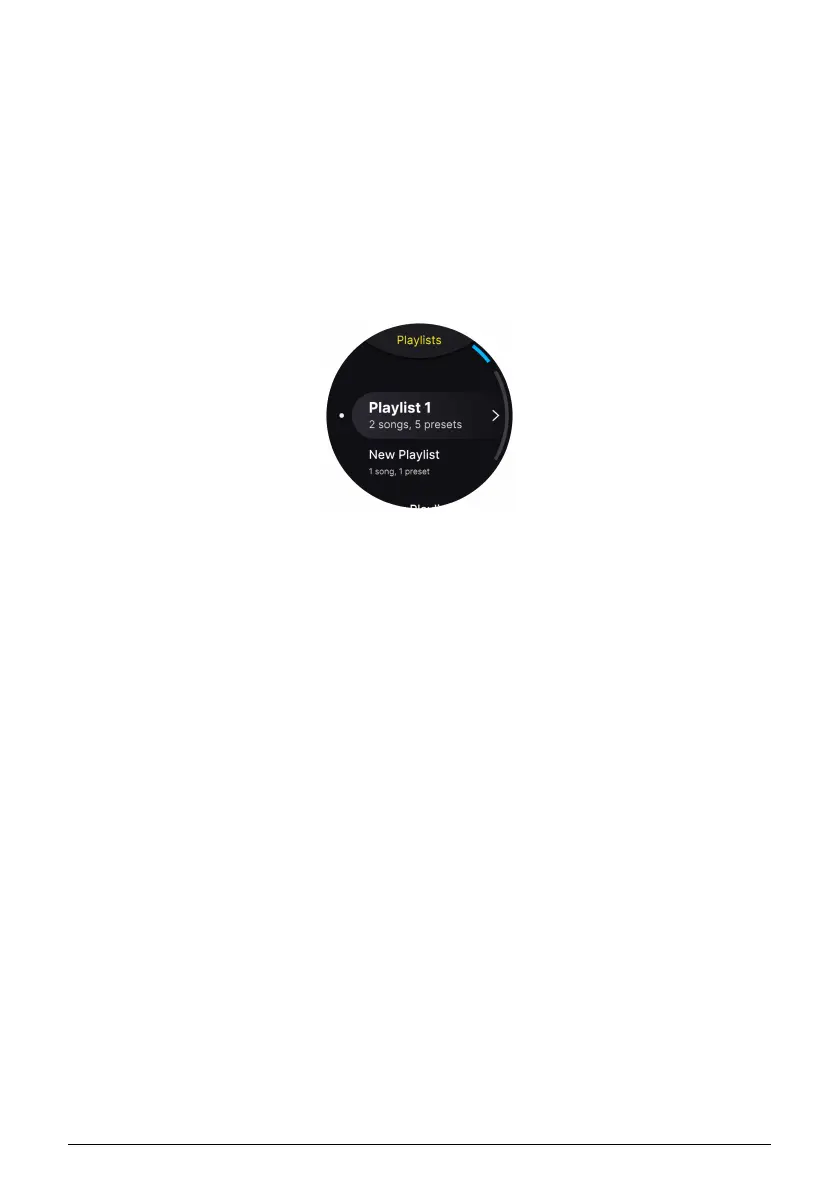
on AstroLab. First, navigate again to the Playlists list from the Home Screen. If a Playlist is
open, you can also simply press the Back button:
Turn the Screen Encoder clockwise until you see the “+ New Playlist” option. Choose it,
and a new empty playlist is created. The display will prompt you to enter a name using
the onscreen text editor [p.23]. Once you’ve accepted the name, the display will read “Add
Presets to this Playlist and organize them into Songs.”
7.3.1. Enter Preset/Song Edit Menu
Long-press or Shift-press the Screen Encoder to enter an edit menu with the following
options:
• Move Preset
• Rename Preset
• Delete Preset
• Move Song
• Rename Song
• Delete Song
• New Song
7.3.1.1. Move a Preset
As the menu shows, you can move in an entire existing song, but if you’re starting from
a “blank slate” you have two options: either create a new Song or move in the first Preset
and think about Songs later. There’s no rule that says you must use Songs — it’s possible to
create a Song-less Playlist consisting only of Presets — so it’s up to you.
46 Arturia - User Manual AstroLab - PLAYLISTS



 To Next Page