SECTION 3
OPERATING THE ASTROJET M1
23
Printer Driver Properties
The Printer Driver for the Printer works the same as any other Printer Driver for Windows. It does have
some enhancements to help you maximize the ability of the Printer to print variable addressed pieces
quickly and efficiently.
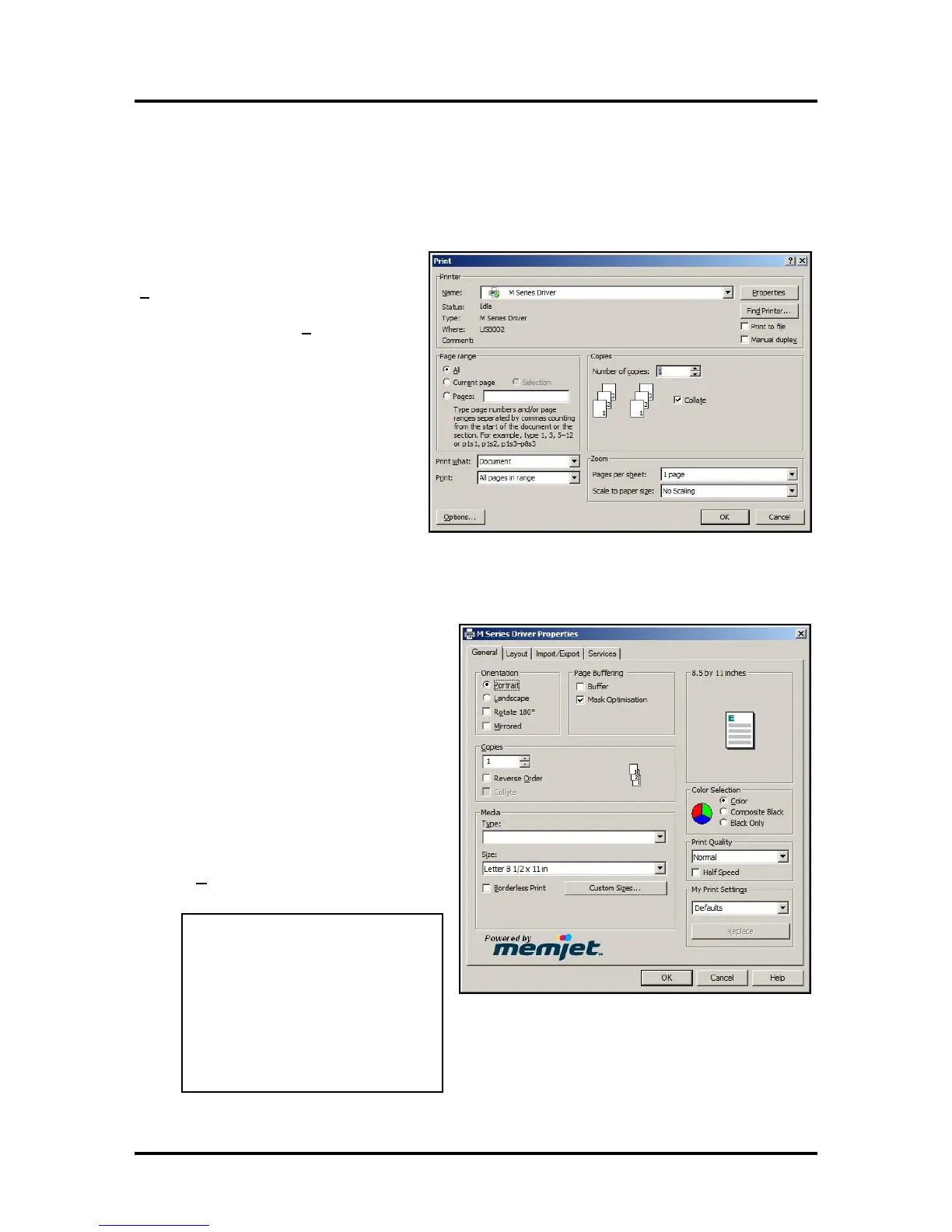
Windows XP, Vista, Windows 7,
Windows 8: Once the job is set up, click
File, then Print. The window at right
opens. Make sure the M Series Driver is the
selected Printer. Clicking Properties opens
the “Properties” window.
General Tab
The General tab lets you select:
Orientation – Portrait (default),
Landscape, Rotate 180° and Mirrored.
Page Buffering – Loads entire print
job before printing starts. Mask
Optimization (checked is default)
optimizes images for printing in most
applications.
NOTE: Some applications (like
FlexMail) may display image
boundaries when printed, unchecking
the Mask Optimization box eliminates
these lines. (Remember to check box
when changing applications.)
Copies – Enter the number of copies to
be printed.
NOTE: Default setting (Reverse
Order unchecked) prints the job
starting with the first page. Printing
starts as soon as first page loads.
Reverse Order allows the job to start
printing from the last page. Since the
entire job has to load into the Printer
before printing starts, large jobs may
take longer to load.


 To Next Page