SECTION 3
OPERATING THE ASTROJET M1
27
Using the Printer Toolbox
Once the Printer Driver is installed you have access to the Printer Toolbox. The Toolbox lets you check
printer status, monitor ink usage, perform diagnostic checks, print reports and run maintenance tasks on the
Printer from your computer.
To open the Toolbox:
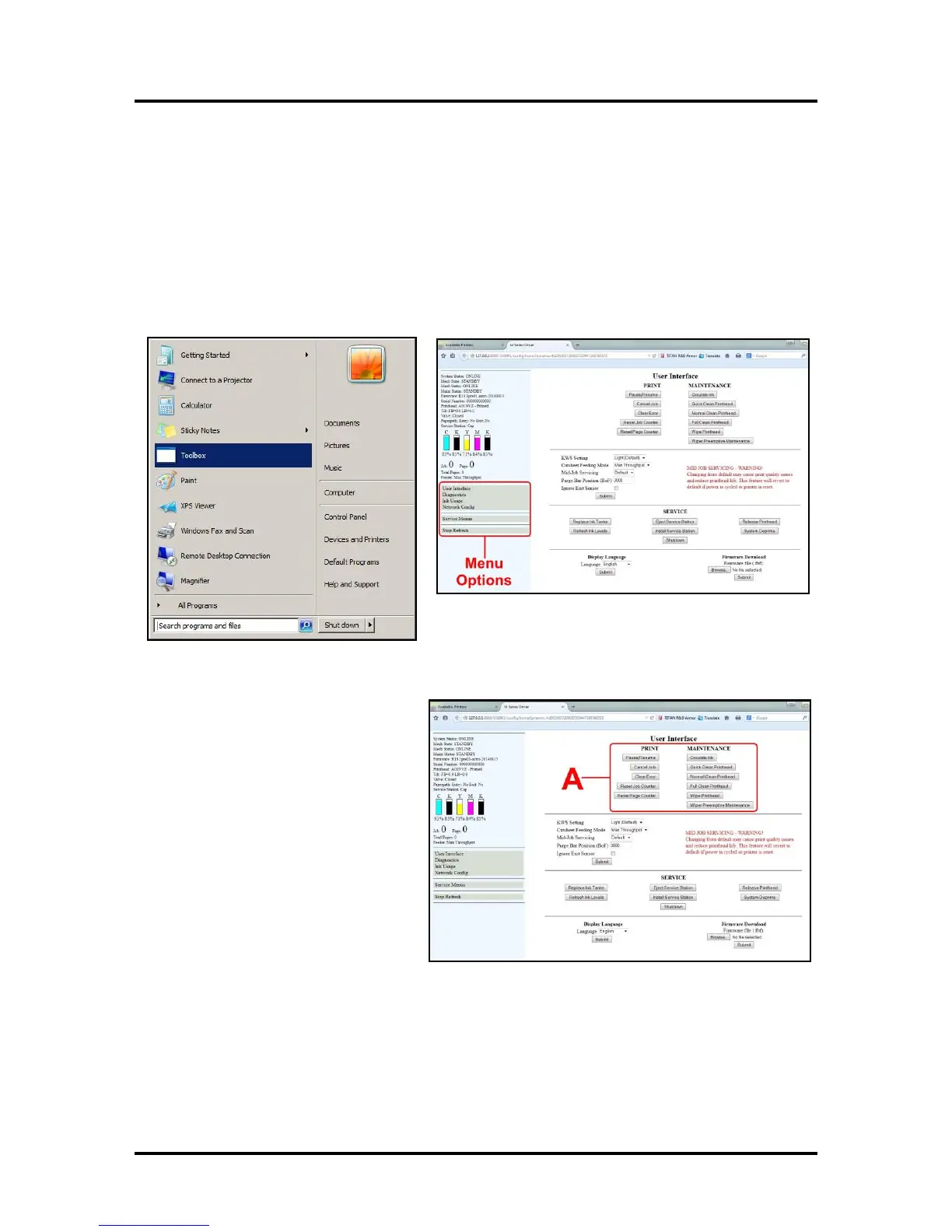
Open the Start Menu then click on Toolbox. When the User Interface window opens you will find a series
of Menu Options you can click on at the lower left of the screen. You can check the Printer Status in the
upper left part of the screen.
User Interface
[A] Screen Buttons: Perform maintenance
and operating tasks.
PRINT buttons:
Pause/Resume, Cancel a Job, Clear
Errors, Reset the Job Counter, and Reset
the Page Counter.
MAINTENANCE buttons:
Circulate Ink – Purges air from the lines
and primes the system after replacing the
Ink Tanks or Printhead Cartridge.
Quick Clean Printhead – Circulates ink,
wipes and cleans the Printhead Cartridge.
Normal Clean Printhead – Runs
cleaning and wiping routine twice for better flushing and cleaning.
Full Clean Printhead – Runs the cleaning routine multiple times for the most thorough flushing and
cleaning of the Printhead.
Wipe Printhead – Activates the Service Station to wipe the Printhead.
Wiper Preemptive Maintenance – Re-saturates the Wiper with ink to remove dried residue if the Printer
is inactive for long periods of time.


 To Next Page