SECTION 5
TROUBLESHOOTING
57
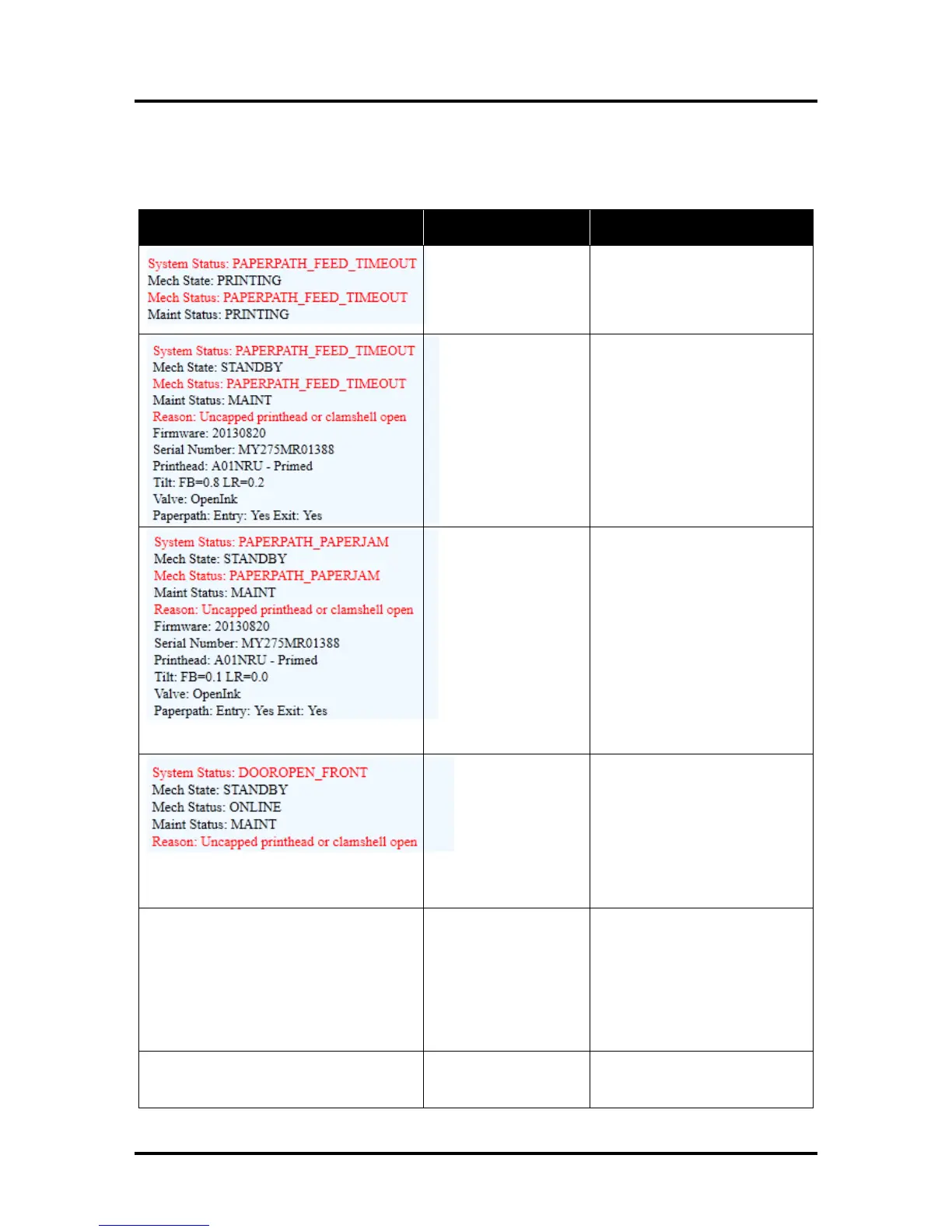
Toolbox System Status Messages
Displayed in red in the M Series Toolbox utility.
(Valid for printers with firmware version 20130820 or higher installed.)
Out of Paper
Media is not reaching
the Print Engine.
Hesitation in media
feed.
Load media into Printer and
press the PAPER button to
resume printing.
If media is present; check/adjust
the Guides and Separators.
Paper Jam
When “Out of Paper”
error is shown in
combination with
“Uncapped Printhead”
or “Clamshell open”
error, a Paper Jam is
indicated.
Paper/Media jam
detected.
Printer has detected
that one (or both) of the
media sensors are
blocked (interrupted).
Carefully remove jammed media
from Printer and close the Print
Engine. The System Status
message in red should go away.
The Toolbox “Paperpath” line
should change to:
Paperpath: Entry: No Exit: No
After jam is cleared, you can:
Press PAPER to resume
printing.
Press CANCEL to cancel the job
then manually clear the job from
the computer’s print queue.
Indicates that the
“Clamshell” is open.
Sensor cable
unplugged P202.
Verify that the Clamshell is
closed and securely latched on
both sides. Make sure that the
Clamshell switch (located on
opposite side) is activated by the
Clamshell Lever.
Use the Scan Sensors in the
Toolbox to check that Clamshell
switch is functioning.
Media is not moving
from the Entry Sensor
to the Exit Sensor
within a specified time.
Possible issue with
format or orientation of
job being sent.
Dirty Encoder Wheel.
Check/clean Transport Rollers.
Check/clean the Sensors.
Try changing the orientation
setting in the software/driver or
setting a different media size.
Check/clean the Encoder Wheel.
If problem persists contact
technical support.
X = Color.
One or more Ink Tanks
are low on ink.
Ink Tank replacement will be
necessary soon. Reorder Ink.


 To Next Page