SECTION 5
TROUBLESHOOTING
56
Errors and Warnings
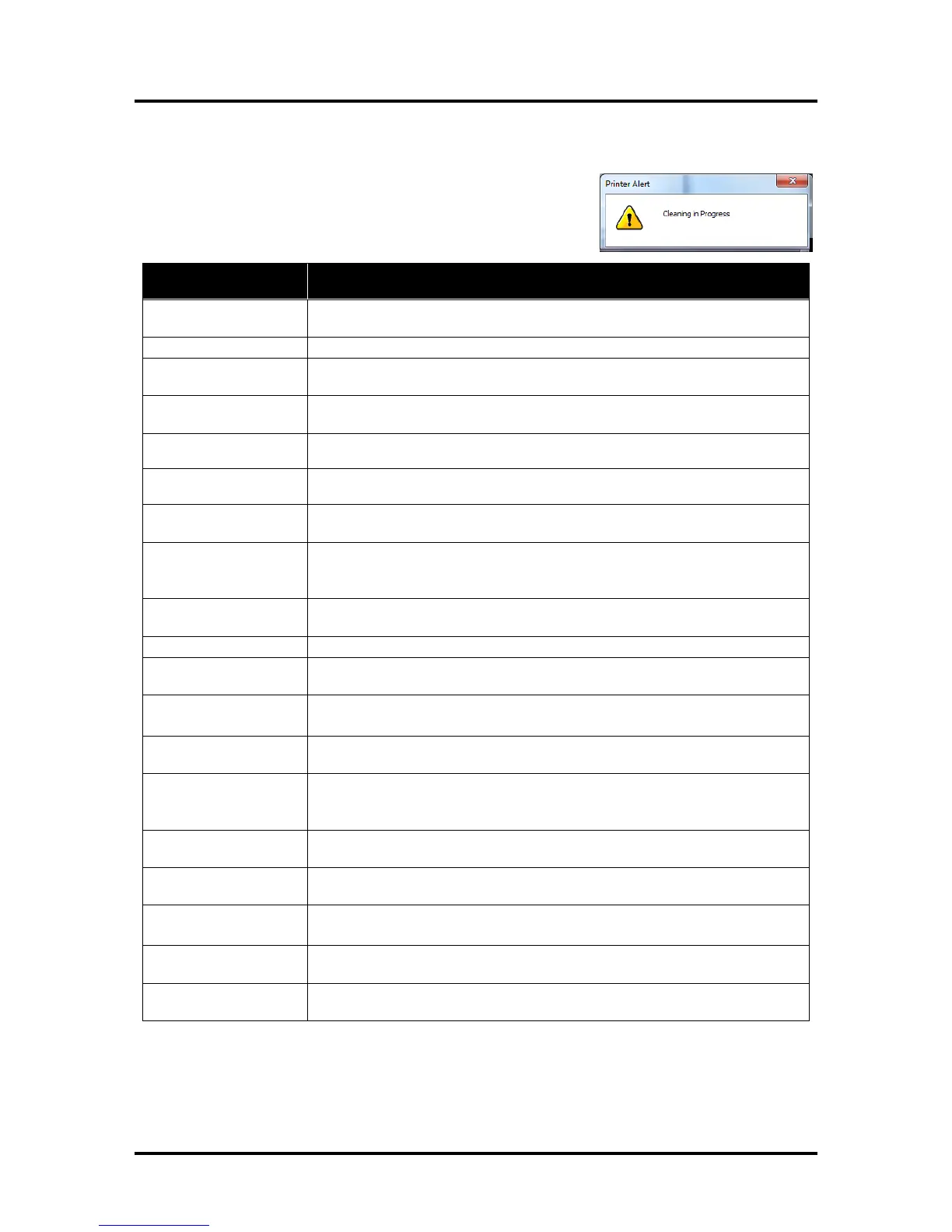
Printer Alert Window Messages
Messages sent from the driver and displayed on PC screen in a small
popup window.
Wait until the message disappears. The Printer will start printing your job once
the cleaning process is complete.
See details under “Toolbox System Status Messages” section.
Remove and reinsert your Printhead Cartridge. Replace Printhead. Printhead
Cartridges must be purchased from authorized supplier for this printer model.
Replace Ink Tank. Ink Tanks must be purchased from authorized supplier for
this printer model.
…. Ink Low
Example: Black Ink Low
…. Out of Ink
Example: Cyan Ink Out
Out of Paper. Load paper into the Printer and press the PAPER button to
resume printing.
Check for and remove the obstruction, then press the PAPER button to
resume printing.
Check/Clean Sensors. If problem persists contact technical support.
Remove Printhead Cartridge. Check/clean electrical contacts. Reinsert
Printhead. Replace Printhead. If problem persists contact technical support.
Multiple Ink Tanks are
missing
Insert missing Ink Tanks.
Clean electrical contacts and reseat Ink Tanks.
Multiple Unauthorized
Ink Tanks
Remove and reinsert Ink Tank. Replace Ink Tank. Ink Tanks must be
purchased from authorized supplier for this printer model.
Remove jammed media. Check for proper feed setup then press the PAPER
button to resume printing.
Check/Clean Sensors. If problem persists contact technical support.
Ensure that Printhead Cartridge has been inserted properly then close the
Printhead Latch so it locks.
Print Zone Assembly
(Clamshell) Open
Check to be sure the Clamshell is completely closed and latched. Make sure
Print Engine Latches are secure.
The … Ink Tank is
missing
Insert missing Ink Tank.
Clean electrical contacts and reseat Ink Tank.
Unauthorized … Ink
Tank Installed
Ink Tanks must be purchased from authorized supplier for this printer model.
Printhead Cartridges must be purchased from authorized supplier for this
printer model.


 To Next Page